
Add Google Translate in WordPress

o add Google Translate to your WordPress website, follow these easy steps:
Option 1: Using a Plugin
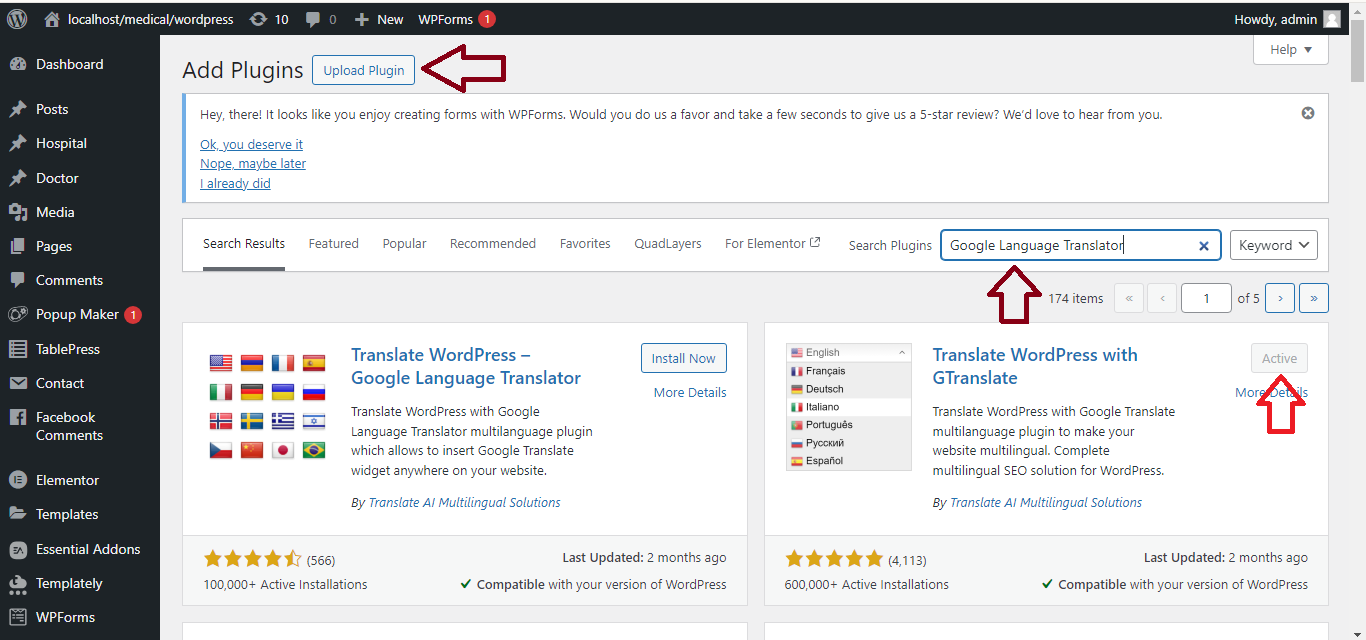
Step 1: Install the “TranslatePress” or “Google Language Translator” Plugin
- Log in to your WordPress Dashboard.
- Go to Plugins > Add New.
- In the search bar, type Google Language Translator or TranslatePress.
- Find the plugin and click Install Now.
- Once installed, click Activate.
Step 2: Configure the Plugin
- After activation, go to Settings > Google Language Translator (or TranslatePress).
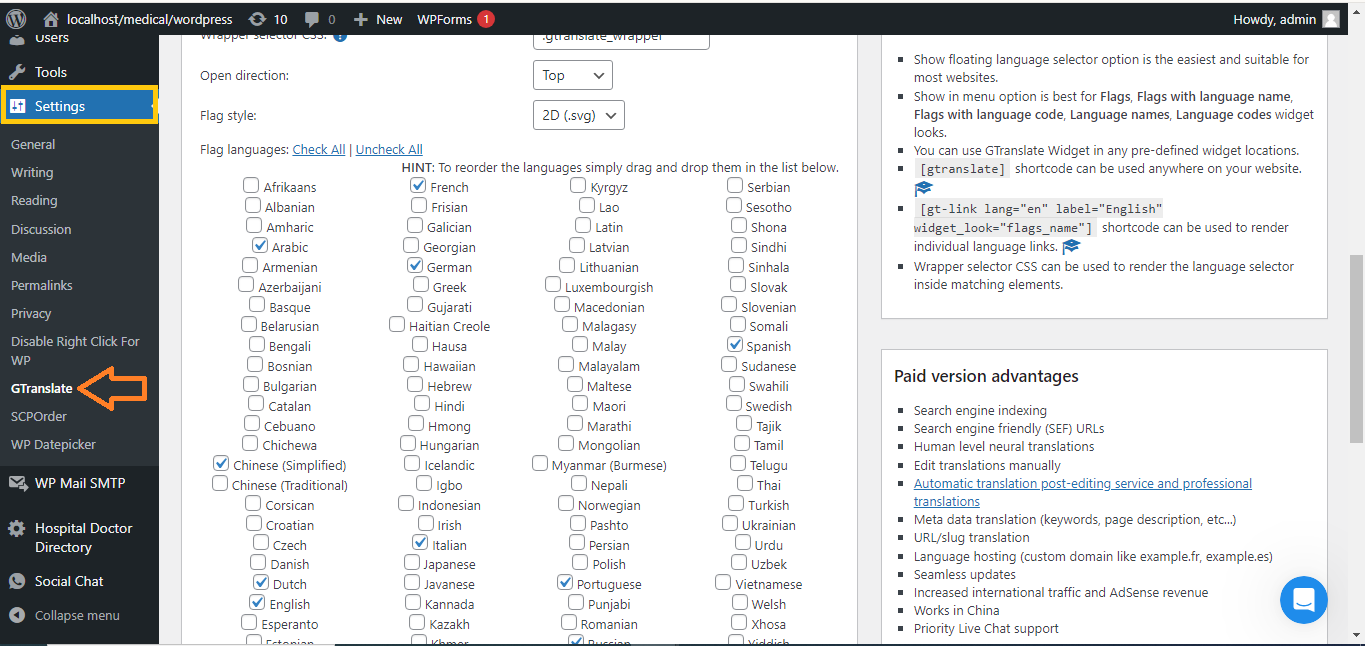
- In the settings, enable the Google Translate option.
- Select the languages you want to make available for translation (e.g., English, Spanish, French, etc.).
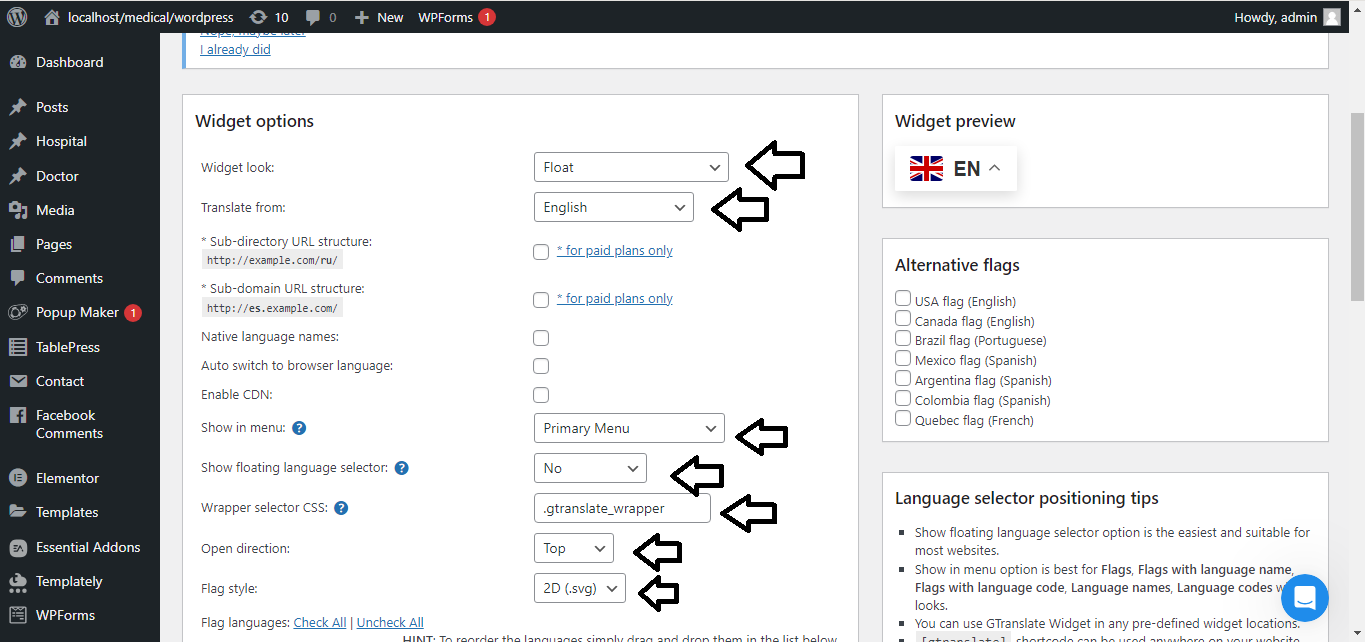
- Customize the appearance of the translation widget:
- You can choose where the Google Translate dropdown will appear (header, footer, or widget).
- Select a flag display or dropdown menu.
Step 3: Add the Google Translate Widget
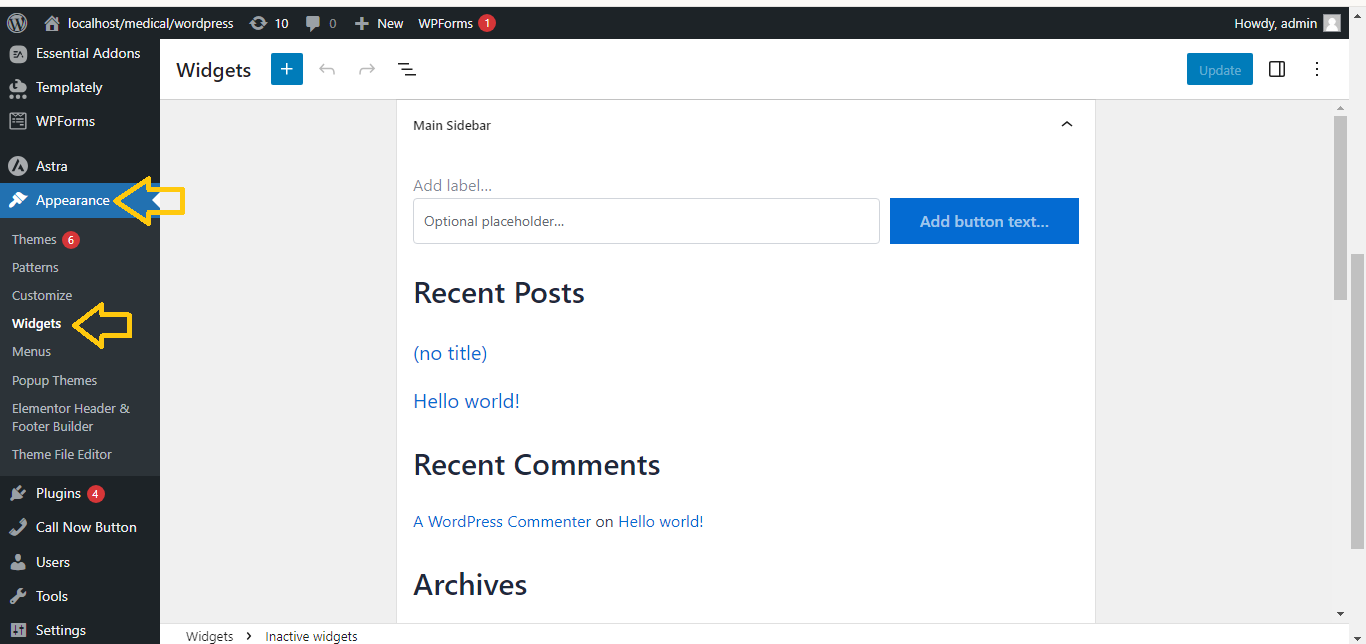
- Go to Appearance > Widgets.
- Find the Google Language Translator widget (or similar from the plugin) and drag it to your desired widget area (like the sidebar or footer).
- Save the widget.
Step 4: Test the Translation
- Visit your website to see the Google Translate widget.
- Select a language to ensure the translation works properly.


