How to create categories and add them to the menu?

To create categories and add them to the menu in WordPress, follow these steps:
1. Create Categories
Step 1: Access WordPress Dashboard
- Log in to your WordPress admin panel.

Step 2: Navigate to Categories
- Go to
Posts>Categories.

Step 3: Add a New Category
- On the Categories page, you’ll see fields to add a new category:
- Name: Enter the name of the category.
- Slug: (Optional) Enter a URL-friendly version of the name.
- Parent Category: If you want this category to be a subcategory, select a parent category.
- Description: (Optional) Enter a description for the category.
- Click the Add New Category button to create the category.

2. Add Categories to the Menu
Step 1: Navigate to Menus
- Go to
Appearance>Menusin your WordPress dashboard.
Step 2: Select the Menu
- Choose the menu where you want to add the categories from the dropdown list and click Select.

Step 3: Add Categories to the Menu
- On the left side, you’ll see a pane titled Categories. If you don’t see it, ensure the Categories box is checked under Screen Options (top-right corner).
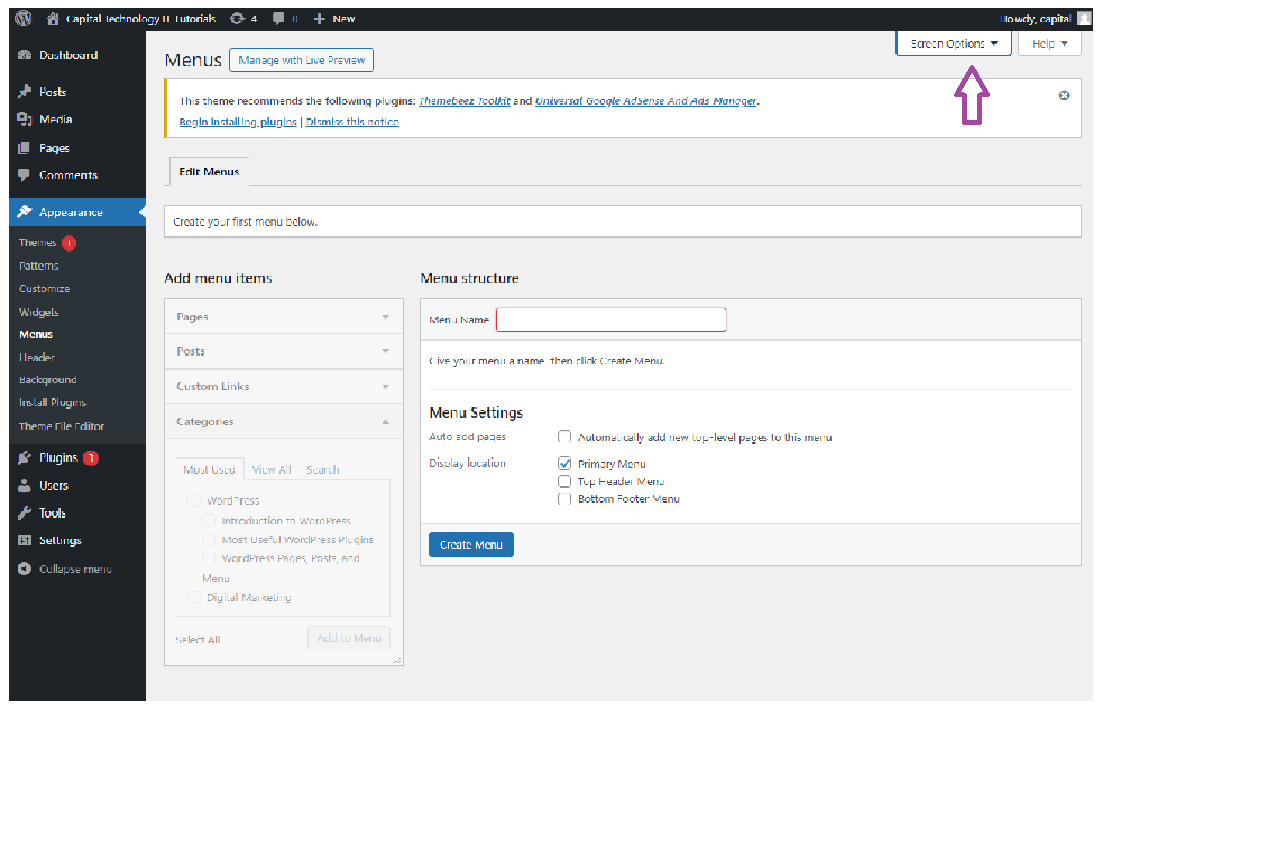
- Expand the Categories section, and you’ll see a list of your categories.
- Select the categories you want to add to the menu by checking the box next to each category.
- Click Add to Menu.

Step 4: Organize Menu Items
- After adding the categories, they’ll appear on the right side under Menu Structure.
- Drag and drop to rearrange the order of items or to nest items under others.
- Click Save Menu to save your changes.


