
Add MAP with Elementor

Adding a map with Elementor is straightforward. Follow these simple steps:
Step 1: Open Elementor Editor
- In your WordPress dashboard, go to Pages or Posts.
- Select the page or post you want to edit.
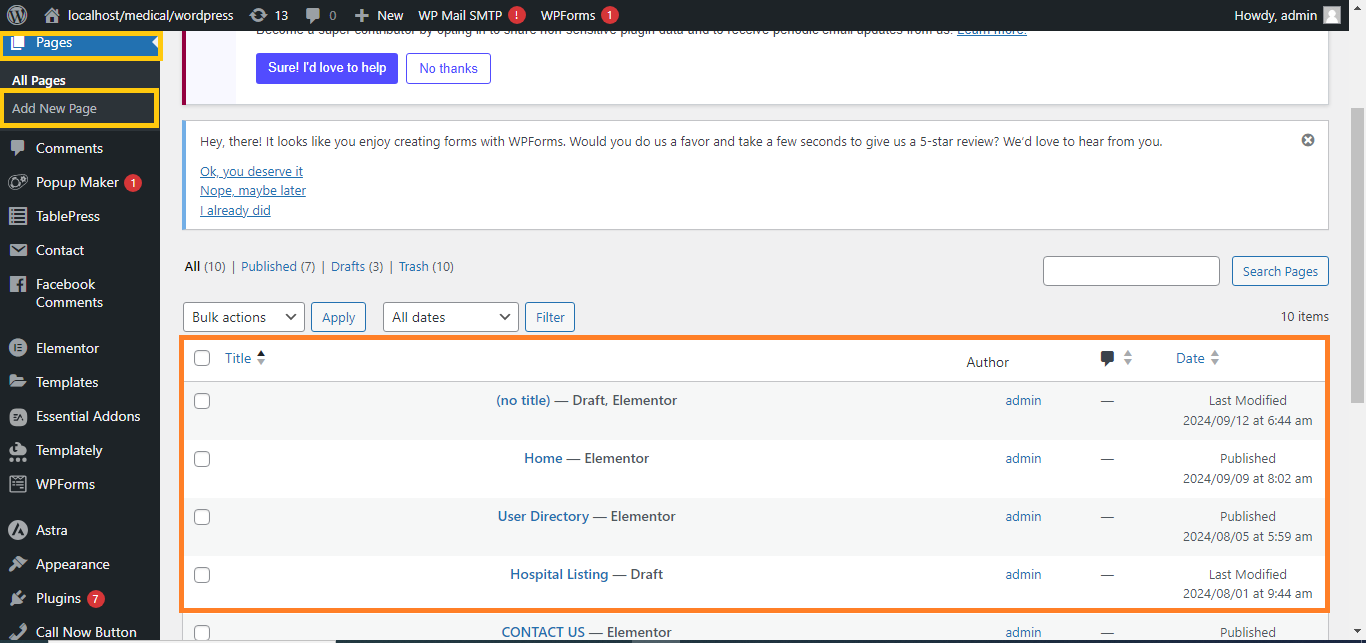
- Click Edit with Elementor.

Step 2: Add a Google Maps Widget
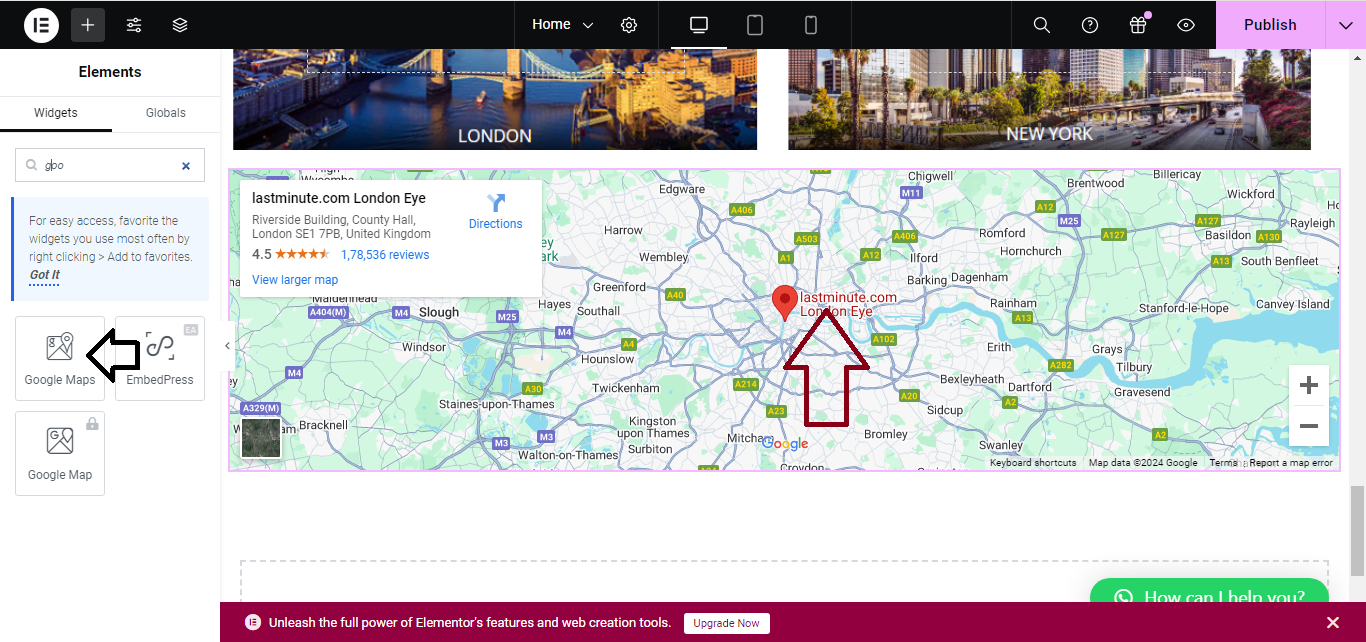
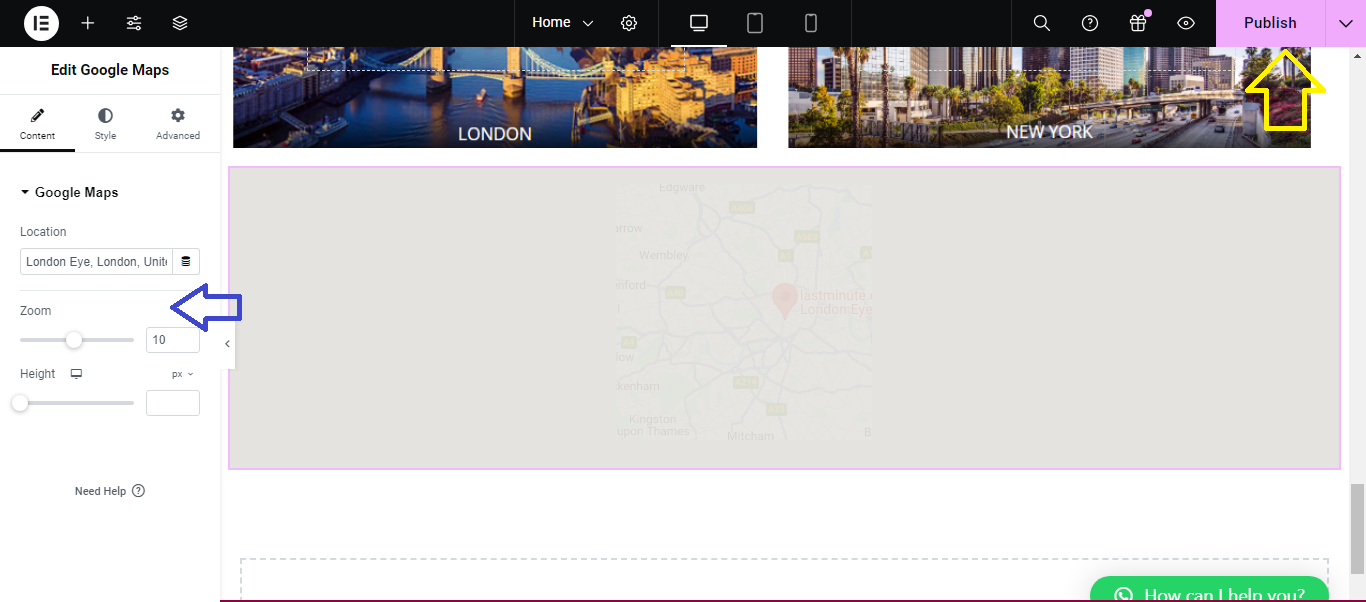
- In the Elementor editor, locate the Google Maps widget in the left panel.
- Drag and drop the Google Maps widget onto your page where you want the map to appear.
Step 3: Enter Your Location
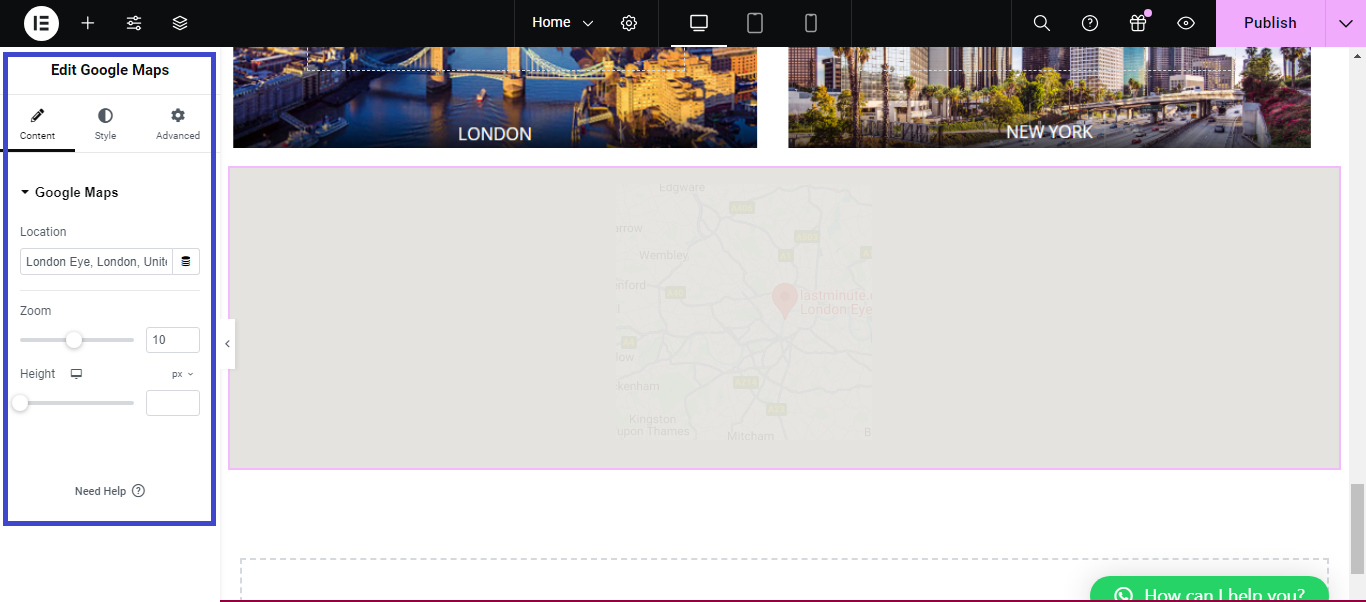
- In the Content tab on the left panel, enter your desired location or address in the Location field.
- The map will automatically update to show the specified location.
Step 4: Customize the Map
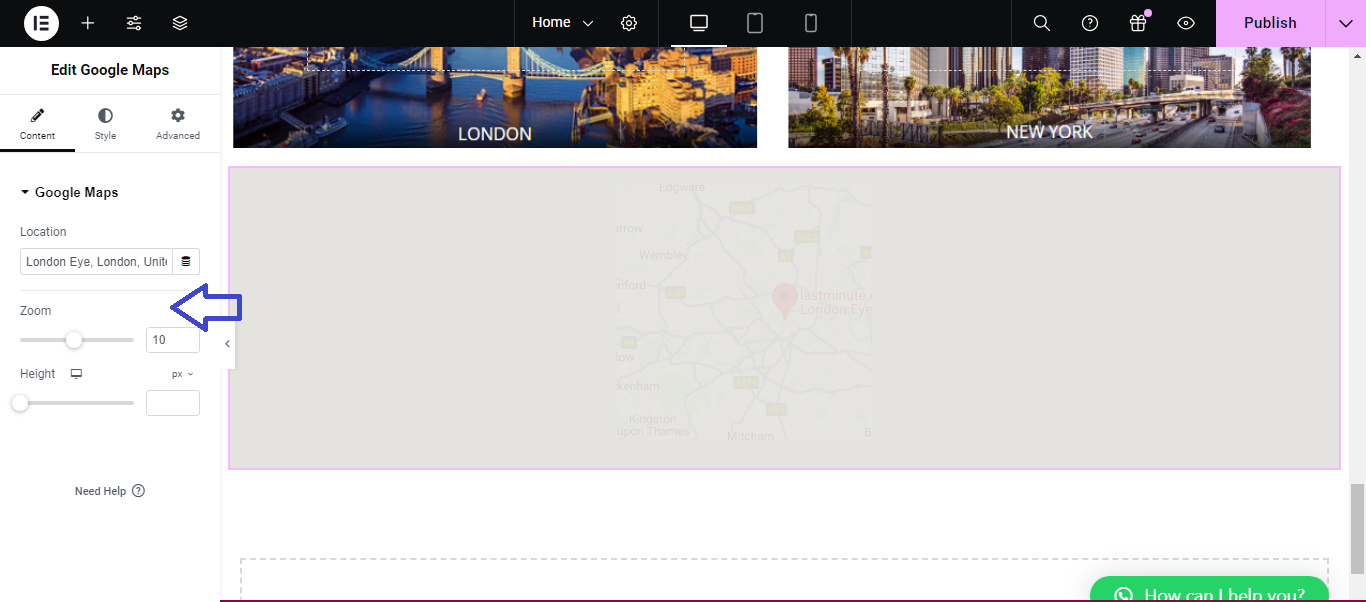
- You can adjust the Zoom Level to make the map closer or farther away.
- Optionally, enable or disable features like scrolling or dragging under the Options section.
Step 5: Style the Map (Optional)
- Go to the Style tab to customize the map’s height or add a border around it if needed.
Step 6: Save Your Work
- Once you’ve added the map and customized it, click Update at the bottom of the page to save your changes.
That’s it! You’ve successfully added a map to your page using Elementor.


