Adding Spacer

To add a Spacer in Elementor, follow these simple steps:
- Open the Elementor Editor:
- Go to the page you want to edit and click the Edit with Elementor button.

- Locate the Spacer Widget:
- In the Elementor panel (on the left), search for “Spacer” in the widget search bar.

- Drag and Drop:
- Drag the Spacer widget to the section where you want to add space.


- Adjust the Height:
- After dropping the widget, you can adjust the height of the spacer by moving the Height slider or entering a specific value in the Height field.

- Preview and Save:
- Once you’re happy with the spacing, click Preview to see how it looks. Finally, click Update to save the changes.
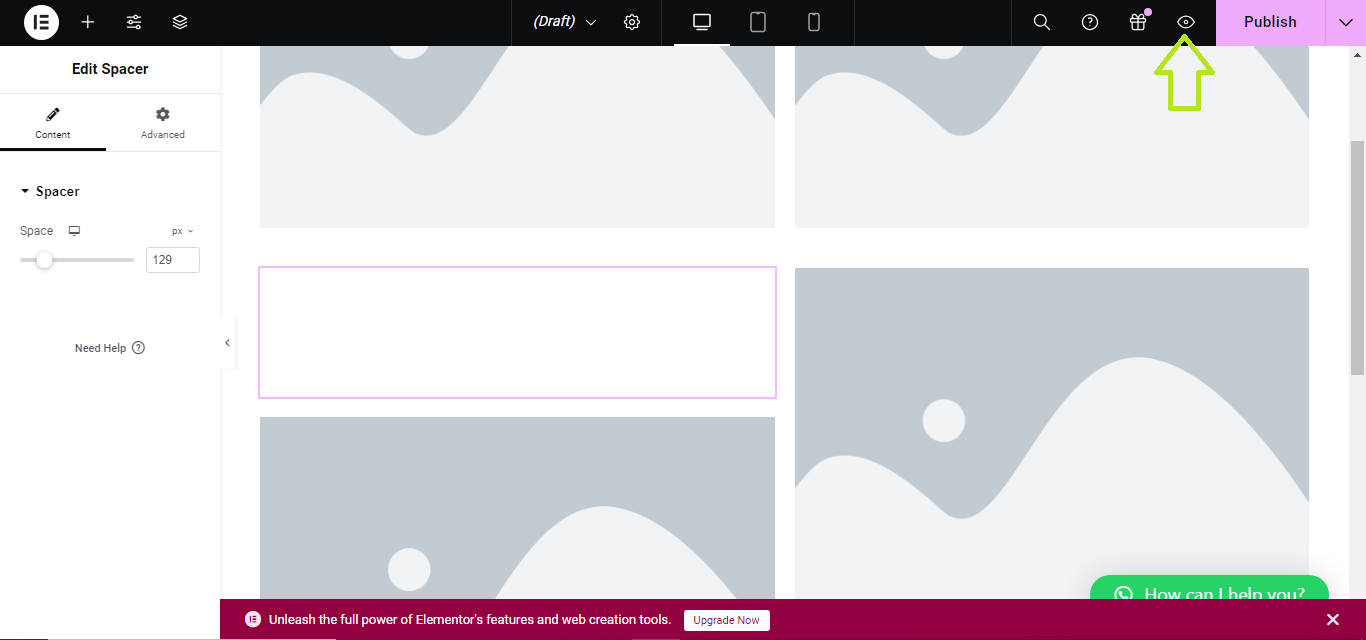
That’s it! You’ve successfully added a spacer to your Elementor page.


