Adding Icons and Icon box

Adding Icons in Elementor:
- Open Elementor Editor:
- Navigate to the page where you want to add an icon and click Edit with Elementor.

- Search for the Icon Widget:
- In the Elementor panel (on the left), search for “Icon.”
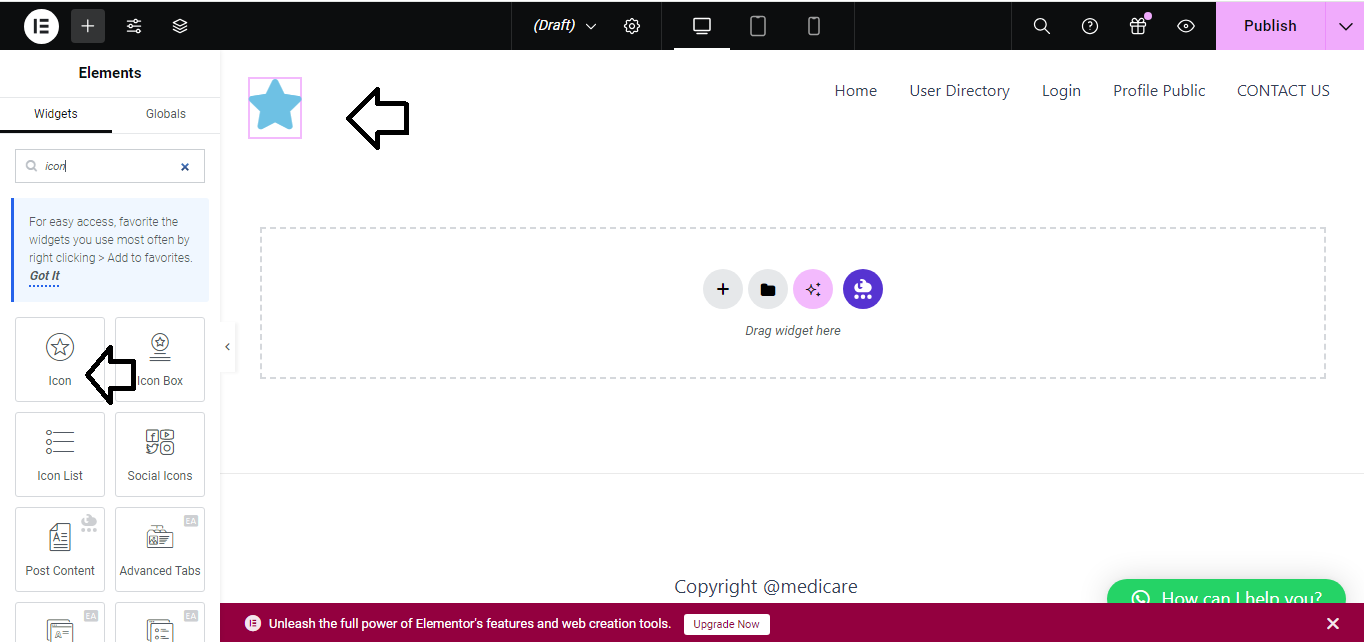
- Drag and Drop the Icon Widget:
- Drag the Icon widget to your desired location on the page.
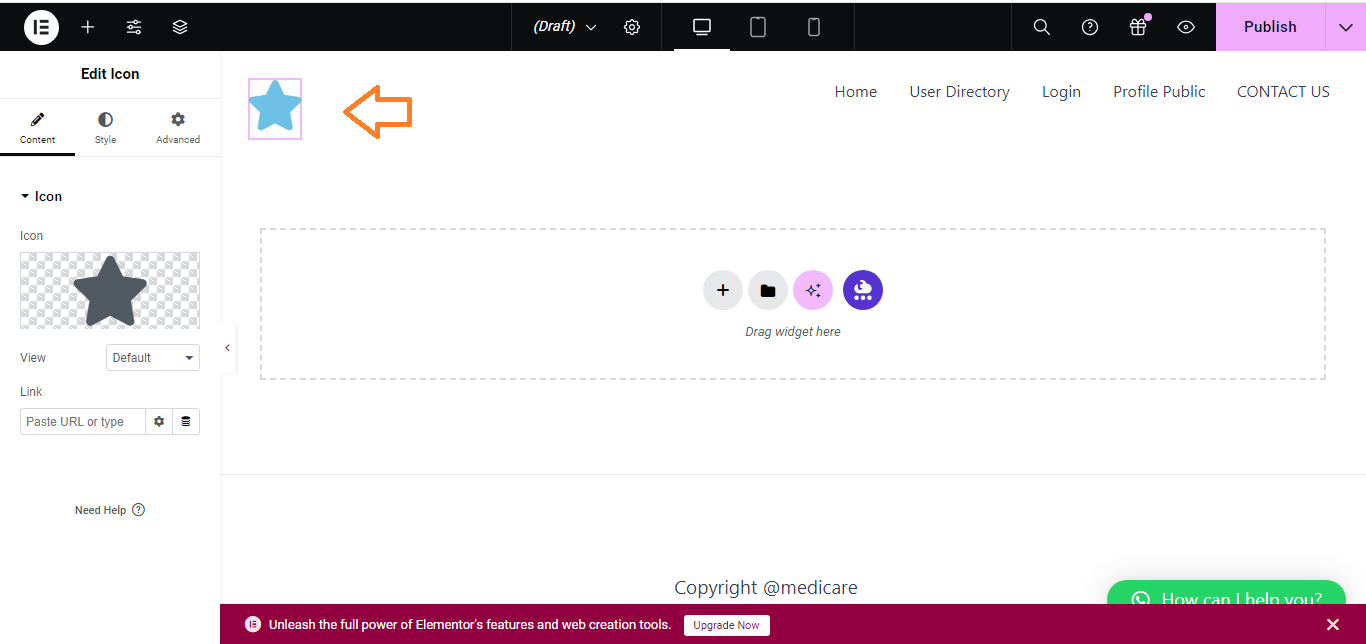
- Choose an Icon:
- Under the Content tab, click the Icon Library button to select an icon from Elementor’s library. You can also upload your own SVG icon.
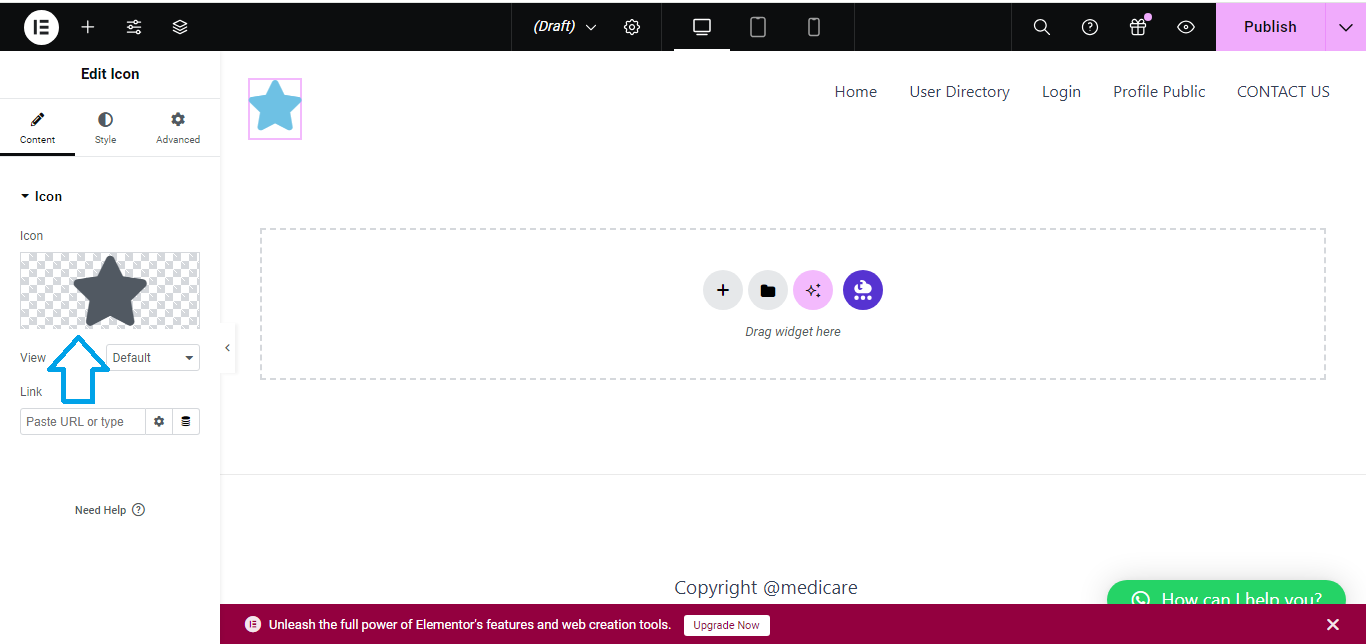
- Customize the Icon:
- Adjust the size, color, and alignment from the Style tab to match your design.
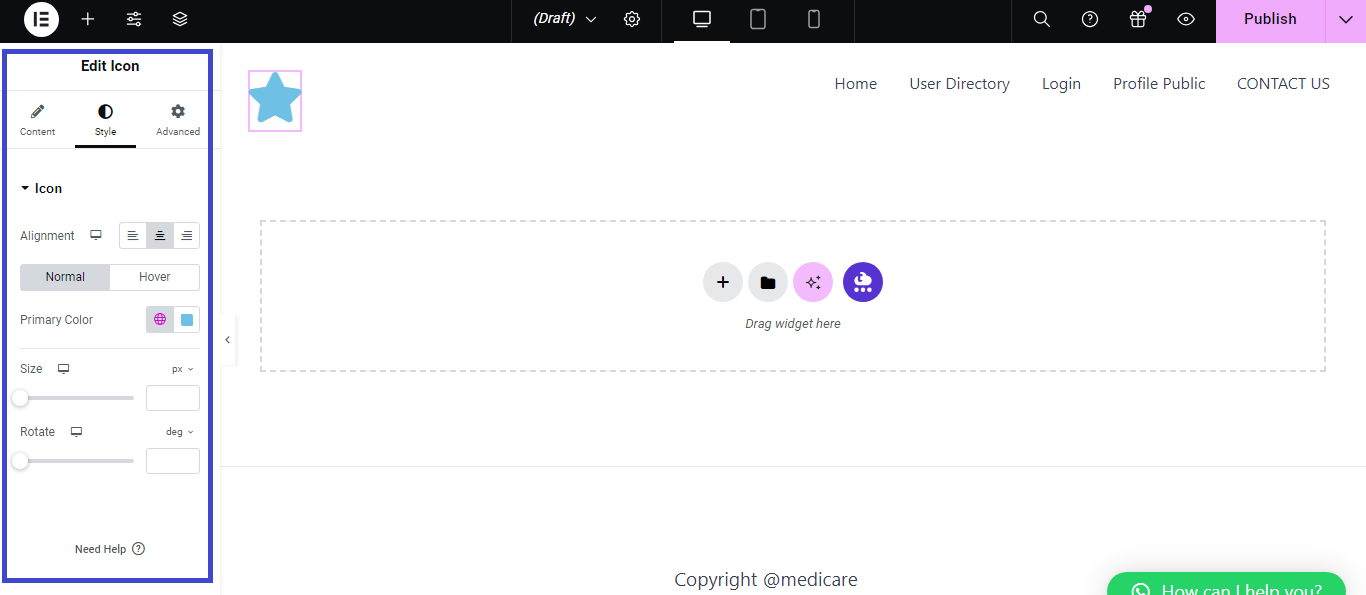
- Preview and Save:
- Preview your changes and click Update to save.
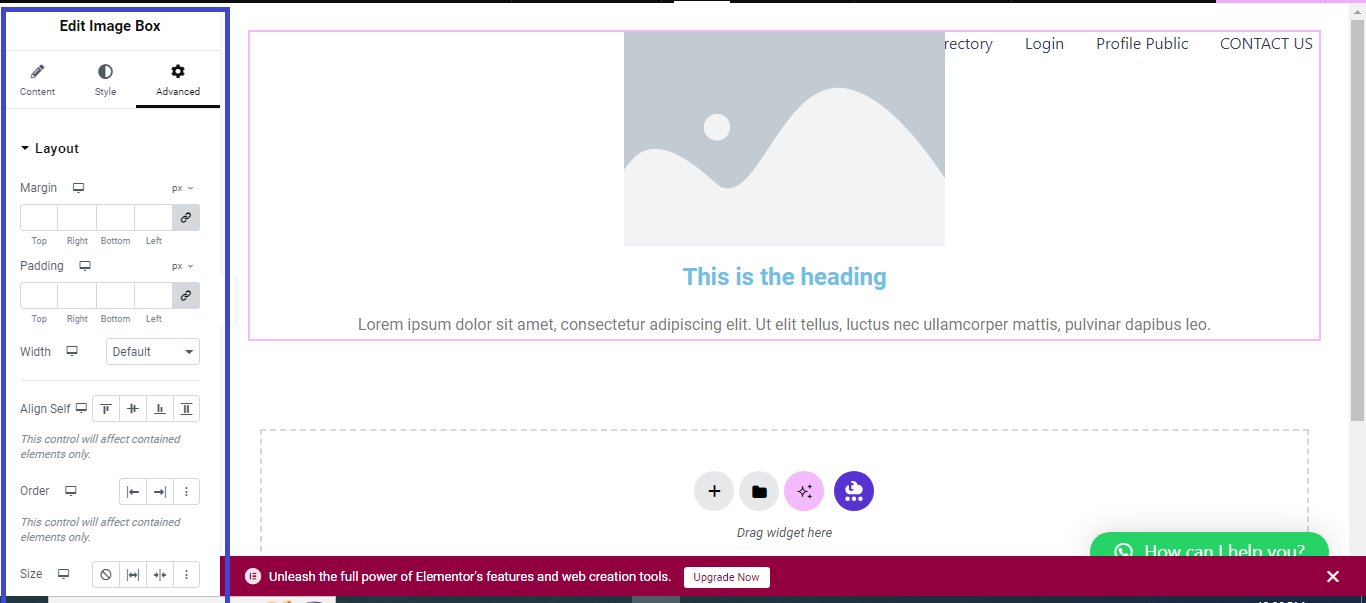
Adding Icon Box in Elementor:
- Open Elementor Editor:
- Go to the page you want to edit and select Edit with Elementor.
- Search for the Icon Box Widget:
- In the widget search bar, type “Icon Box.”
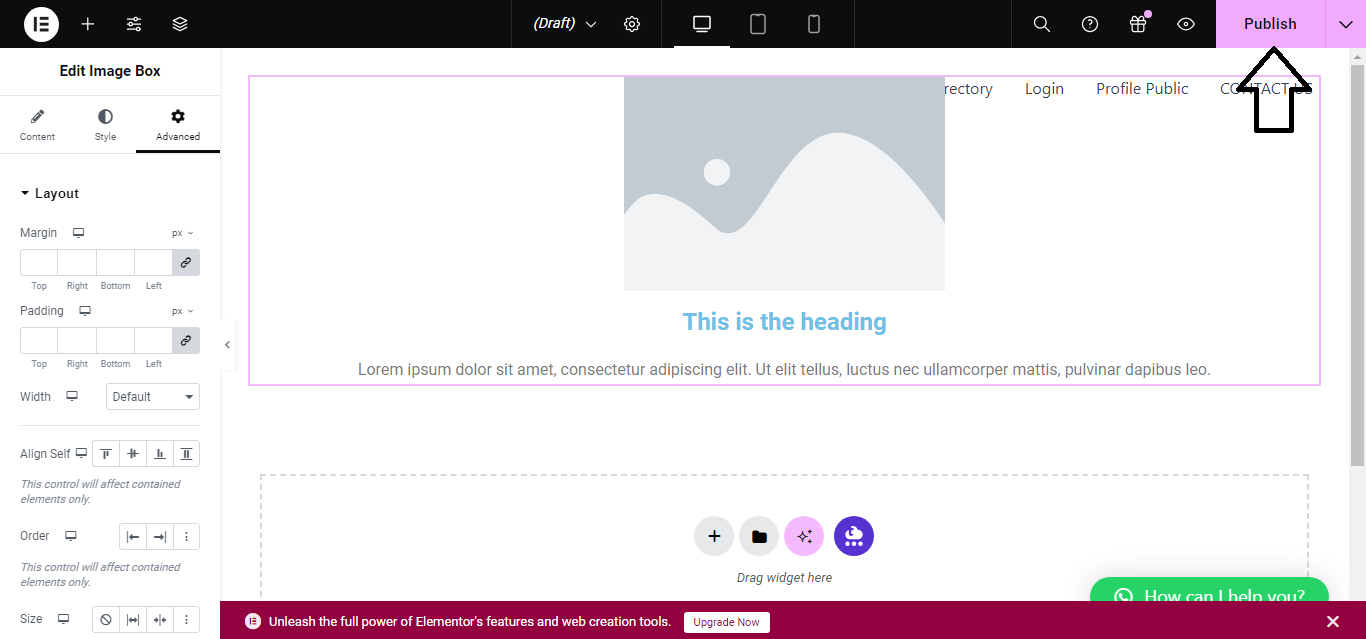
- Drag and Drop the Icon Box:
- Drag the Icon Box widget to your desired location on the page.
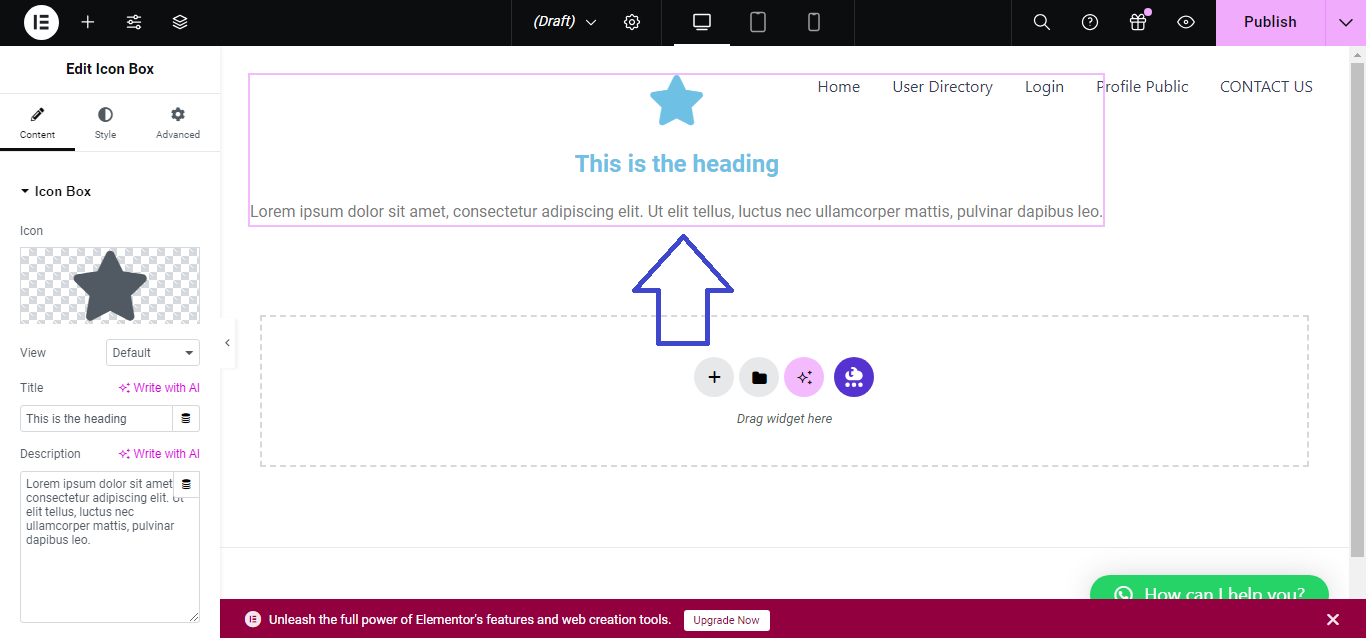
- Customize Icon Box Content:
- In the Content tab:
- Choose an icon from the Icon Library.
- Add a title and description under the Title and Description fields.
- In the Content tab:
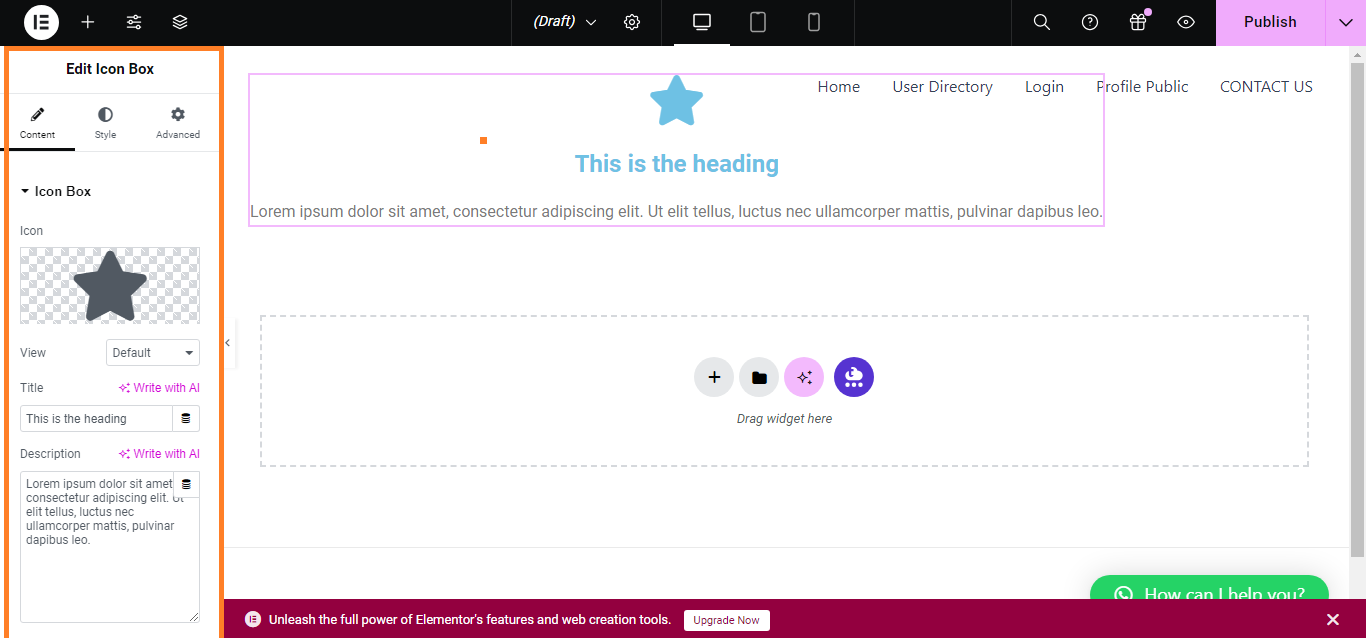
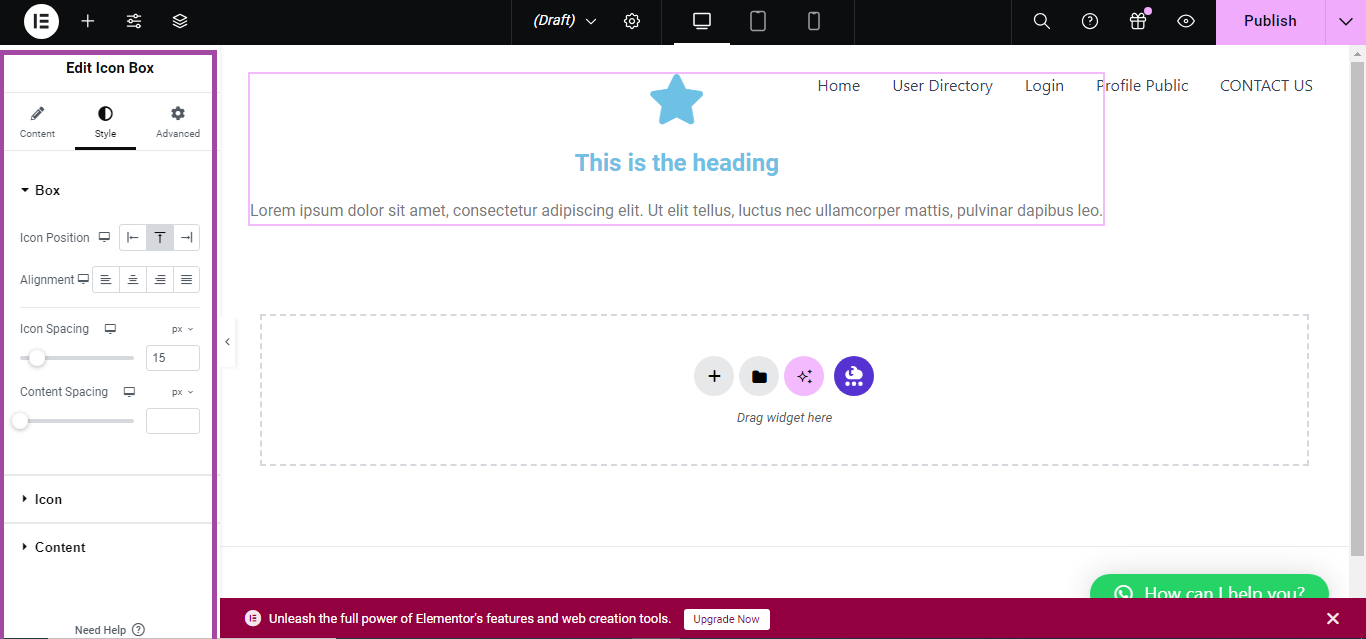
- Style the Icon Box:
- Go to the Style tab to adjust the icon size, color, spacing, and typography for the title and description.
- Preview and Save:
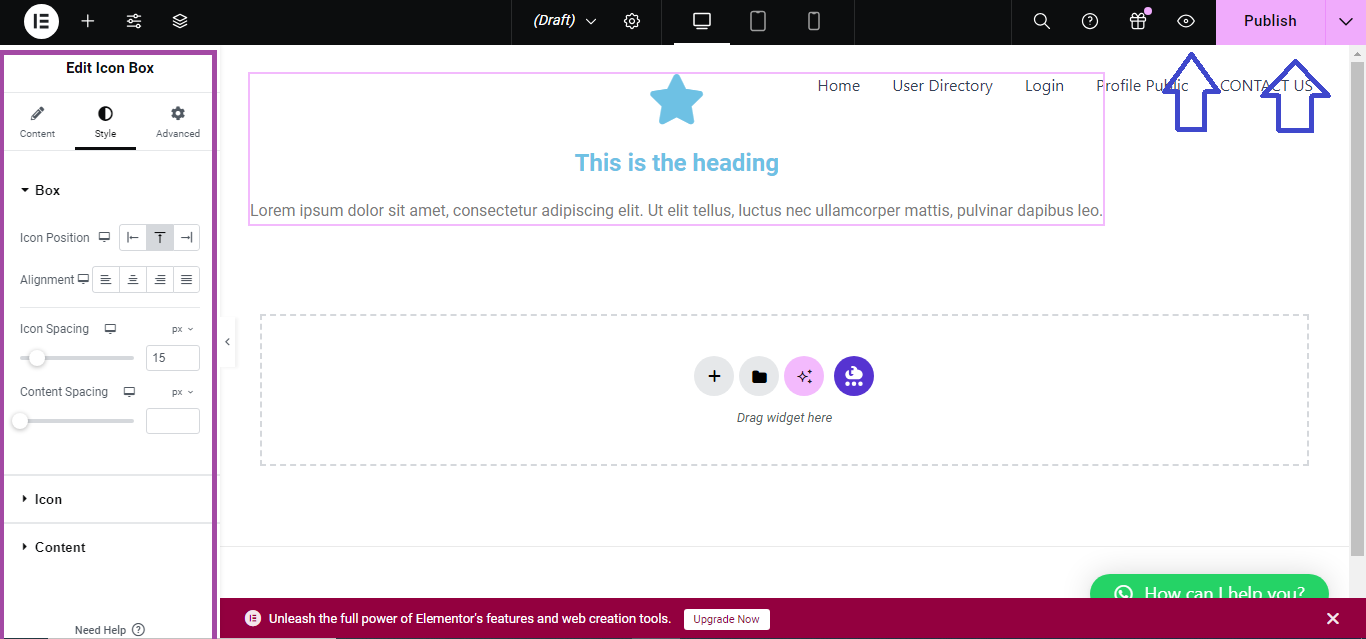
- Once done, click Preview to see how it looks, and then Update to save the changes.
That’s it! You’ve successfully added icons or an icon box to your Elementor page.


