Create Coupons with WooCommerce

To create coupons with WooCommerce in Elementor, follow these easy and simple steps:
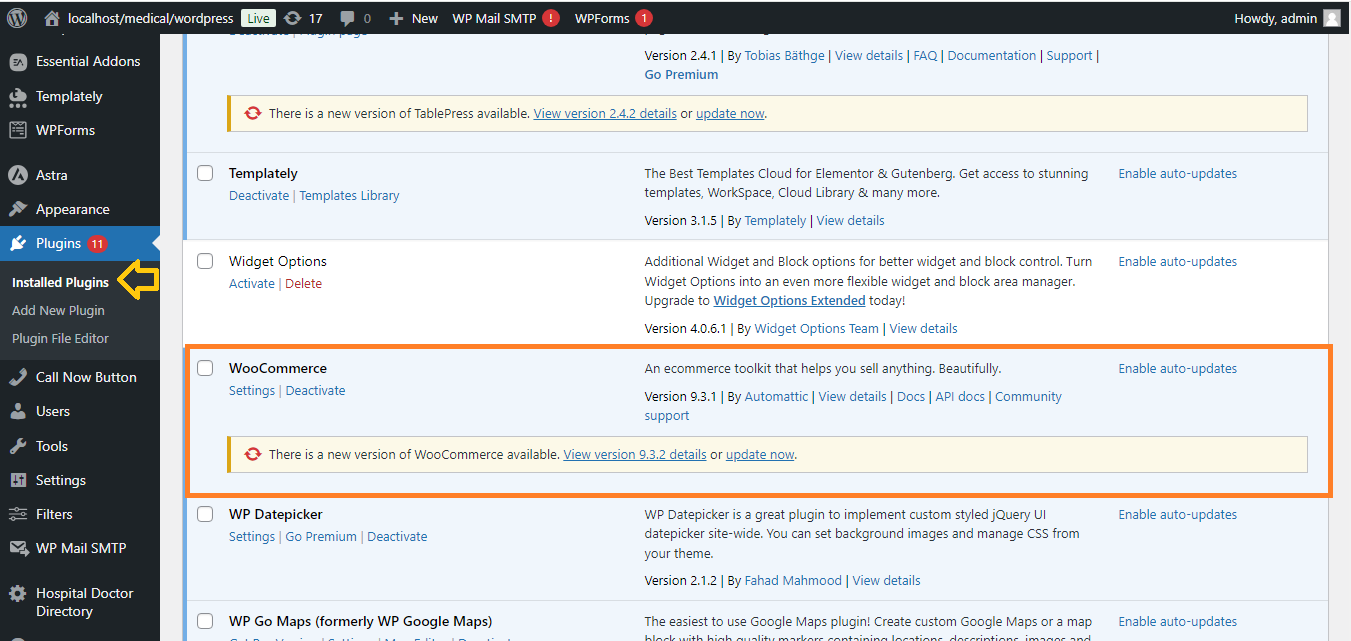
Step 1: Install WooCommerce and Elementor
- Make sure you have WooCommerce and Elementor installed and activated on your WordPress site.
Step 2: Enable WooCommerce Coupons
- Go to your WordPress dashboard.
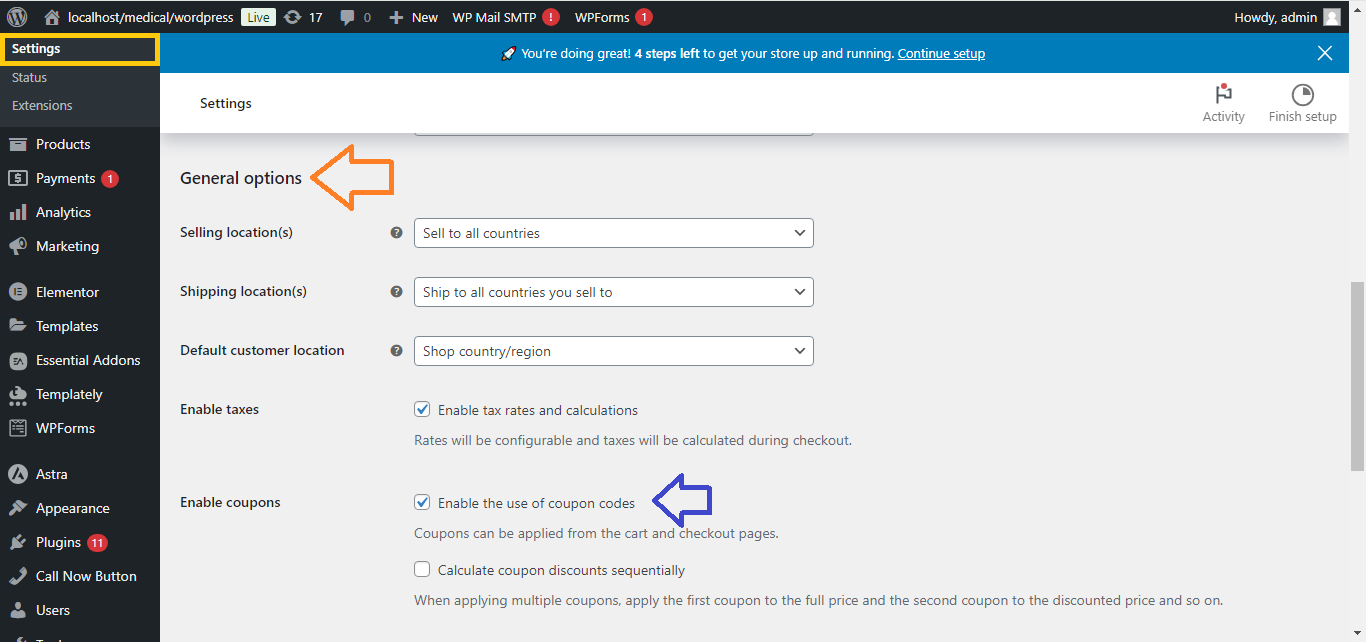
- Navigate to WooCommerce > Settings.
- Click on the General tab.
- Scroll down to find the Enable coupons option.
- Check the box to enable coupon codes and save your settings.
Step 3: Create a Coupon
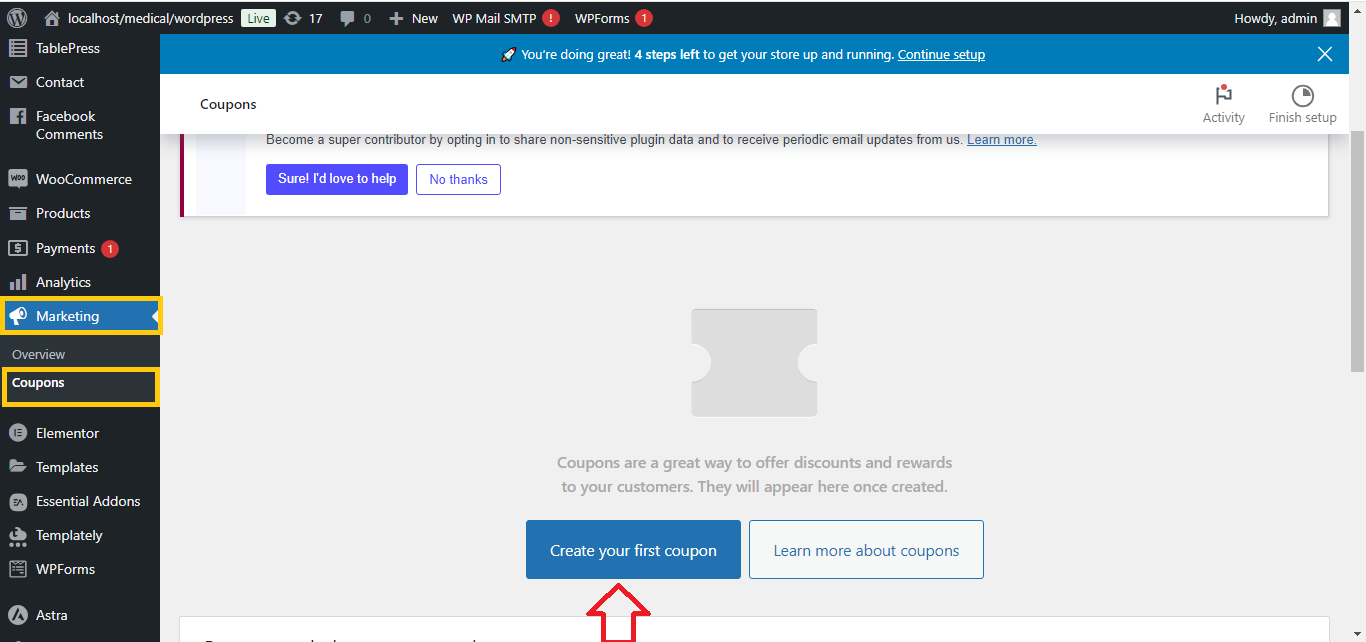
- Go to WooCommerce > Marketing > Coupons.
- Click on Add Coupon at the top.
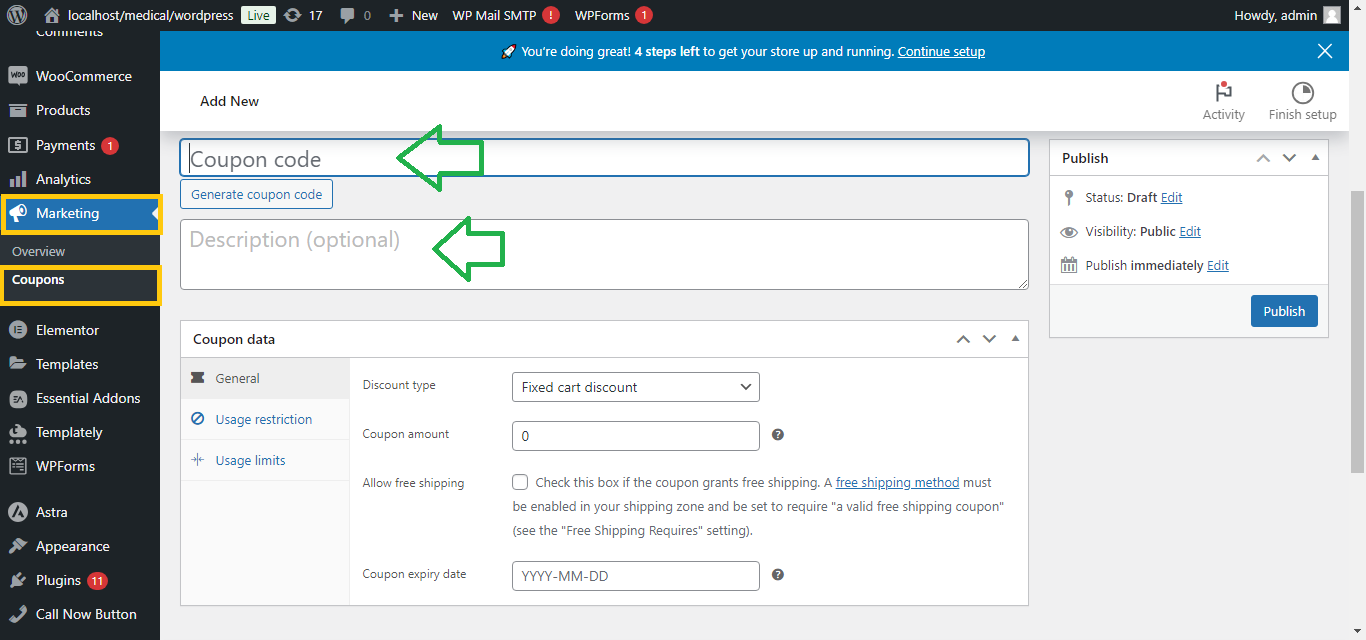
- Set your Coupon code (the actual code users will input).
- Add a Description to help you remember what the coupon is for.
Step 4: Configure Coupon Details
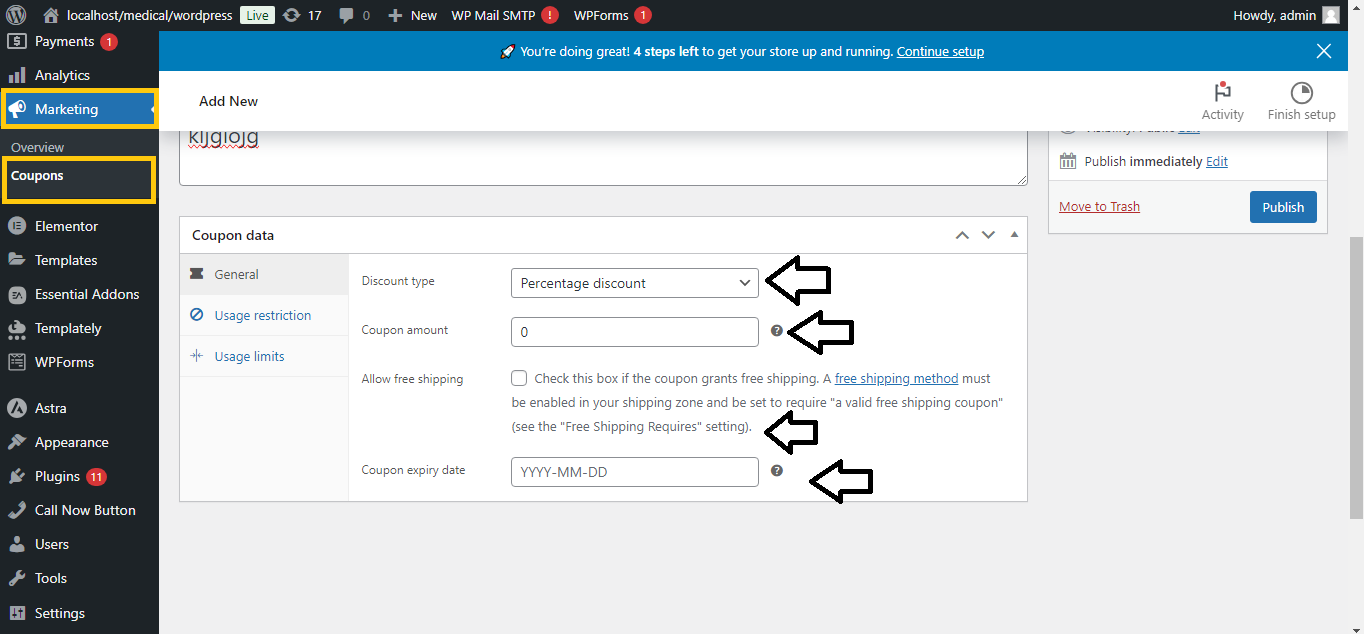
- Discount type: Choose between percentage, fixed cart discount, or fixed product discount.
- Coupon amount: Enter the value of the discount.
- Allow free shipping: Check this box if the coupon should offer free shipping.
- Coupon expiry date: Set a date if you want the coupon to expire.
Step 5: Set Usage Restrictions (Optional)
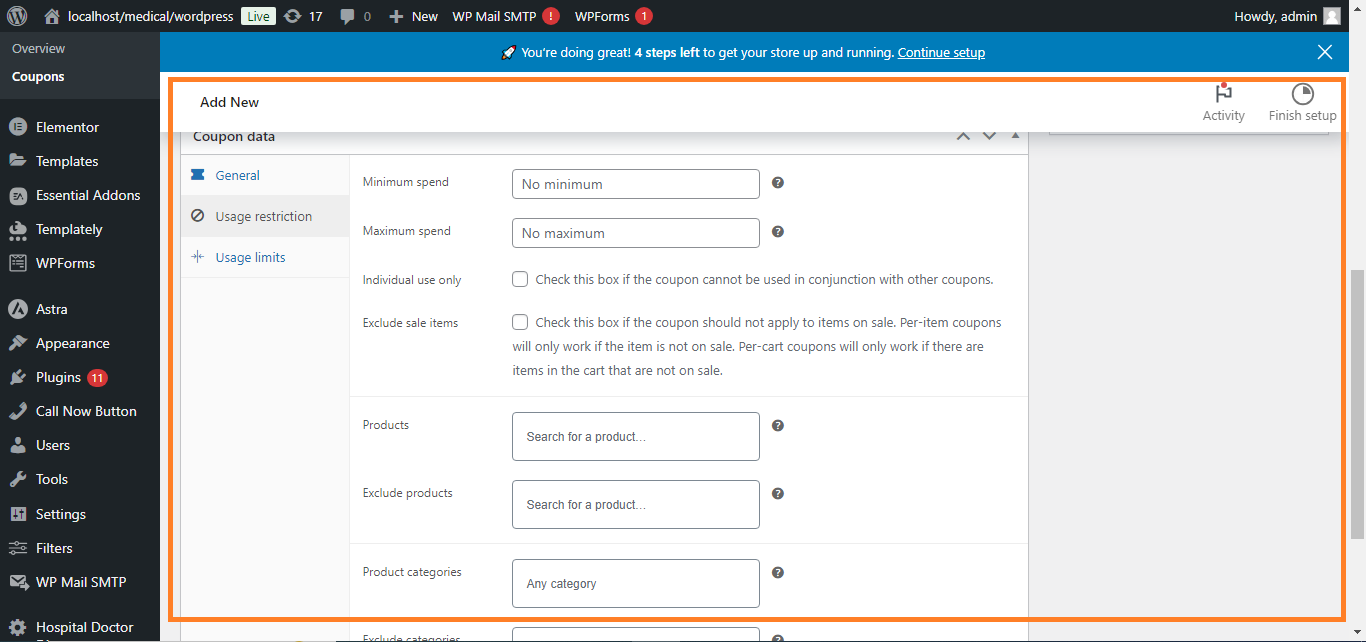
- Under the Usage restriction tab, you can set specific conditions:
- Minimum and maximum spend.
- Exclude or include specific products or categories.
- Limit the coupon to new customers or specific user roles.
Step 6: Set Usage Limits (Optional)
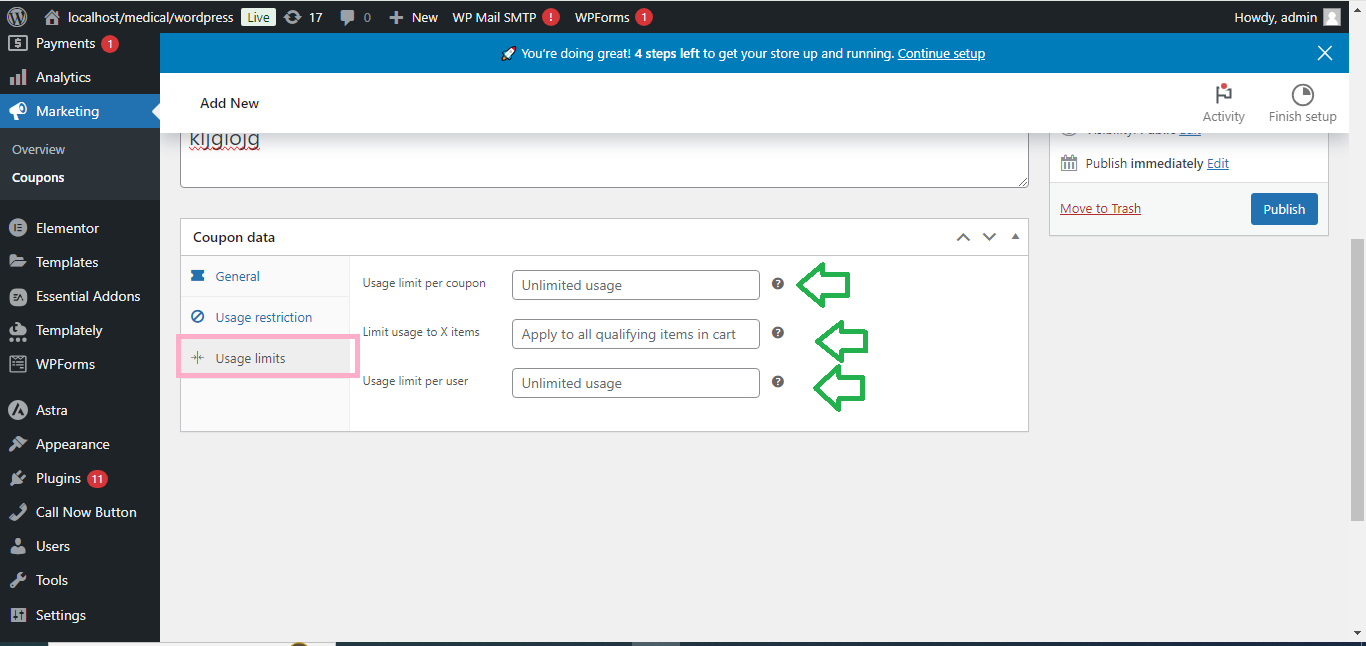
- Under the Usage limits tab, limit how many times the coupon can be used:
- Usage limit per coupon: Maximum number of times the coupon can be used.
- Usage limit per user: Maximum number of times each user can use the coupon.
Step 7: Display Coupon in Elementor
- Open your page or template in Elementor.
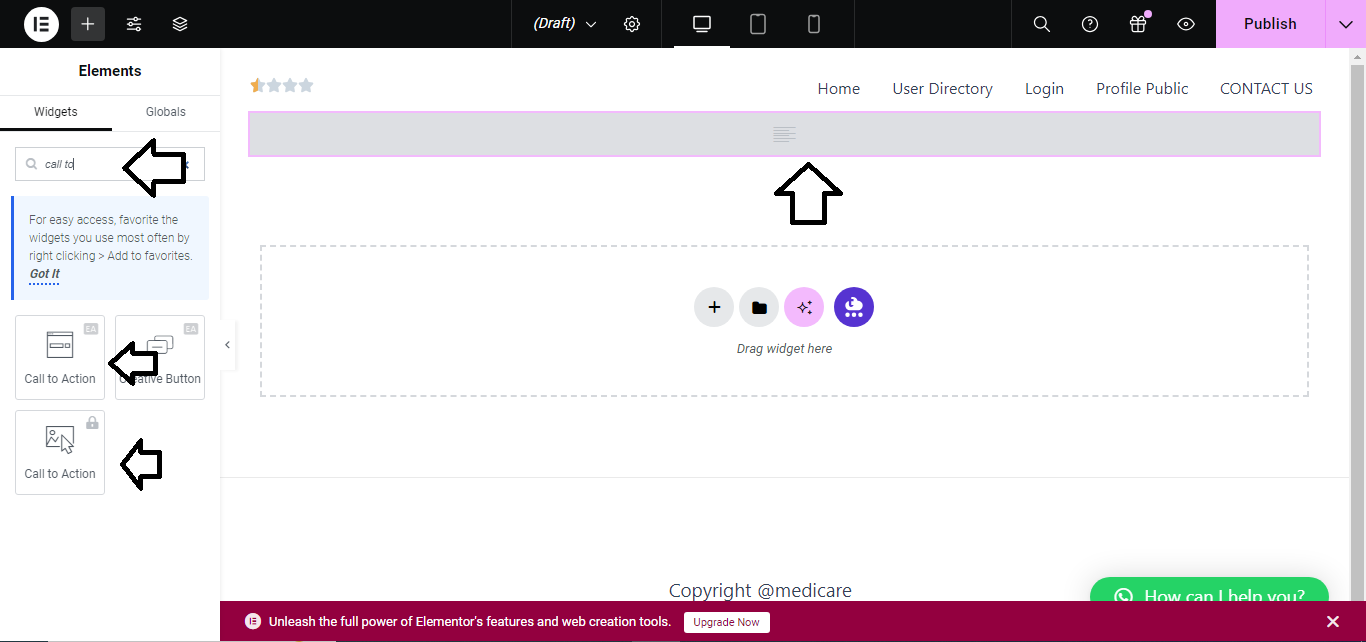
- Add a Text Editor widget where you want the coupon code to appear.
- Type or paste the coupon code and customize the design using Elementor styling options.
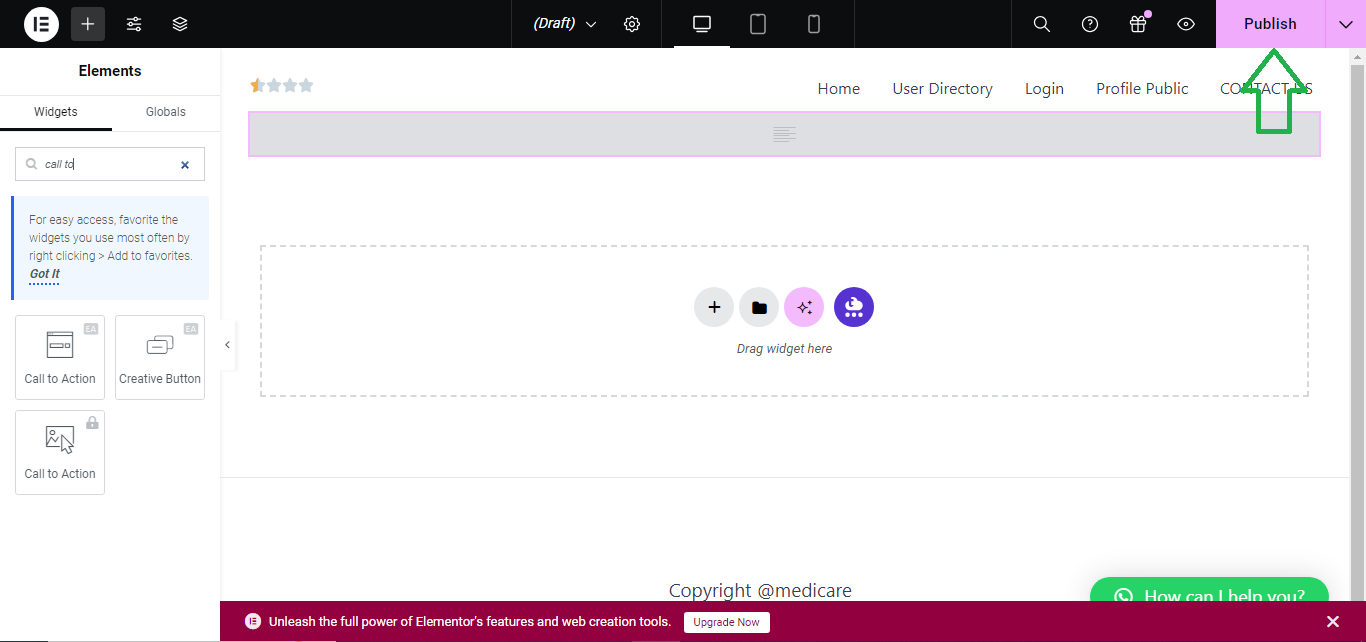
- Alternatively, you can add a Call to Action widget and include the coupon code there.
Step 8: Save and Test
- Publish or update your page and test the coupon on the WooCommerce checkout page to ensure it’s working as expected.
Now you’ve successfully created and displayed a WooCommerce coupon using Elementor!


