Add Variable Product In WooCommerce (Different Prices & Images)

To add a Variable Product with different prices and images in WooCommerce using Elementor, follow these easy steps:
Step 1: Install WooCommerce and Elementor
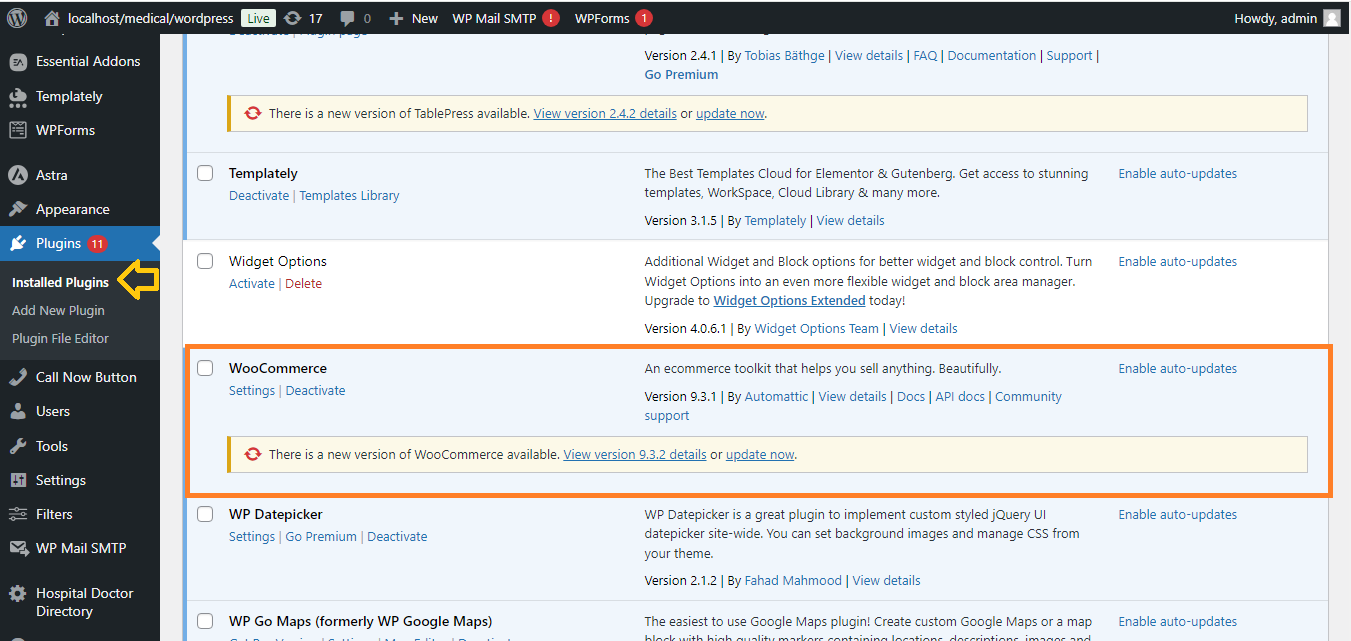
Ensure that both WooCommerce and Elementor plugins are installed and activated on your WordPress website.
Step 2: Create a New Product
- Go to your WordPress dashboard.
- Navigate to Products > Add New.
- Enter the product name and description.

Step 3: Set Product Type to Variable Product
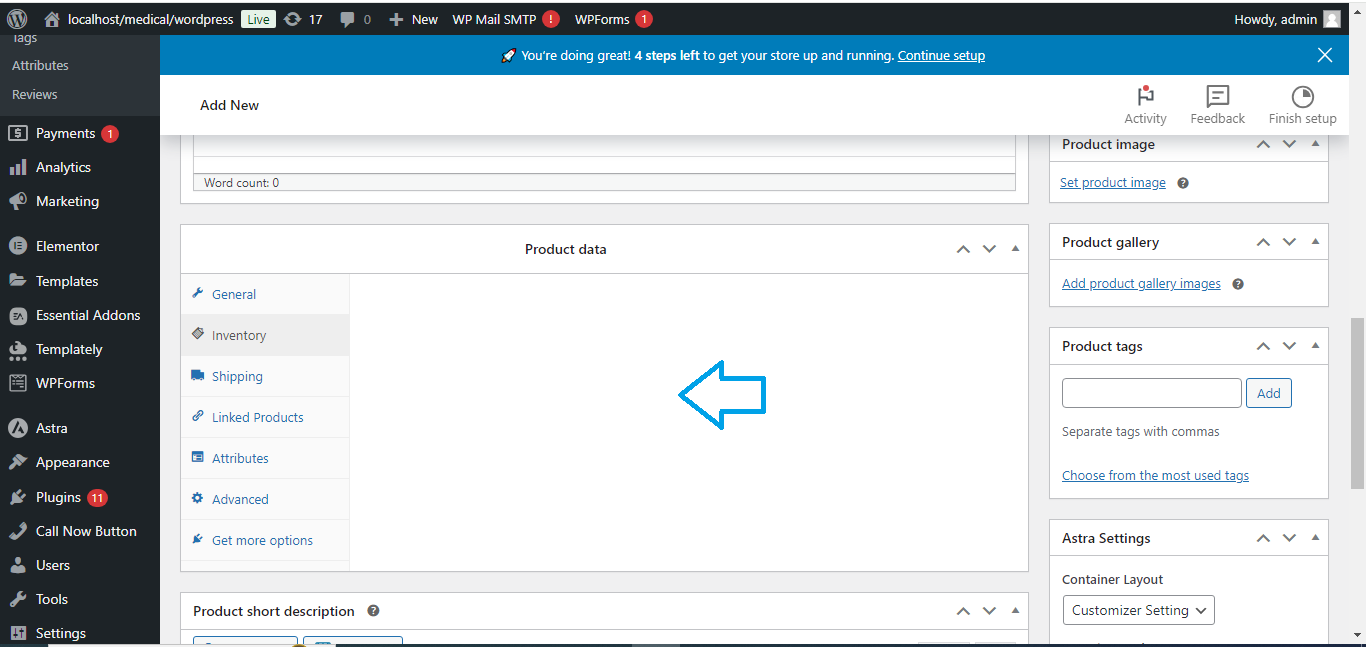
- Scroll down to the Product data section.
- In the Product Type dropdown, select Variable product.
Step 4: Create Product Attributes
- In the Attributes tab (within the Product data section), click Add.
- Enter the attribute name (e.g., Size, Color).
- In the Value(s) field, enter the attribute values separated by a pipe
|(e.g.,Small | Medium | Large). - Check the Used for variations box.
- Click Save attributes.

Step 5: Create Product Variations
- After saving the attributes, go to the Variations tab.
- In the dropdown, select Create variations from all attributes, then click Go.
- This will generate combinations of all possible variations (e.g., Red Small, Blue Large).
- For each variation:
- Click the arrow to expand the variation details.
- Set the Regular price (you can have different prices for each variation).
- Upload a variation image for each one (this image will change depending on the selected variation).

Step 6: Set Stock and Other Details (Optional)
For each variation, you can also:
- Set Stock status (e.g., In stock or Out of stock).
- Enable Manage stock and set stock quantity if you want to track inventory for specific variations.

Step 7: Set Main Product Image and Gallery
- On the right side of the page, upload a Product image.
- You can also add additional images in the Product gallery if you want to showcase multiple images.

Step 8: Customize Product Display in Elementor
- After saving your product, create or edit a page using Elementor.
- Use the Product widgets (like Product Grid, Product Carousel, or Single Product) to display your variable product on your Elementor-designed page.

Step 9: Publish and Test
- Publish the product and page.
- Go to your product page and test the variations (different prices and images should change based on the selected variation).

Now you’ve successfully added a Variable Product with different prices and images in WooCommerce using Elementor!


