
Add Visitor Counter

Adding a visitor counter to your WordPress website can help you track the number of visitors. Here are the easy steps to do this:
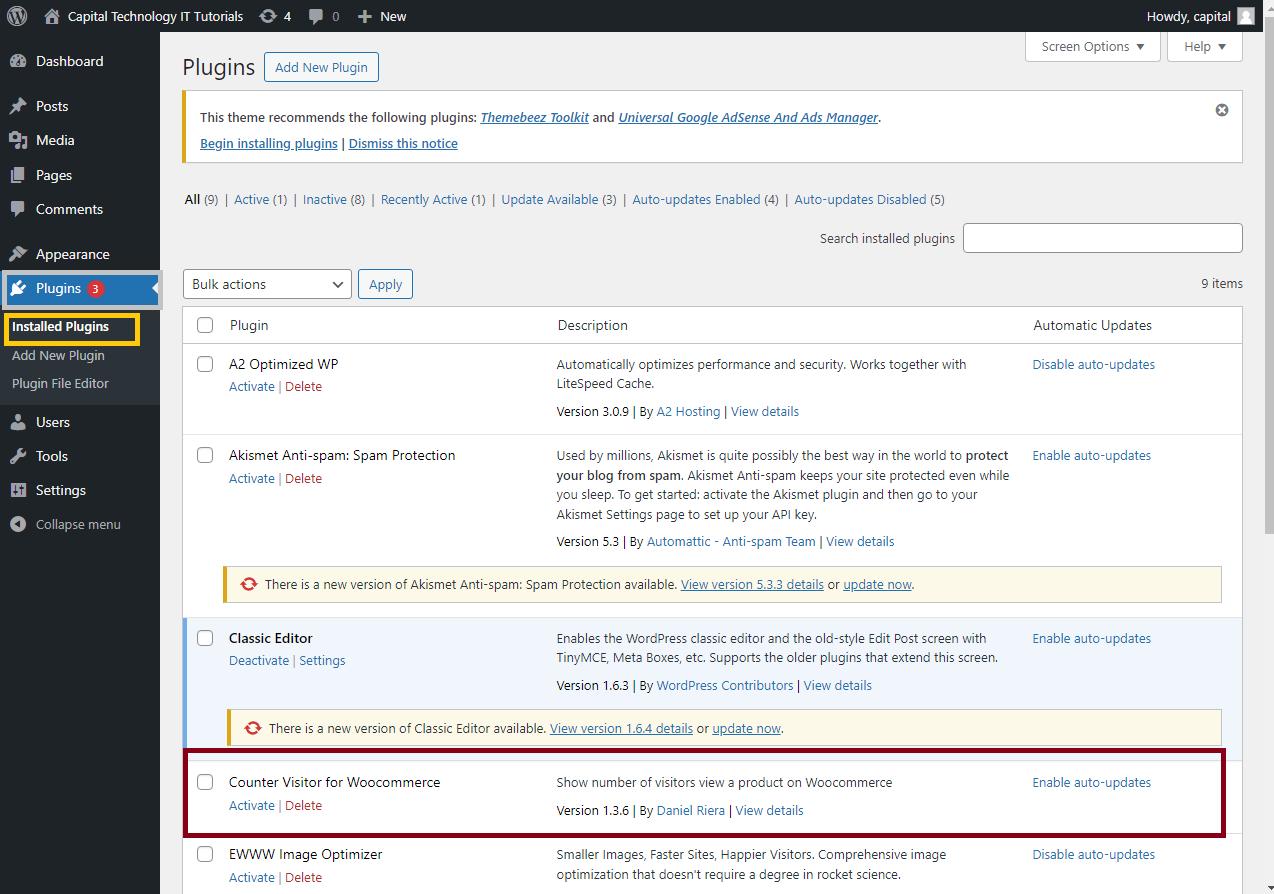
Step 1: Choose a Visitor Counter Plugin
- Log in to your WordPress admin dashboard.

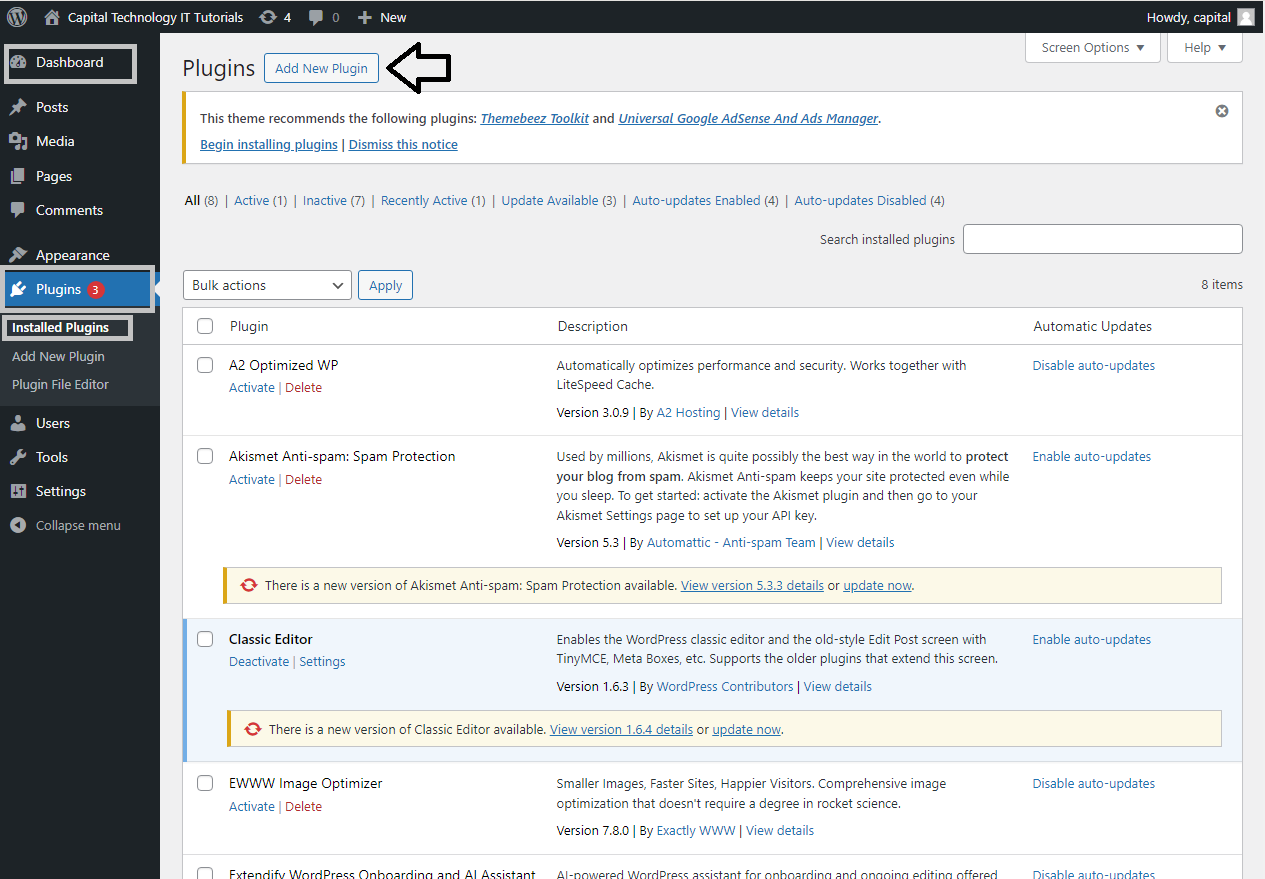
- Go to
Plugins>Add New.
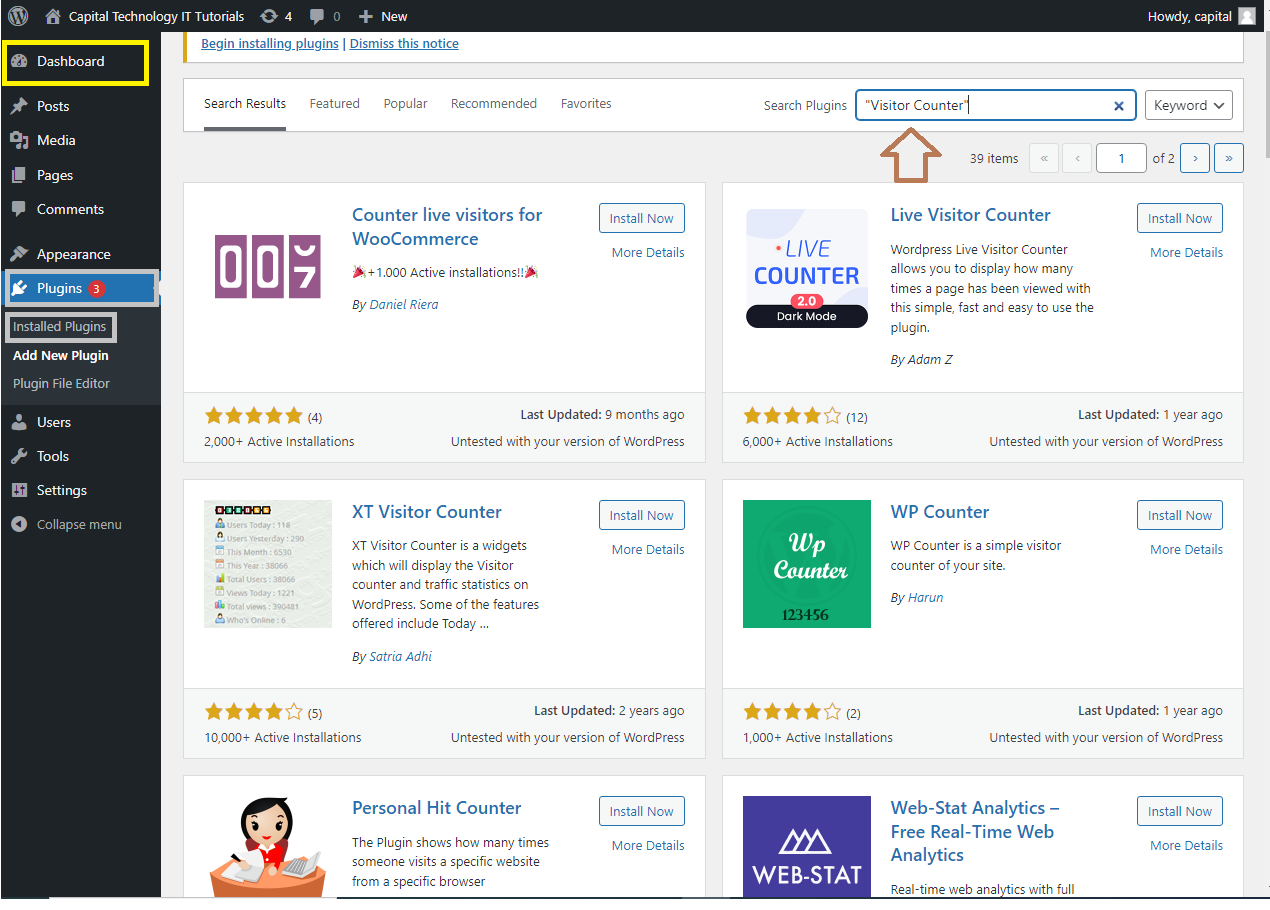
- In the search bar, type “Visitor Counter” or “Hit Counter.”
- Browse through the available plugins. Some popular ones include:
- WP Visitor Statistics (Real Time Traffic)
- Visitor Counter Plugin
- Simple Visitor Counter
Step 2: Install and Activate the Plugin
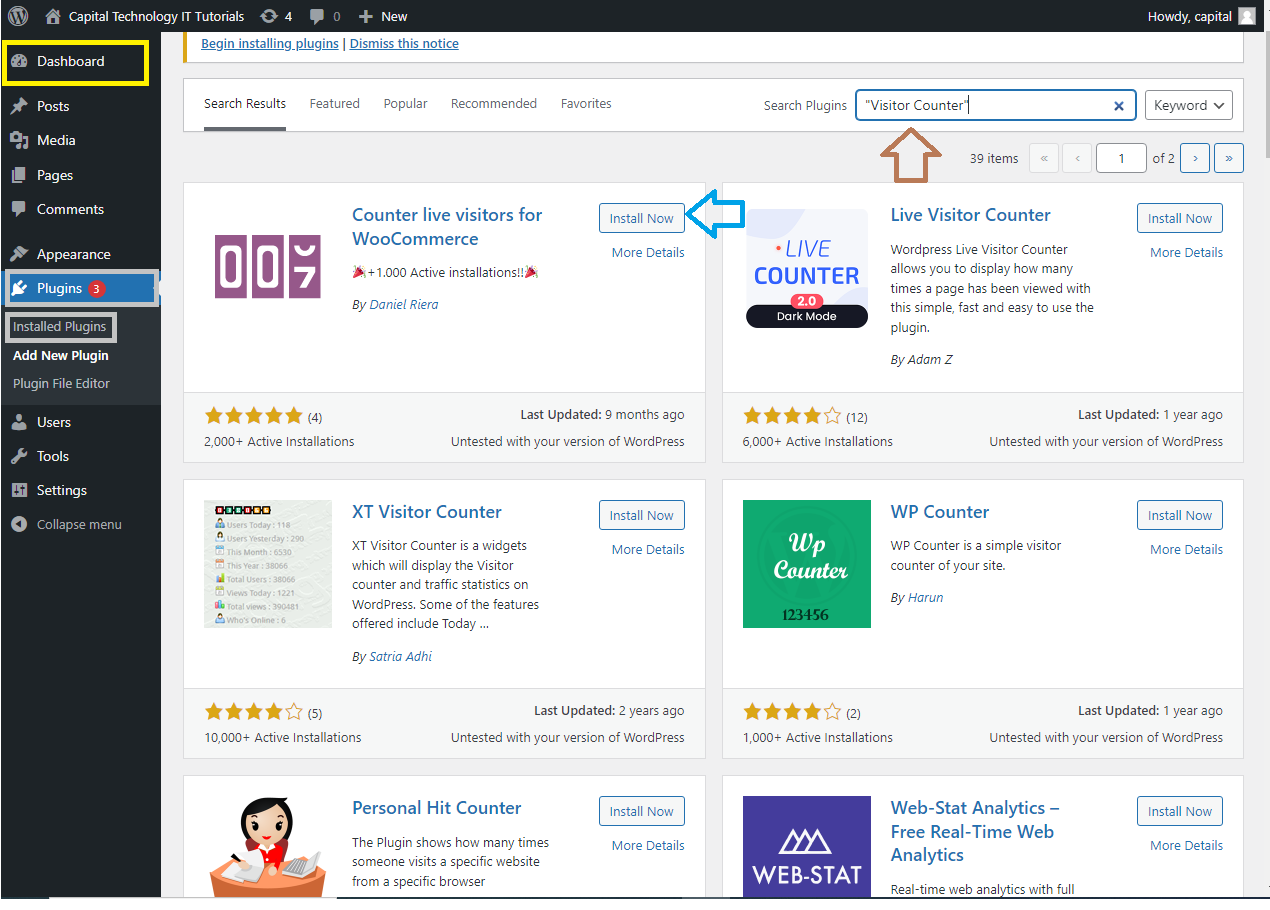
- Once you’ve found a plugin you like, click the
Install Nowbutton.
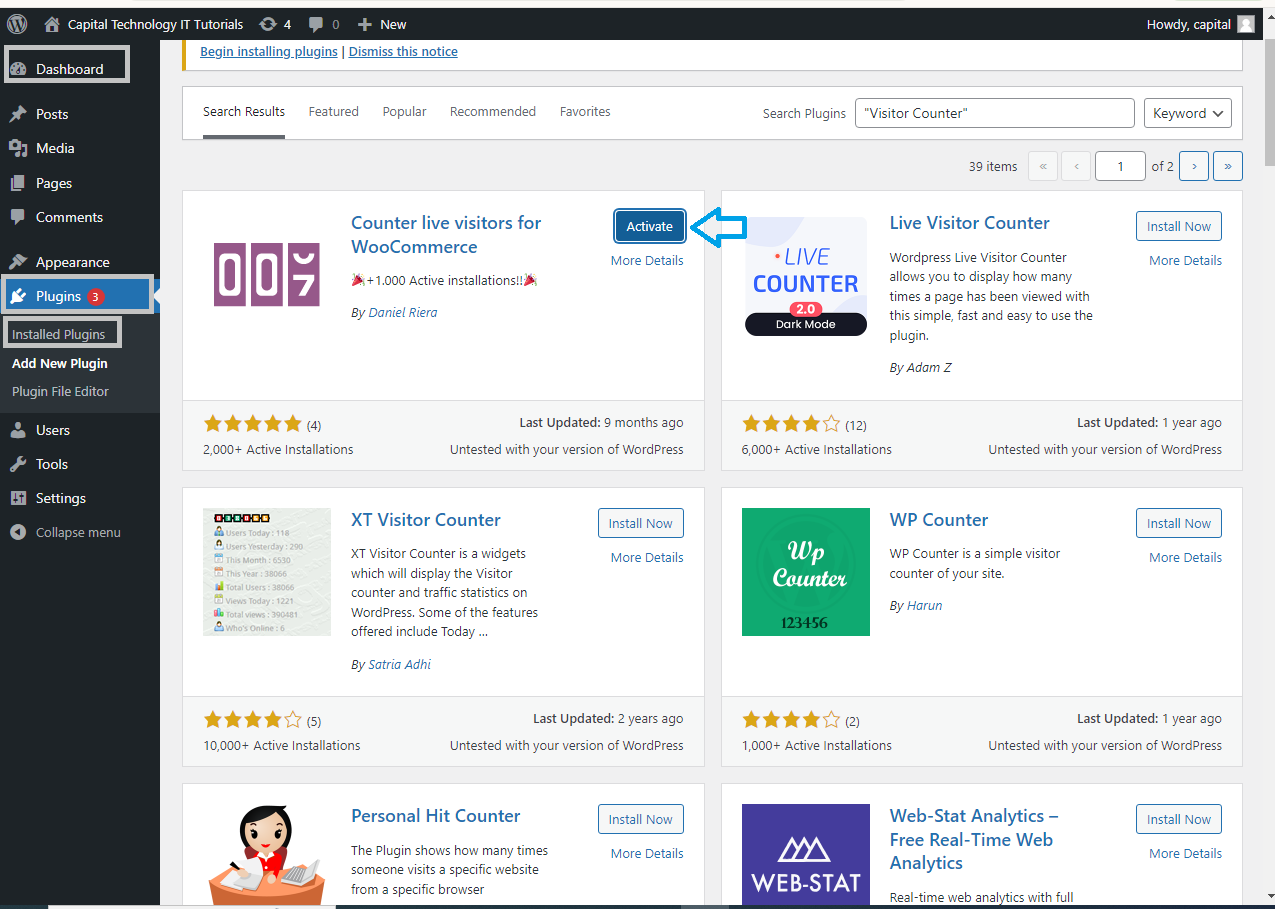
- After installation, click the
Activatebutton to enable the plugin on your site.
Step 3: Configure the Visitor Counter Plugin
- Once activated, go to the plugin settings by navigating to
Settingsor the plugin’s dedicated menu in the dashboard (depending on the plugin). - Configure the settings according to your preferences:
- Choose where to display the counter (e.g., footer, sidebar, or a specific page).
- Customize the appearance, such as the style, color, and format of the counter.
- Set up any additional options like counting unique visitors, page views, or specific timeframes.
Step 4: Add the Visitor Counter to Your Site
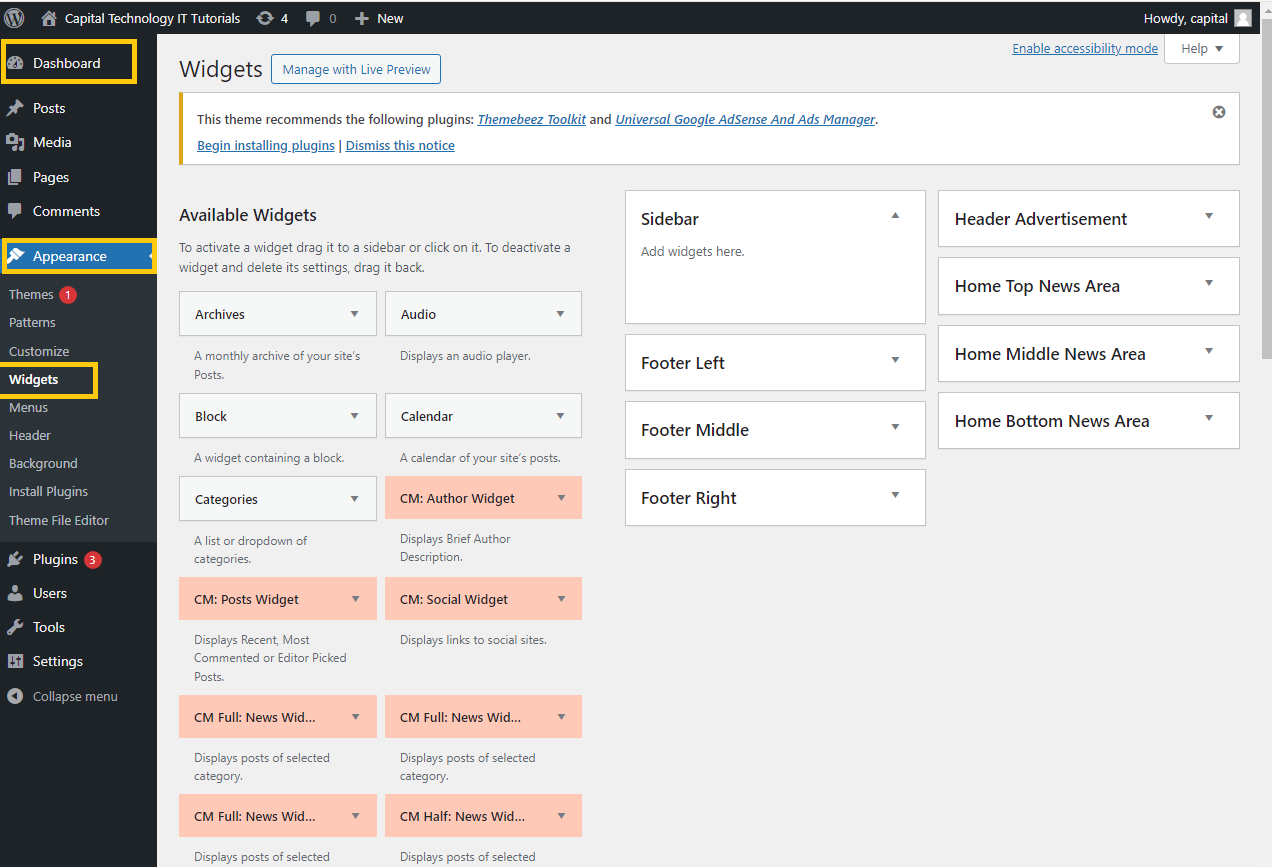
- Via Widget:
- Go to
Appearance>Widgets.
- Go to
-
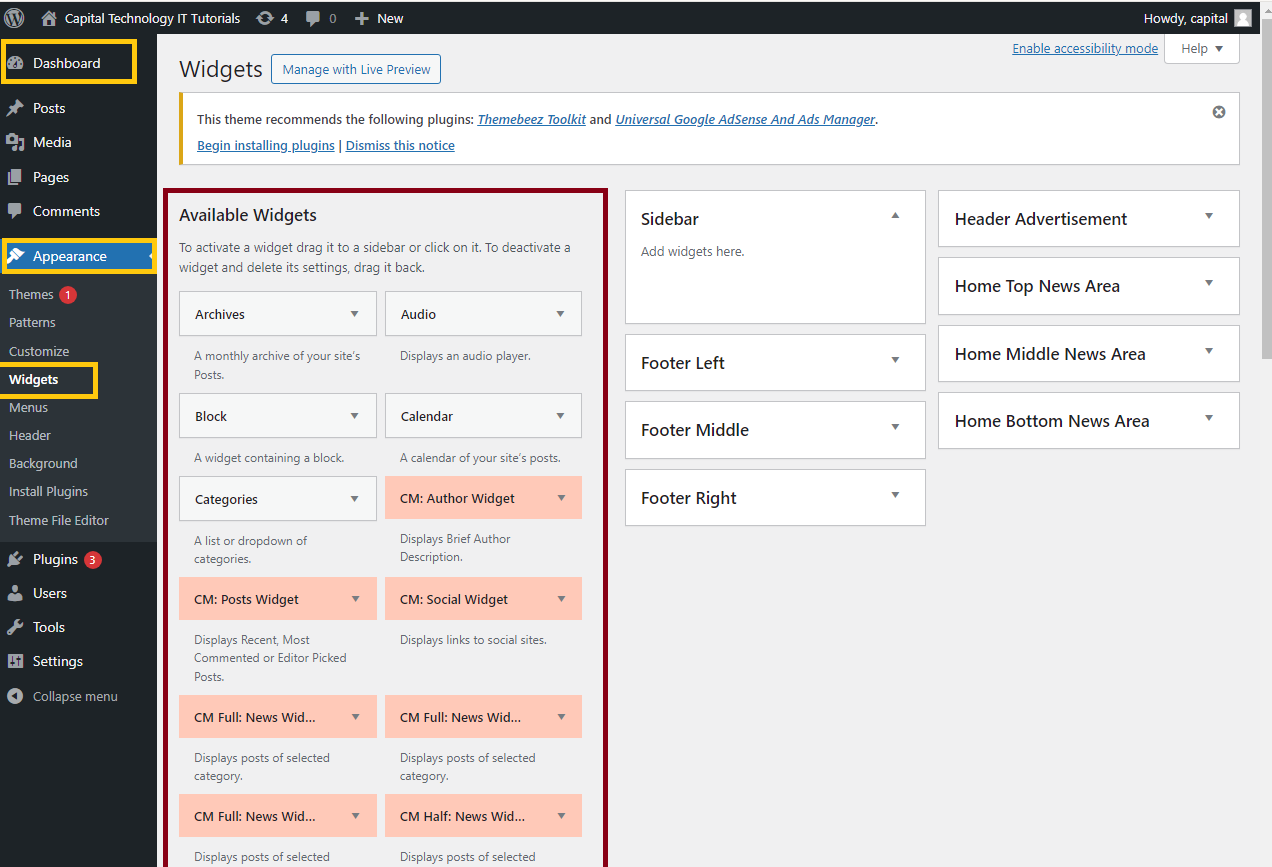
- Drag and drop the Visitor Counter widget to the desired widget area (e.g., Footer or Sidebar).
- Configure the widget settings if required and click
Save.
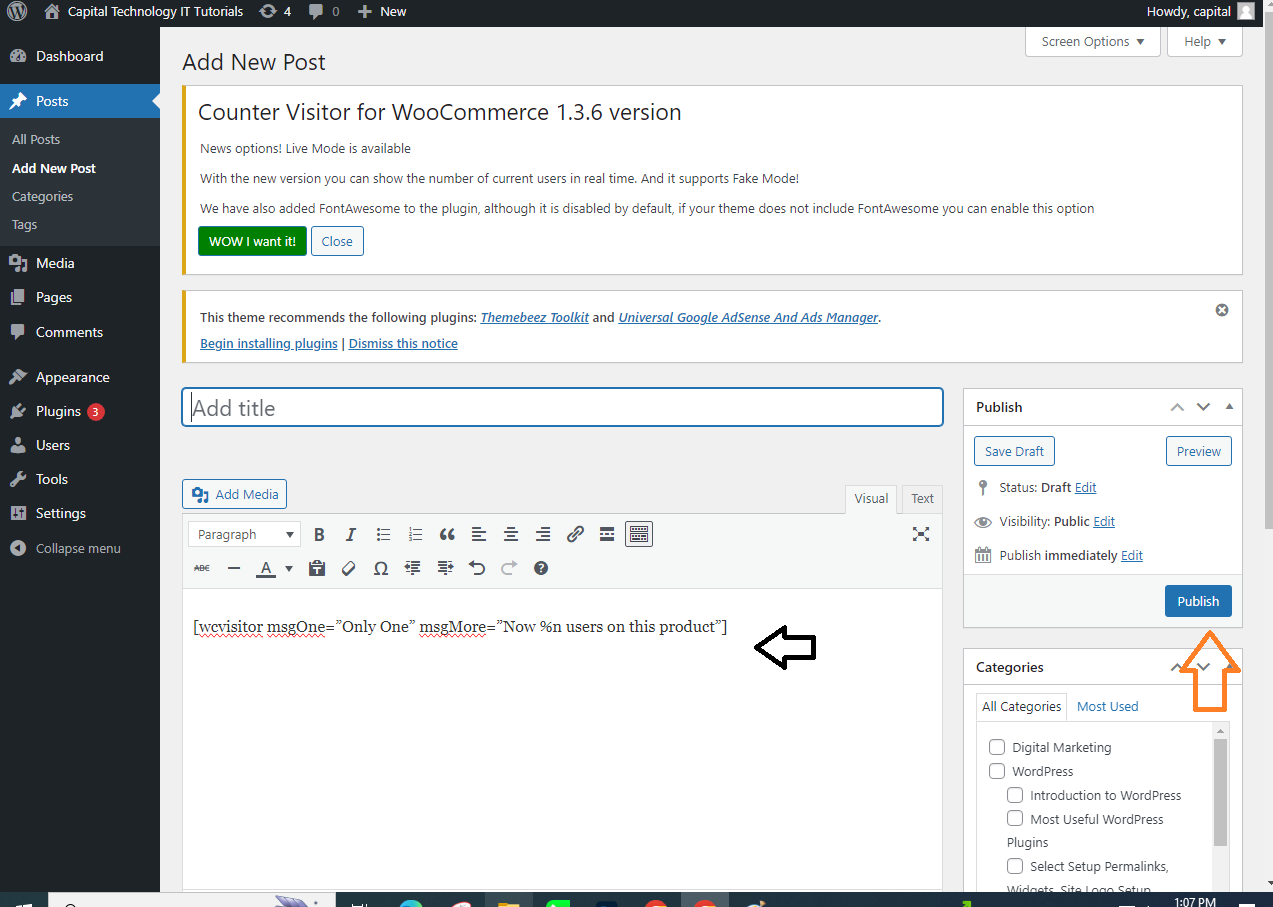
- Via Shortcode (If the plugin provides one):
- Copy the shortcode provided by the plugin.
- Paste the shortcode into the content of any page, post, or widget where you want the visitor counter to appear.
- Via Block Editor:
- If you’re using the Gutenberg editor, you can add the visitor counter by selecting the plugin’s block in the block editor and configuring it as needed.
Step 5: Preview and Publish
- Visit your site to preview the visitor counter in the location you’ve chosen.
- If everything looks good, you’re all set!
Now, your WordPress site will display a visitor counter, allowing you and your visitors to see how many people have visited the site.


