
Redirection of WP Forms to Thank You Page

To redirect users to a “Thank You” page after submitting a WPForms form, follow these easy steps:
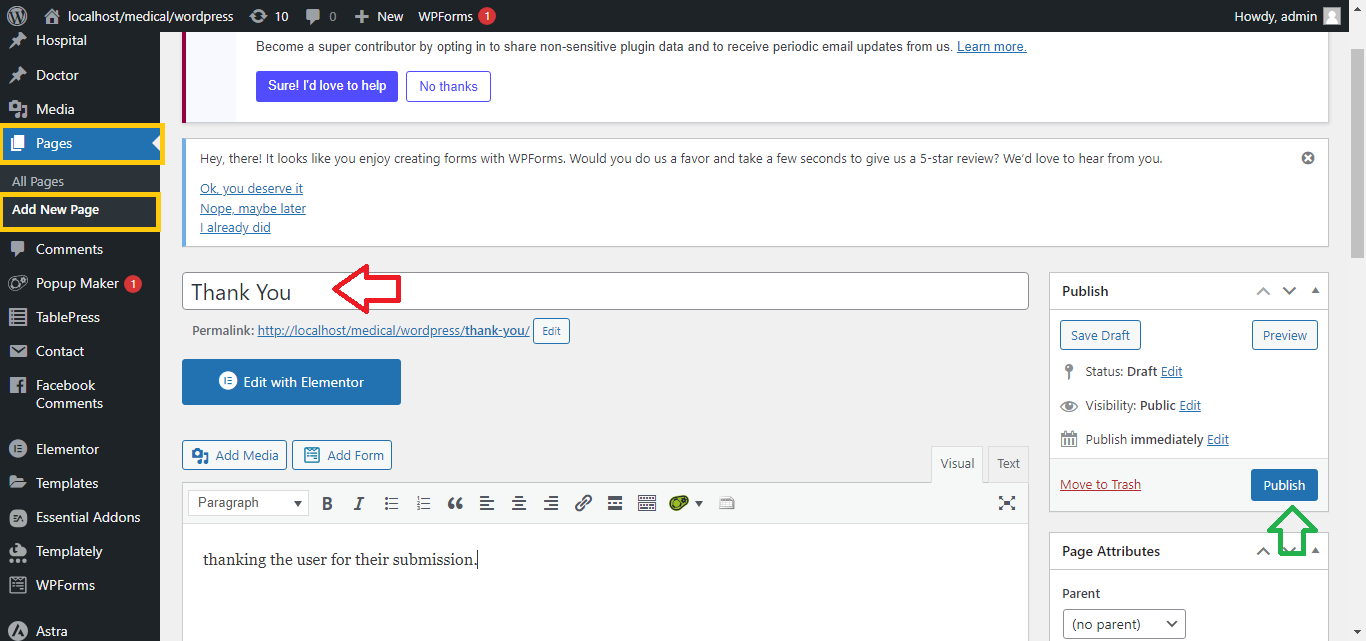
Step 1: Create a Thank You Page
- Log in to your WordPress Dashboard.
- Go to Pages > Add New.
- Name the page (e.g., “Thank You”) and add a message thanking the user for their submission.
- Click Publish to make the page live.
Step 2: Edit the WPForms Form
- Go to WPForms > All Forms from the WordPress dashboard.
- Find the form you want to edit and click Edit.
Step 3: Configure Form Confirmation Settings
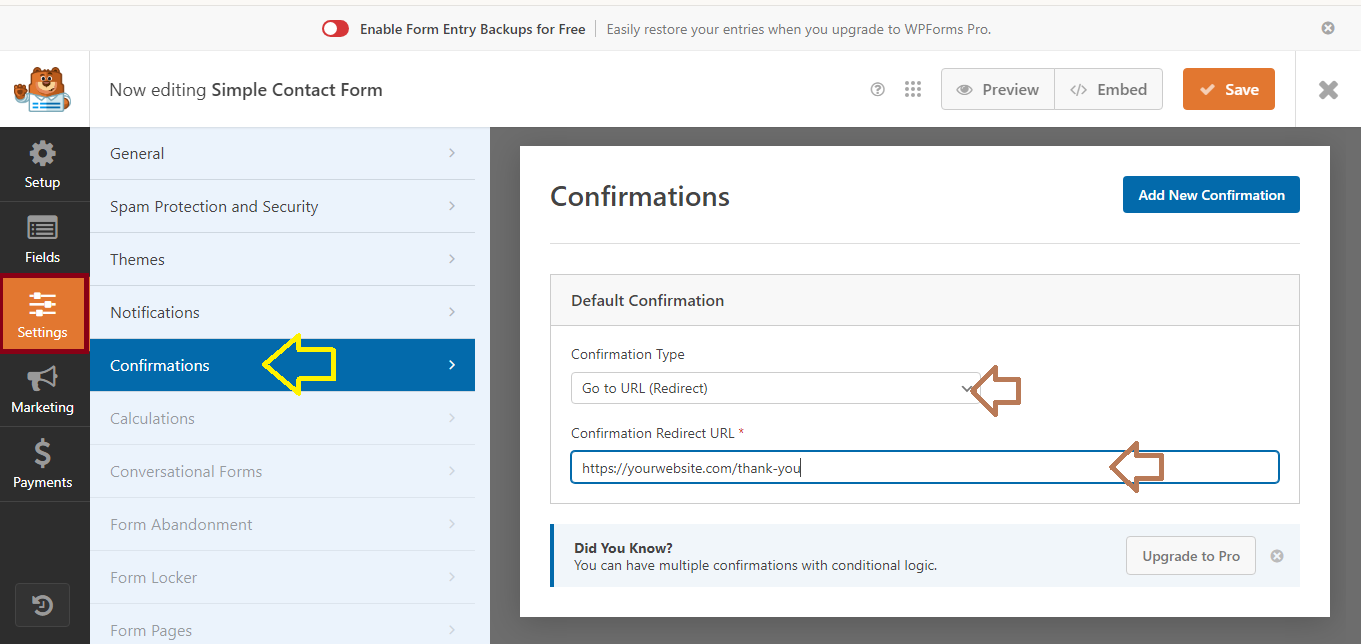
- In the form editor, go to the Settings tab on the left-hand menu.
- Click on Confirmation.
- Under Confirmation Type, select Redirect.
- In the Redirect URL field, enter the URL of your “Thank You” page (you can find this by visiting your Thank You page and copying the URL).
- Example:
https://yourwebsite.com/thank-you
- Example:
Step 4: Save Your Form
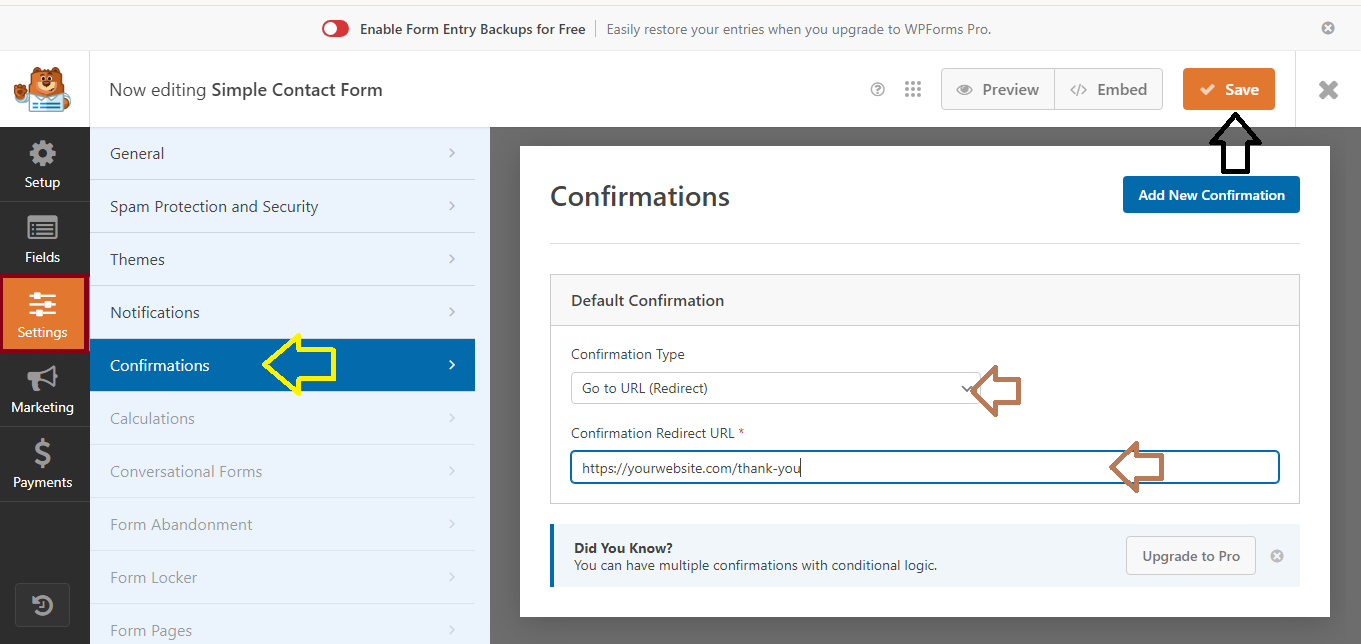
- After entering the URL, click the Save button at the top right of the form editor.
Step 5: Test the Redirection
- Visit the page where your form is displayed.
- Submit a test form to ensure it redirects to the Thank You page as expected.
That’s it! You’ve successfully set up redirection to a Thank You page for your WPForms form.


