Add Radio Button in Contact Form 7

Here’s how you can easily add a radio button to a Contact Form 7 form in WordPress:
1. Access the Contact Form 7 Plugin
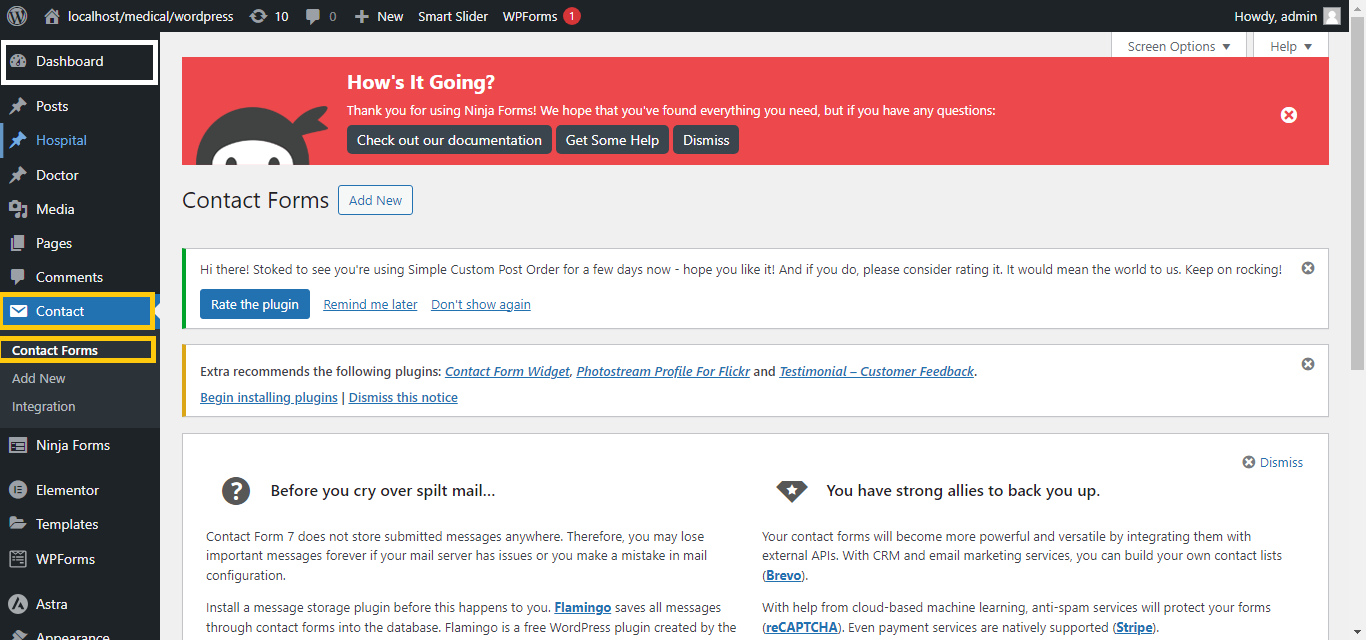
- Go to your WordPress dashboard.
- Navigate to Contact > Contact Forms.
2. Edit Your Form
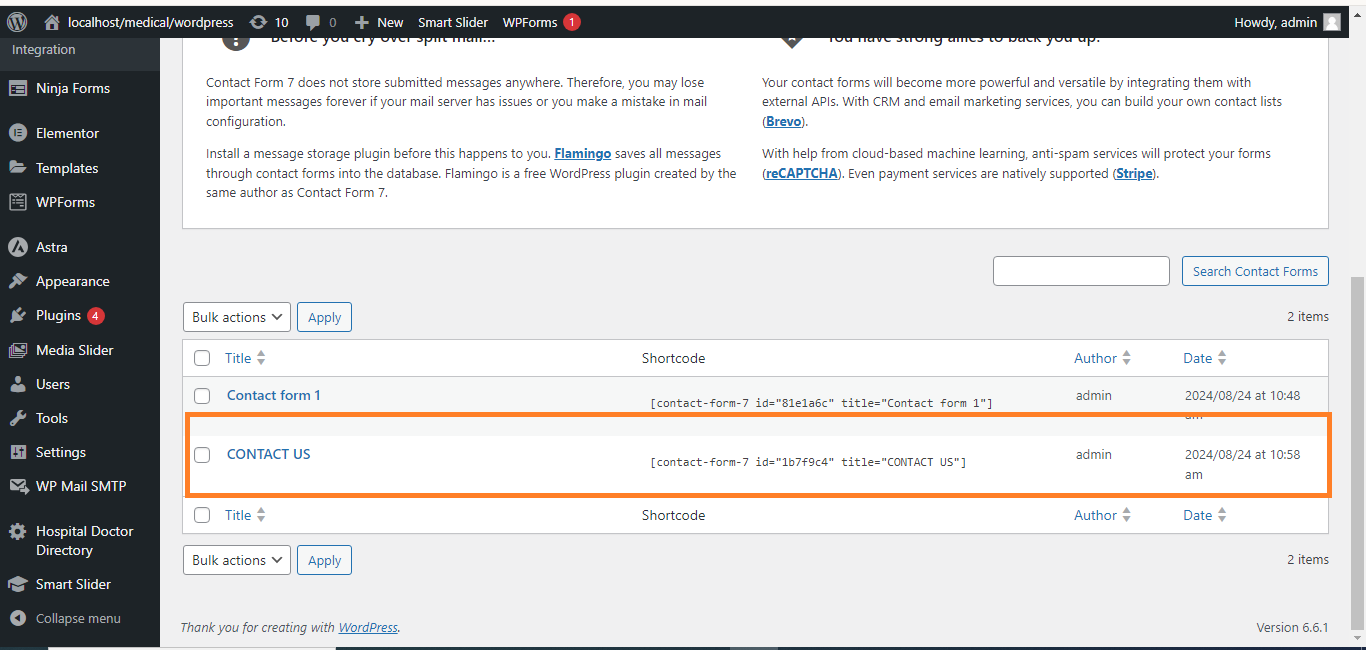
- Select the form you want to edit by clicking on its name.
3. Add Radio Button Field
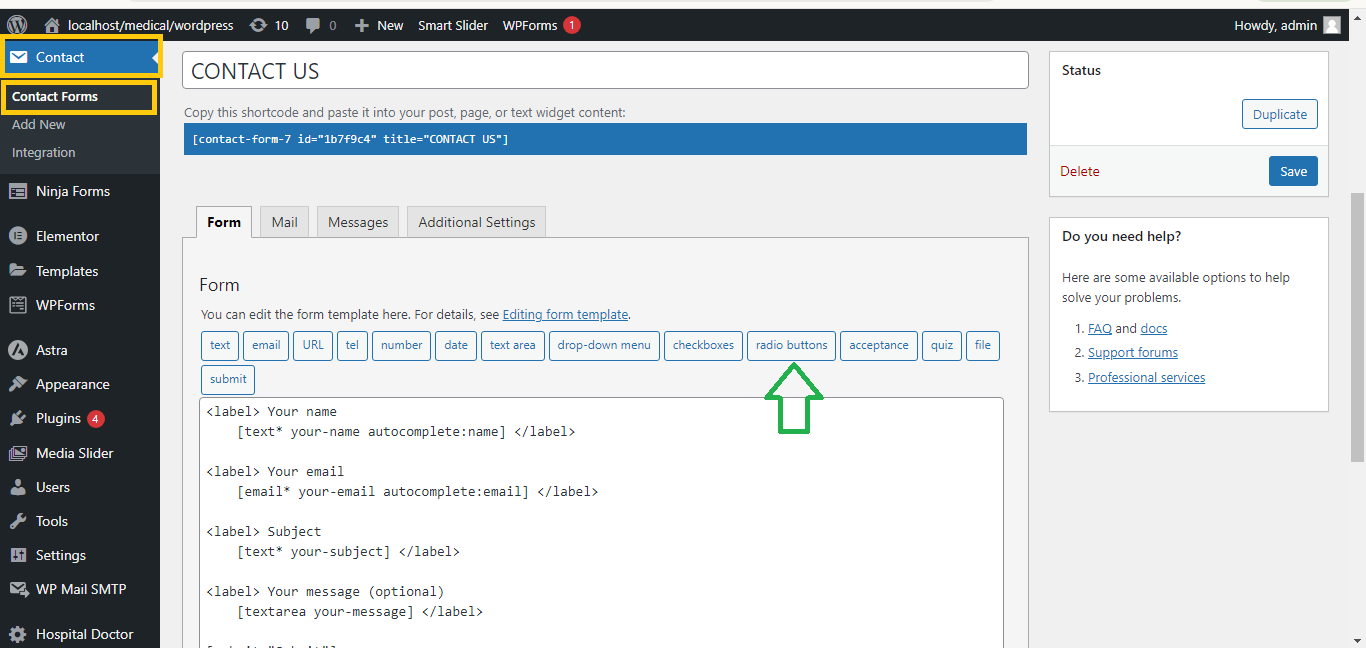
- In the form editor, place your cursor where you want to add the radio button.
- Click the “Radio Buttons” button from the toolbar.
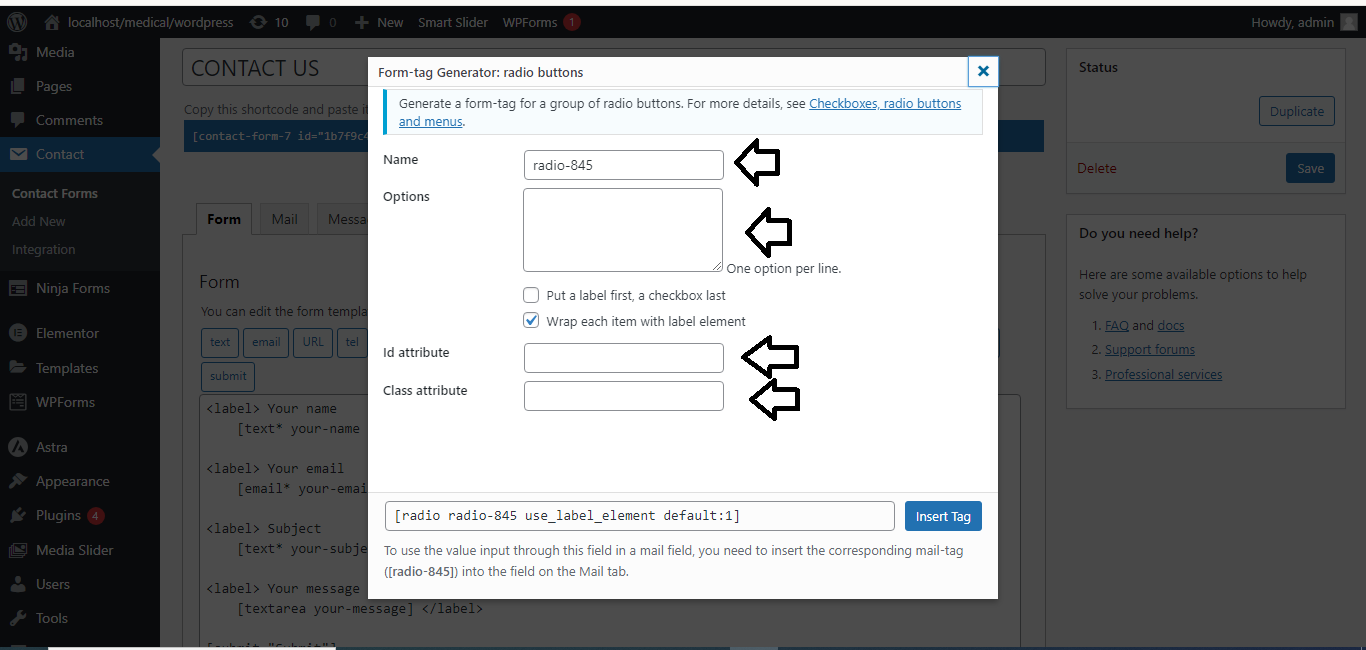
4. Configure the Radio Button
- In the popup that appears:
- Name: Enter a name for the radio button group (e.g.,
your-radio). - Options: List the options, one per line. To pre-select an option, add a
*before it (e.g.,*Option 2). - Check “Required field?” if you want to make it mandatory.
- Name: Enter a name for the radio button group (e.g.,
5. Insert the Radio Button
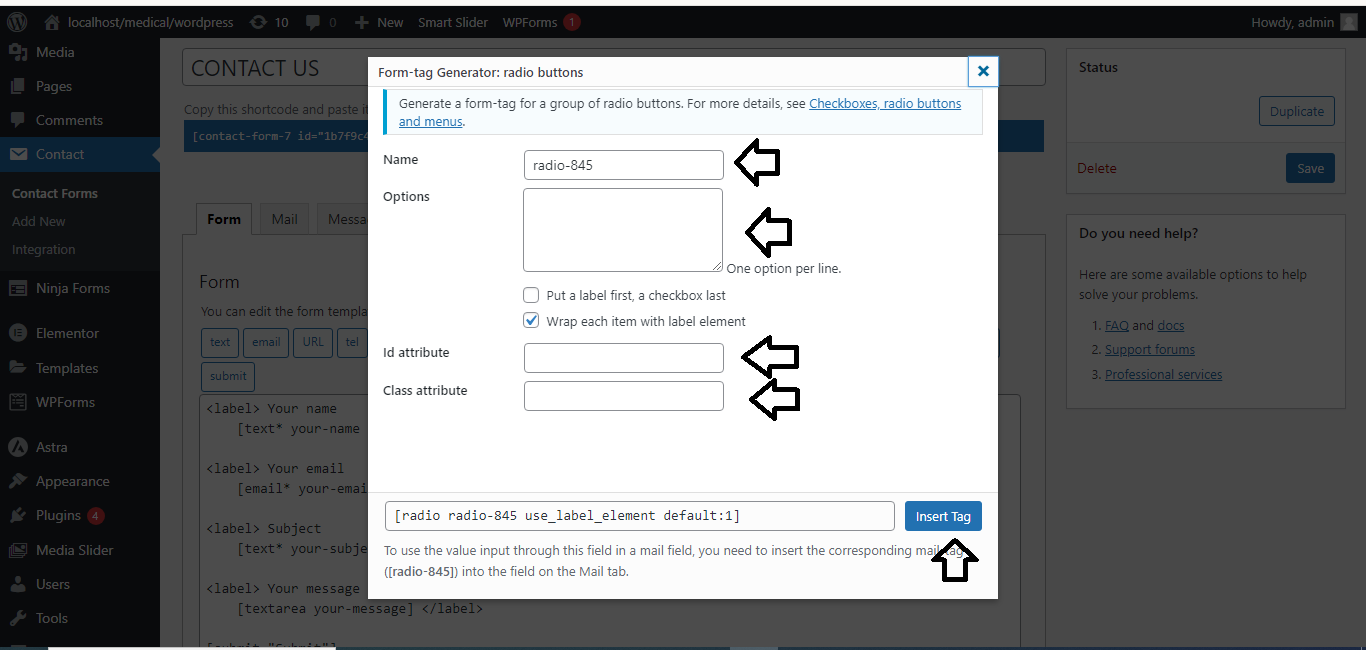
- Click “Insert Tag” to add the radio button code to your form.
6. Save the Form
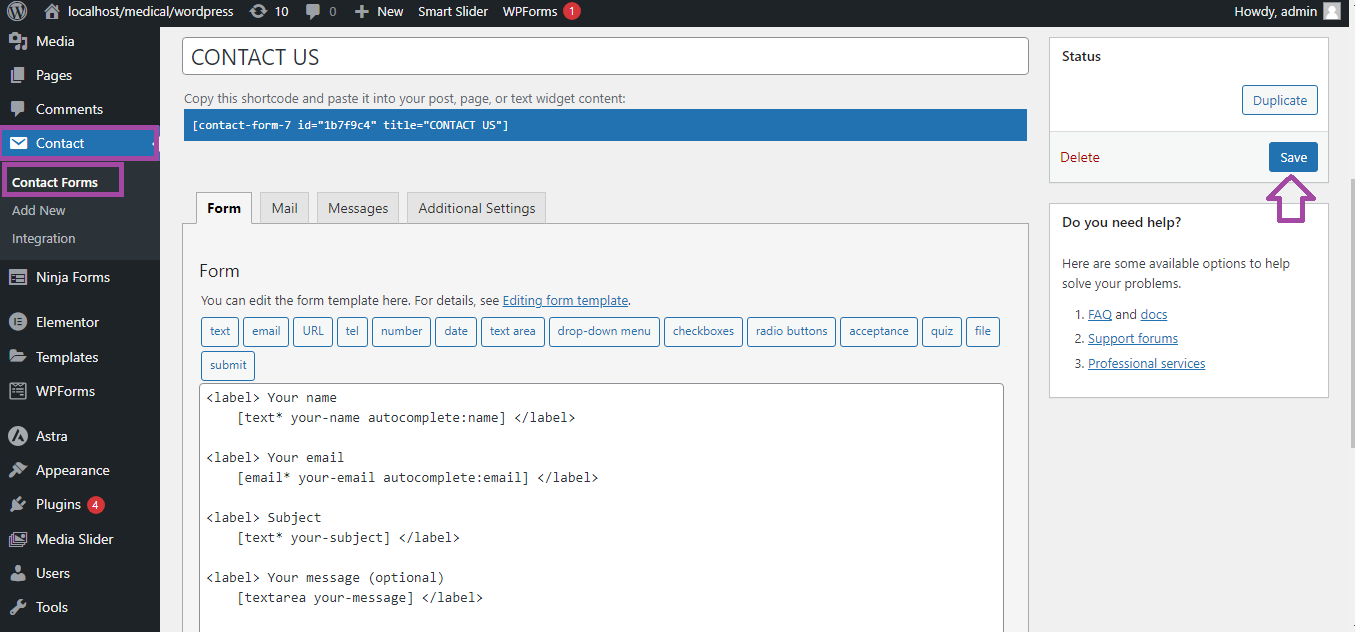
- Scroll down and click “Save” to apply the changes.
7. Use the Form
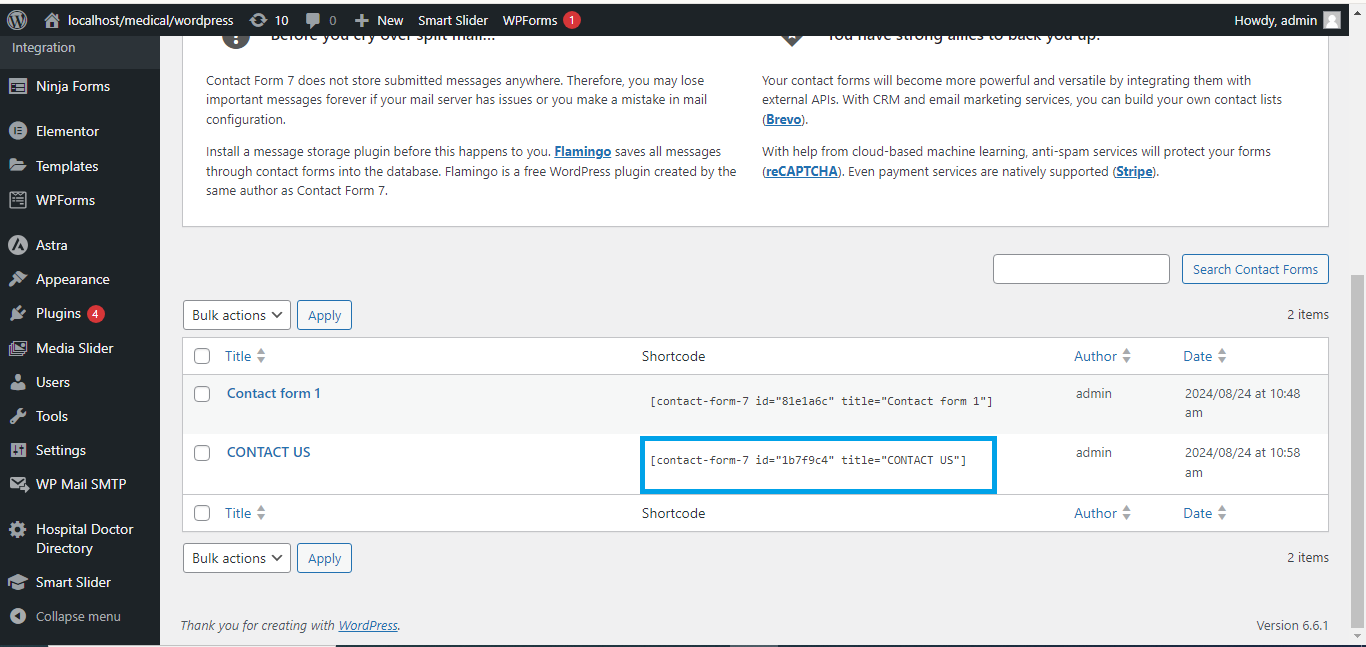
- Copy the form’s shortcode from the top and paste it into the page or post where you want the form to appear.
And you’re done! Your form will now have radio buttons that users can select.