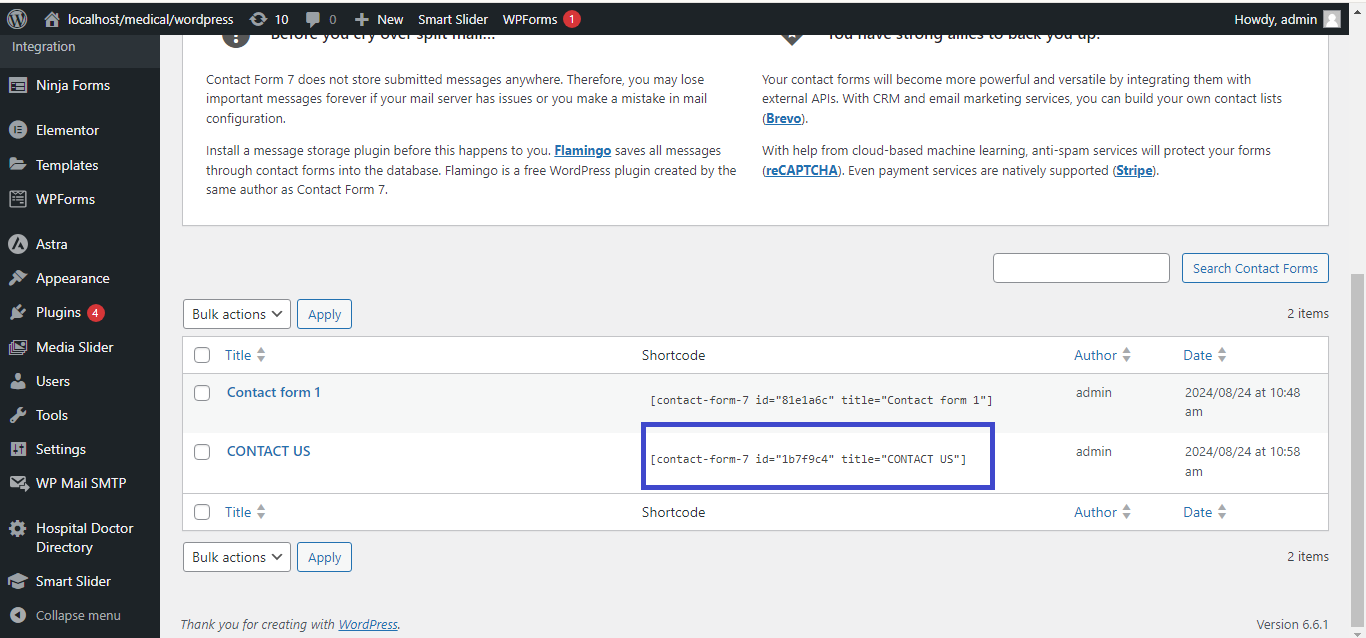
Add Select box or Dropdown List in Contact Form 7

Here’s how to add a select box (dropdown list) to a Contact Form 7 form in WordPress in easy and simple steps:
1. Open Contact Form 7
- Go to your WordPress dashboard.
- Navigate to Contact > Contact Forms.
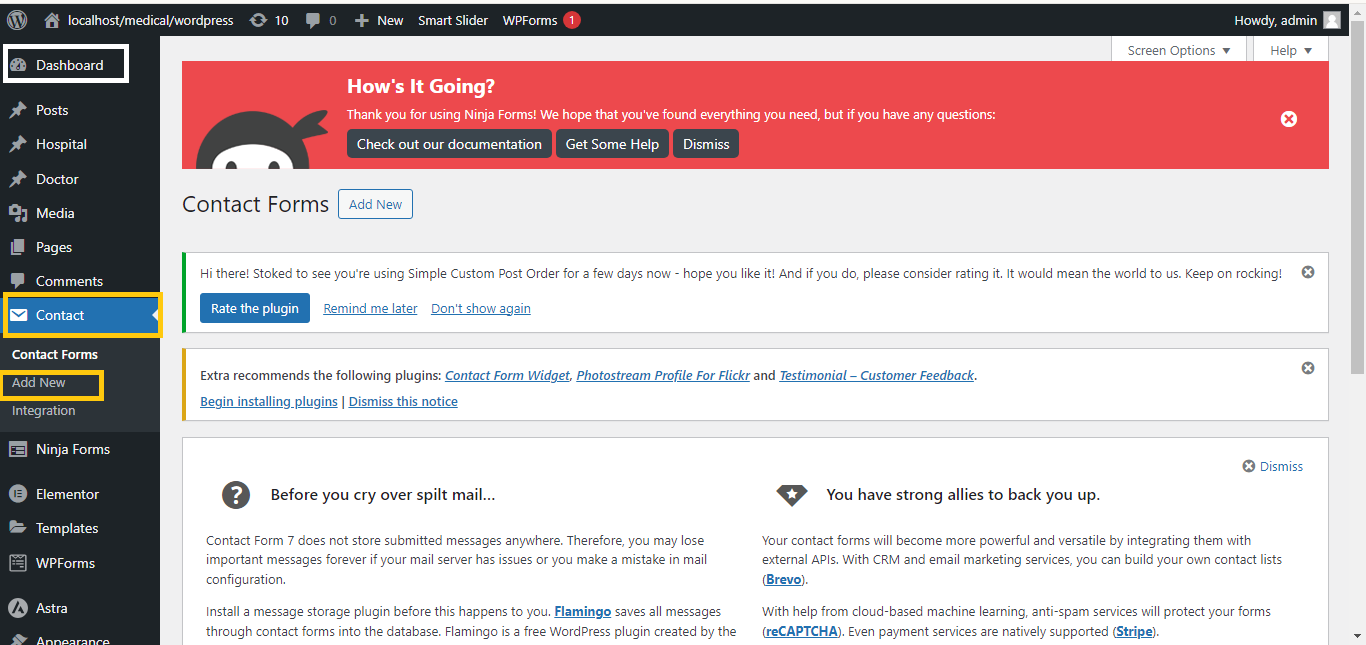
2. Edit or Create a Form
- Select the form you want to edit or create a new form by clicking “Add New”.
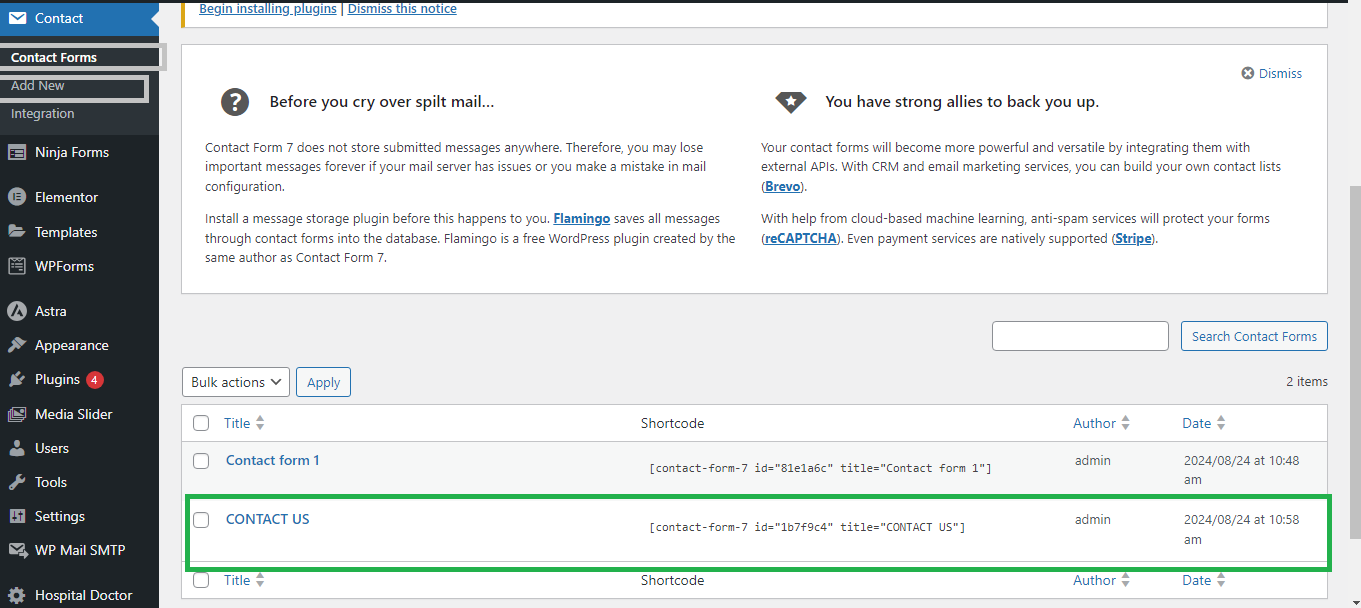
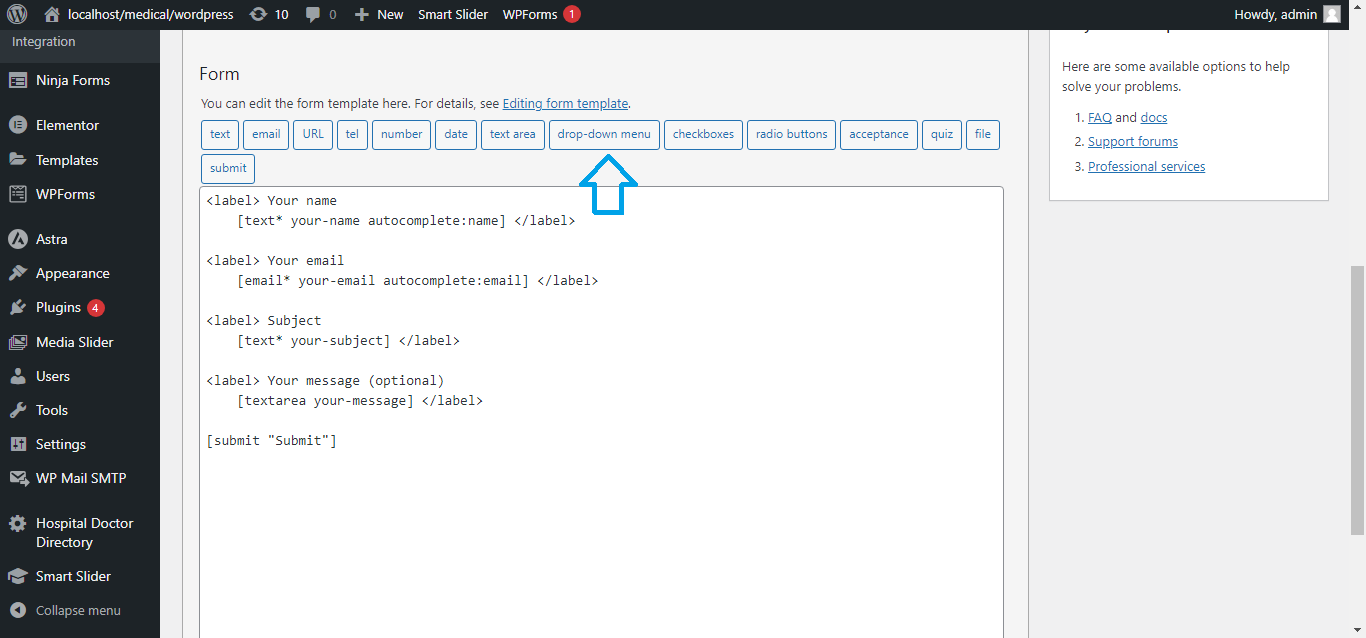
3. Add a Select Box (Dropdown List)
- In the form editor, place your cursor where you want to add the select box.
- Click the “Drop-down Menu” button from the toolbar.
4. Configure the Select Box
- In the popup:
- Name: Enter a name for the select box (e.g.,
your-select). - Options: List the options, one per line. To pre-select an option, add a
*before it (e.g.,*Option 1). - Check “Allow multiple selections?” if you want users to select more than one option.
- Check “Required field?” if you want to make it mandatory.
- Name: Enter a name for the select box (e.g.,
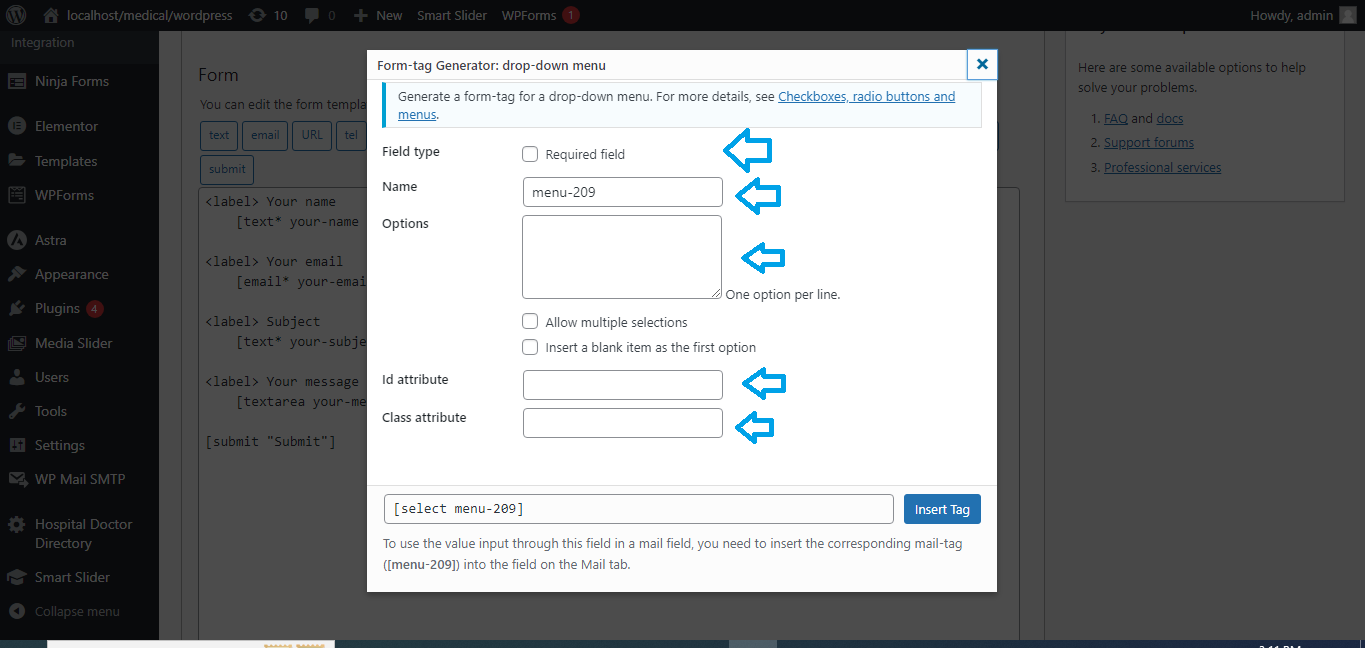
5. Insert the Select Box
- Click “Insert Tag” to add the select box code to your form.
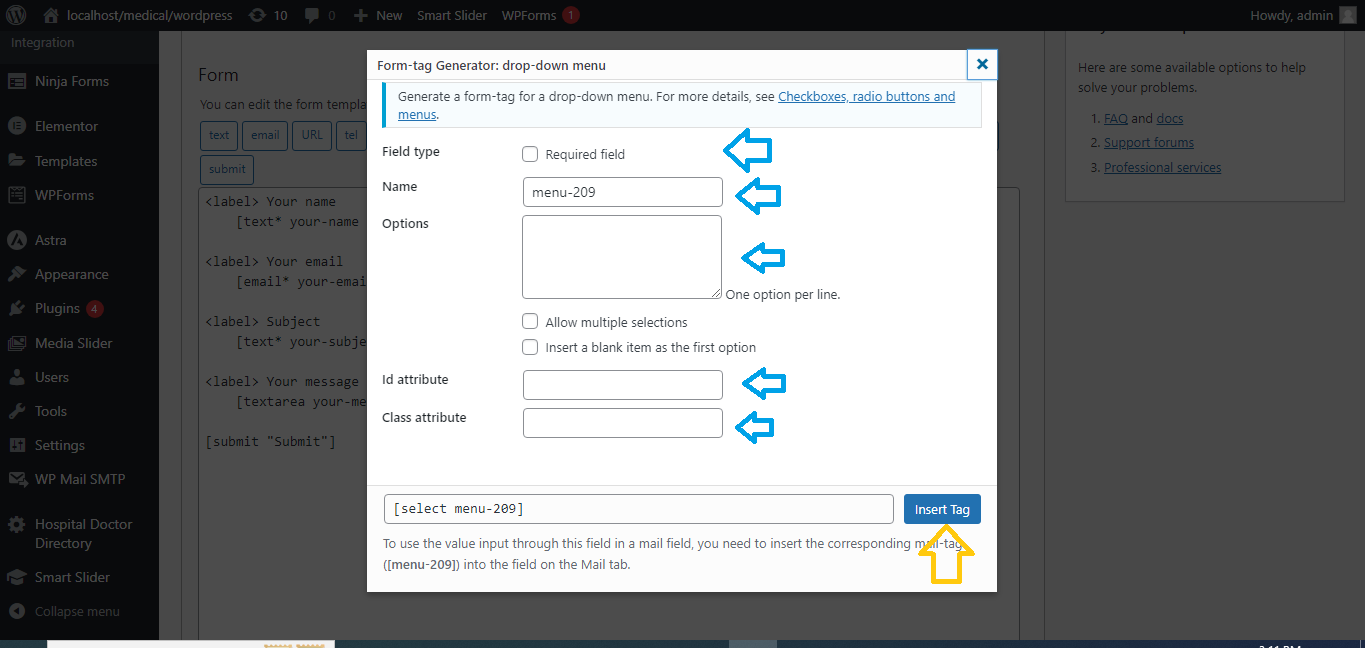
6. Save the Form
- Scroll down and click “Save” to apply the changes.
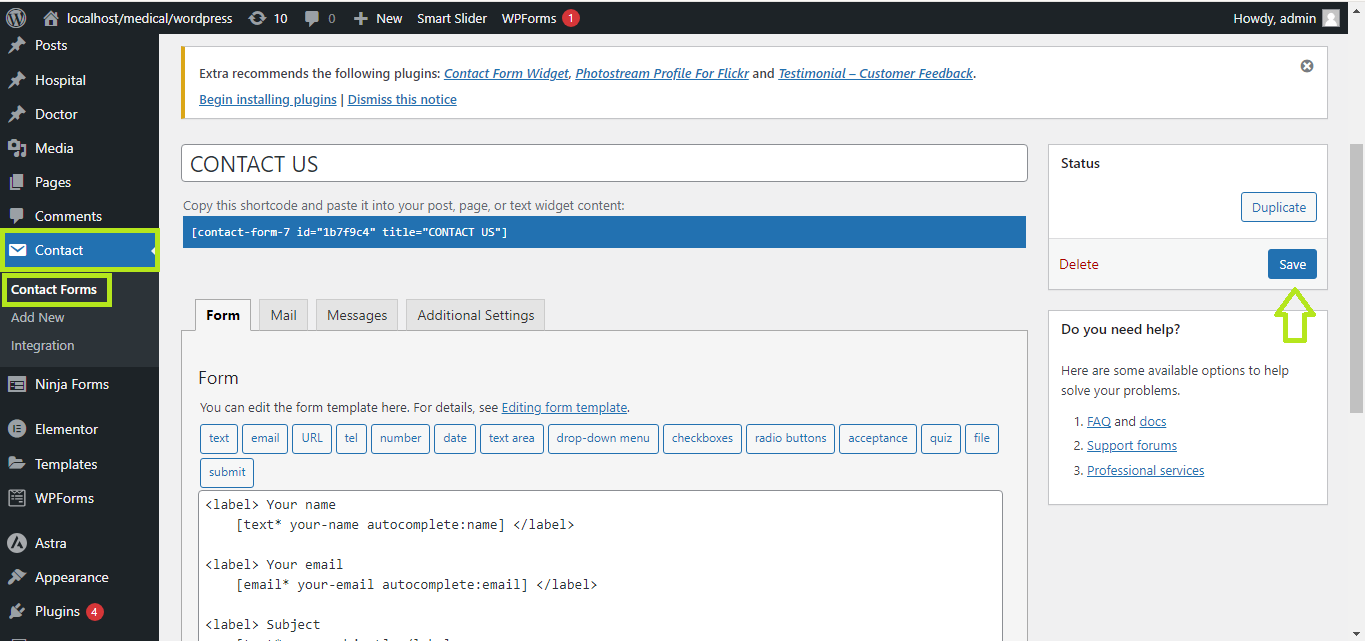
7. Add the Form to a Page/Post
- Copy the form’s shortcode from the top of the form editor.
- Paste it into the page or post where you want the form to appear.
Now, your form will include a dropdown list that users can choose from.