
Add Contact Form 7 in WordPress

Here’s how to add a contact form using Contact Form 7 in WordPress:
Step 1: Install the Contact Form 7 Plugin
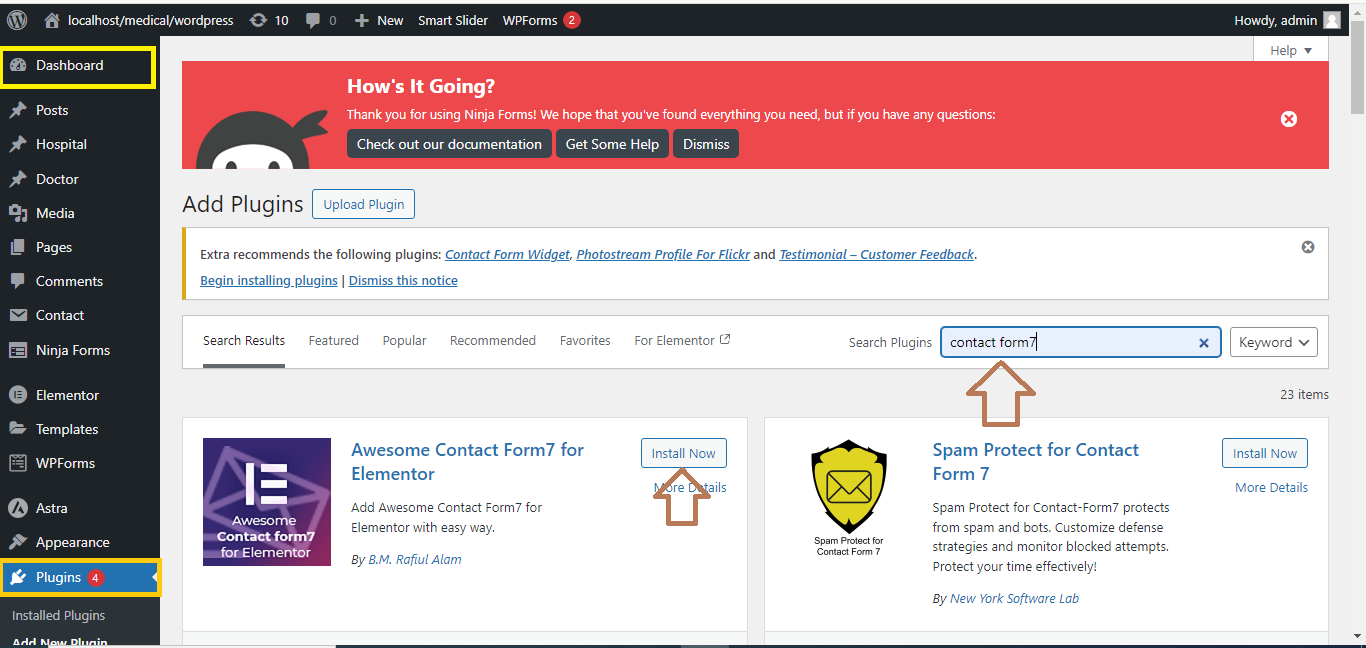
- Go to Plugins > Add New in your WordPress dashboard.
- In the search bar, type “Contact Form 7.”
- Click Install Now next to the plugin.
- After installation, click Activate.
Step 2: Create a New Contact Form
- After activation, go to Contact > Add New in your dashboard.
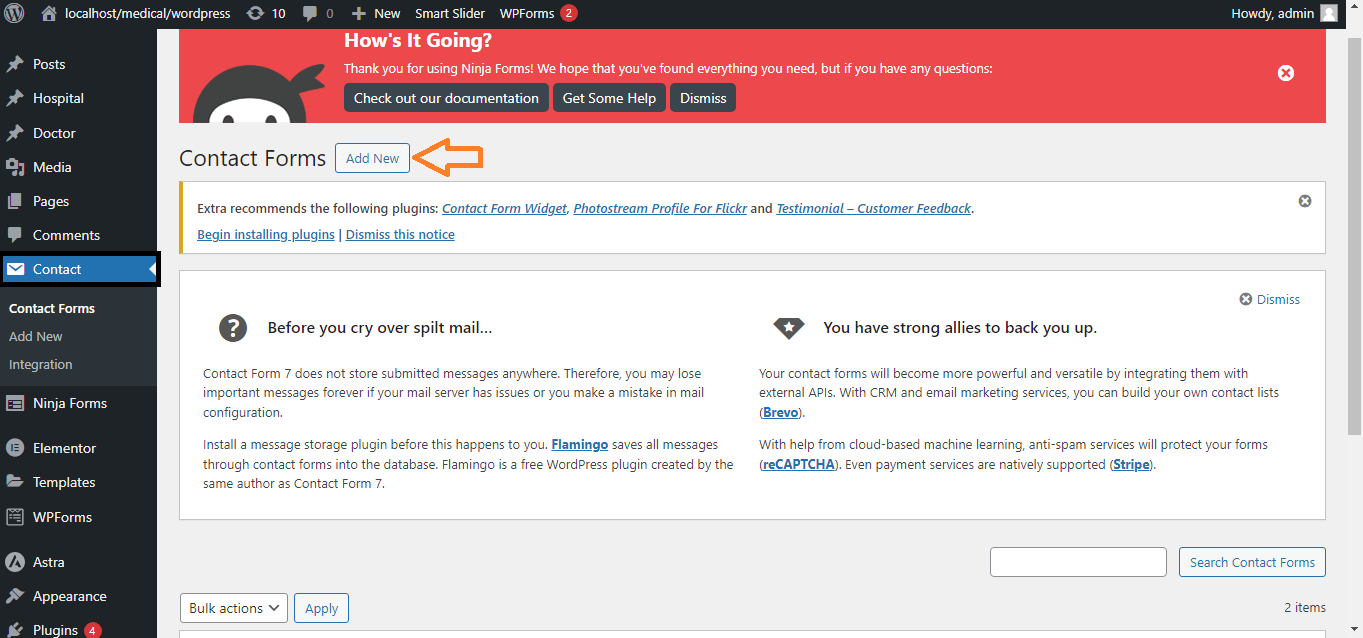
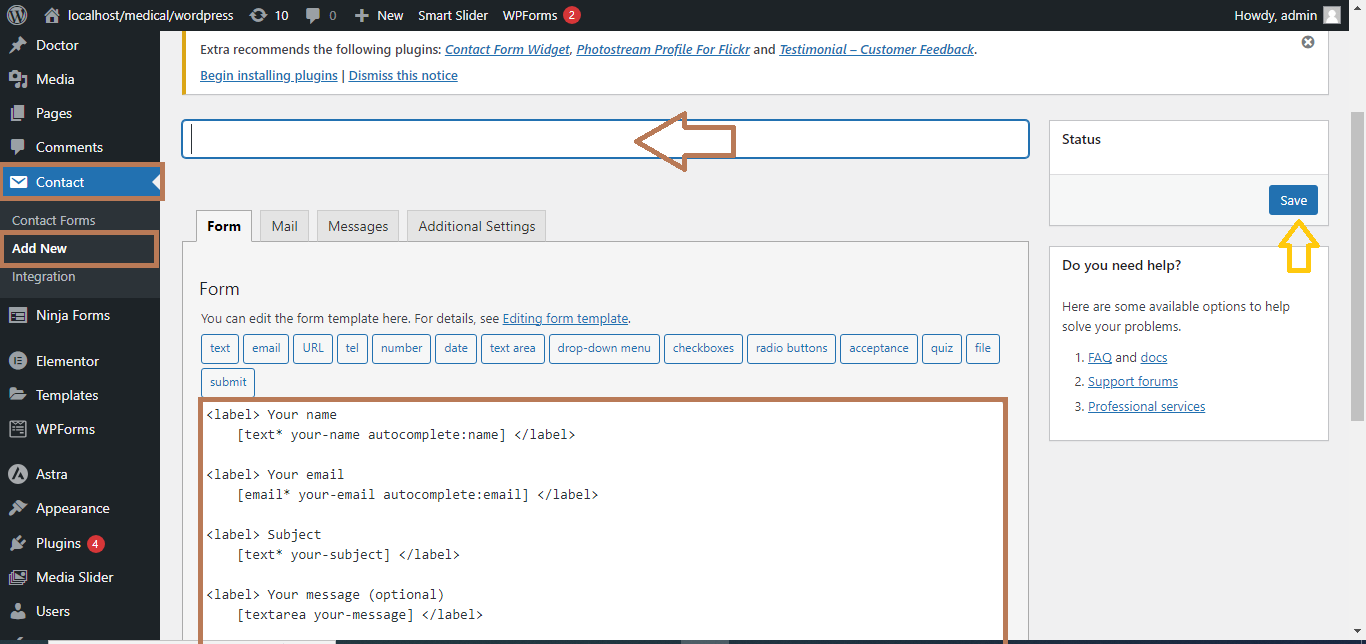
- Enter a title for your form (e.g., “Contact Us”).
- The default form fields (Name, Email, Subject, Message) are pre-configured. You can customize these fields if needed.
Step 3: Save the Form
- Scroll down and click Save to create the form.
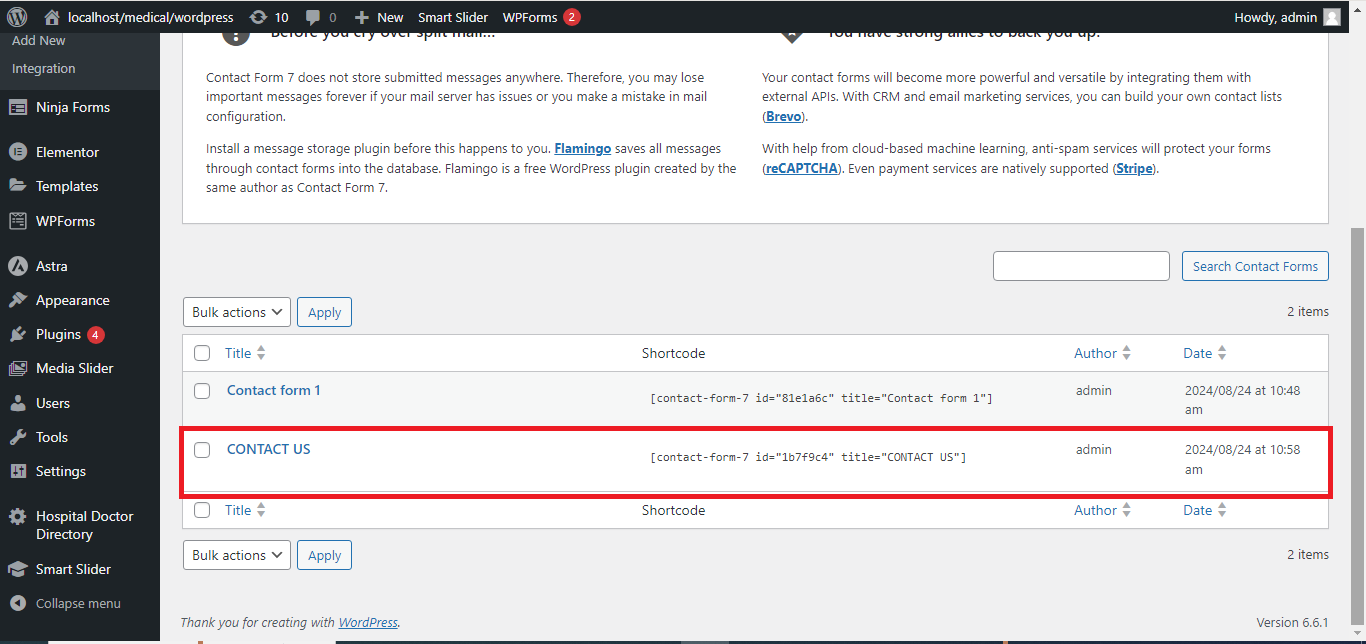
- After saving, you’ll see a shortcode for the form at the top.
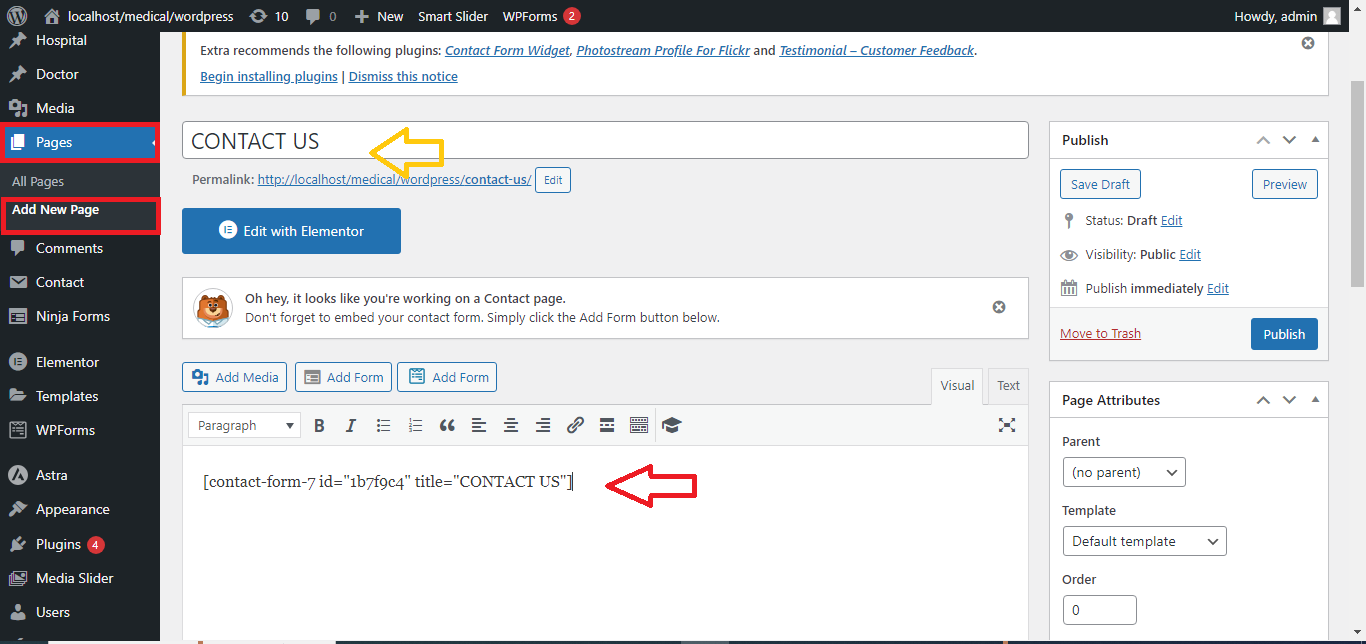
Step 4: Add the Form to a Page or Post
- Copy the shortcode provided (e.g.,
[contact-form-7 id="123" title="Contact Us"]). - Go to the page or post where you want to add the form.
- Paste the shortcode into the editor where you want the form to appear.
Step 5: Publish
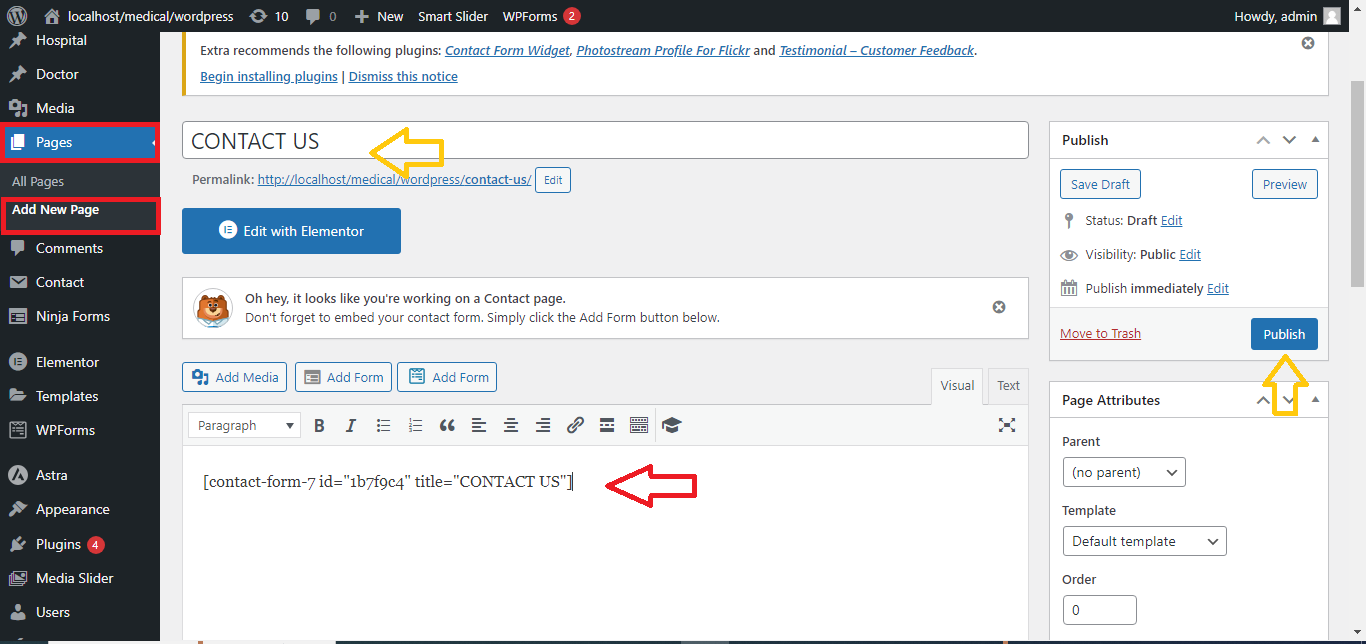
- Click Publish or Update to save the page or post.
- Visit the page to see your new contact form in action.
That’s it! You’ve successfully added a contact form to your WordPress site using Contact Form 7.


