Add Testimonial slider

Step 1: Add a New Section
- Open your WordPress dashboard and navigate to the page or post where you want to add the testimonial slider.

- Click on Edit with Elementor.
- In the Elementor editor, click the + (plus) button to add a new section.
- Choose a structure for your section, typically a single column for a testimonial slider.
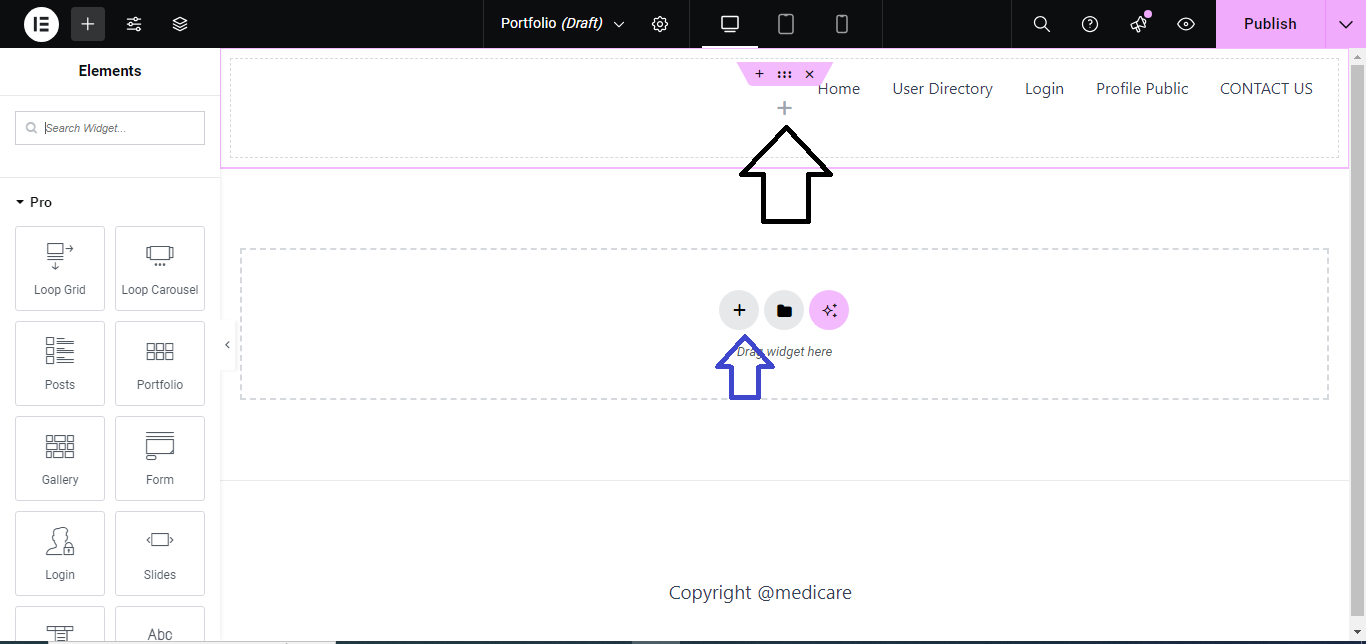
Step 2: Add Testimonial Widget
- In the Elementor widget panel, search for “Testimonial Carousel” (or just “Testimonial”).
- Drag and drop the Testimonial Carousel widget into the newly created section.

Step 3: Add Testimonial Content
- Once the widget is in place, you’ll see a list of testimonial items.
- Click on each testimonial item to customize the image, name, position, and testimonial text.
- You can add multiple testimonials by clicking the Add Item button.

Step 4: Customize the Slider
- Go to the Slider Settings section.
- Set options like:
- Autoplay: Turn on/off to auto-slide testimonials.
- Slides to Show: Choose how many testimonials to display at once.
- Slide Animation: Customize transition effects.
- Infinite Loop: Enable this to make the slider loop.

Step 5: Style the Testimonial Slider
- Switch to the Style tab.
- Here, you can customize the design of the testimonials, such as typography, color, image size, and spacing.
- Adjust Arrows or Dots for navigation as per your design preference.

Step 6: Publish/Update
- Once you’re satisfied with your testimonial slider, click the Publish or Update button to save changes to the page.

That’s it! Your testimonial slider is now live on the site.


