Adding Accordion

Adding Accordion in Elementor:
- Open Elementor Editor:
- Navigate to the page you want to edit and click Edit with Elementor.

- Search for the Accordion Widget:
- In the Elementor panel (on the left), type “Accordion” in the search bar.
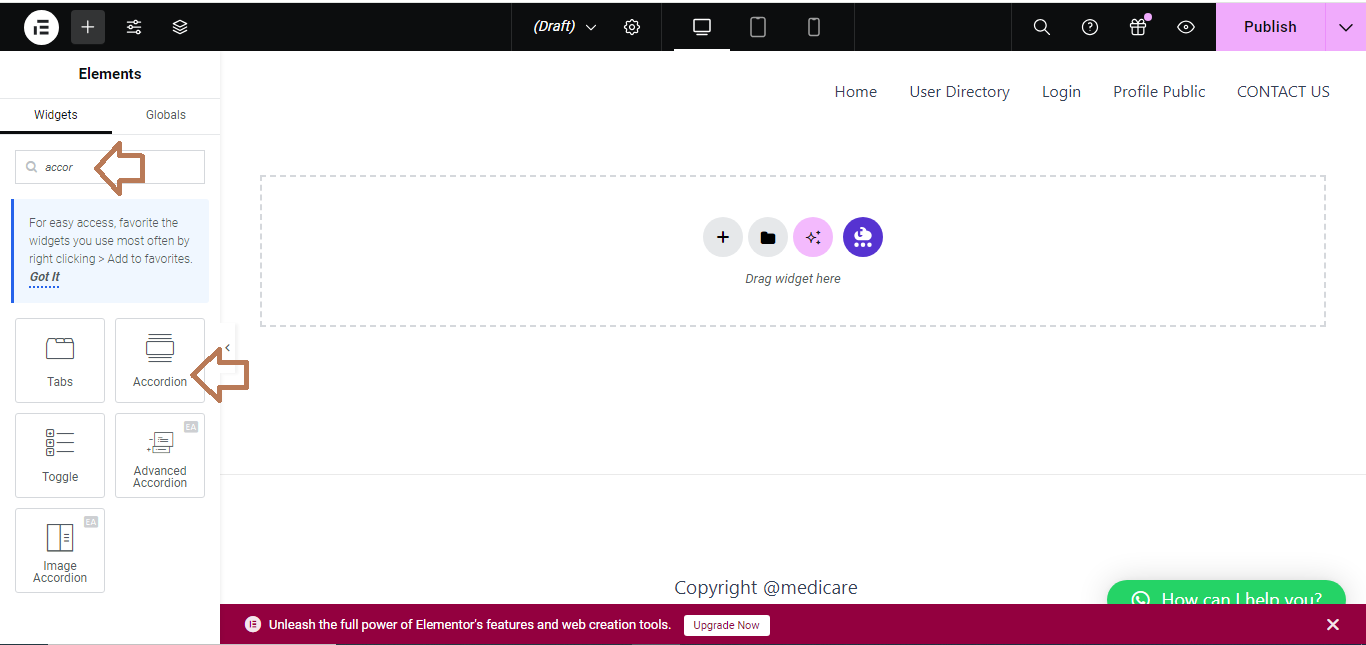
- Drag and Drop the Accordion Widget:
- Drag the Accordion widget to the section where you want the accordion to appear.

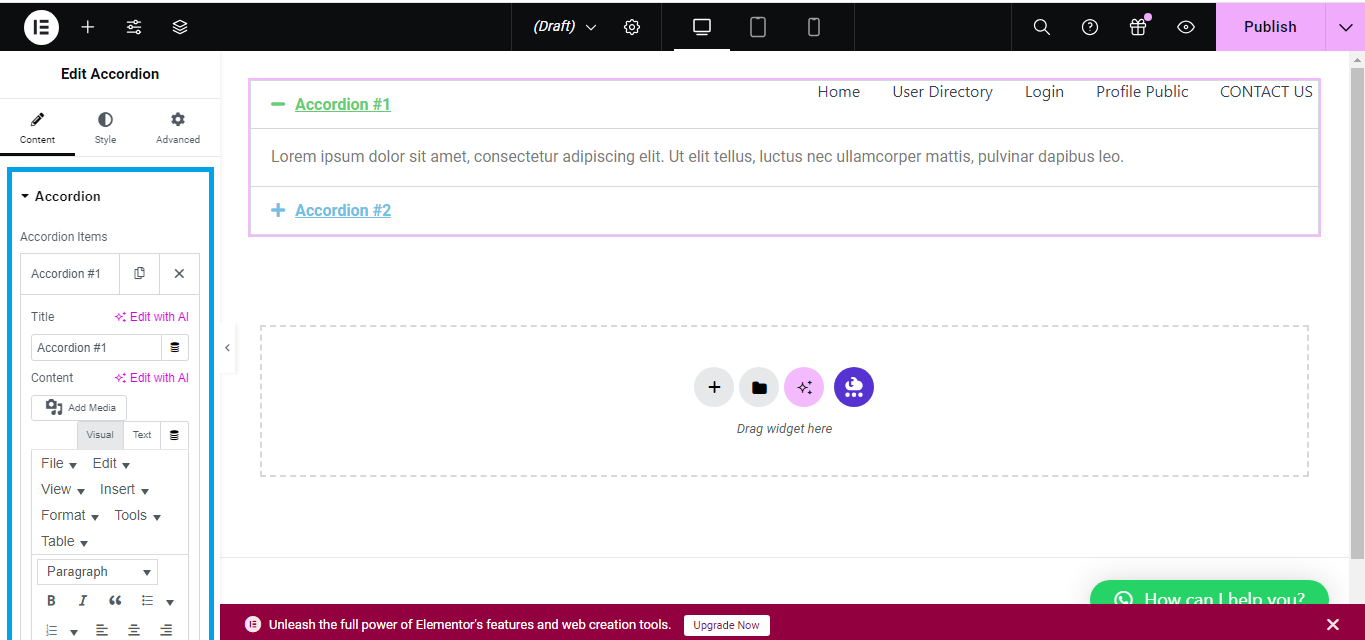
- Edit Accordion Content:
- Under the Content tab:
- Click on the first item to edit its title and description.
- Add more items by clicking Add Item.
- You can reorder or delete items by using the buttons next to each accordion panel.
- Under the Content tab:
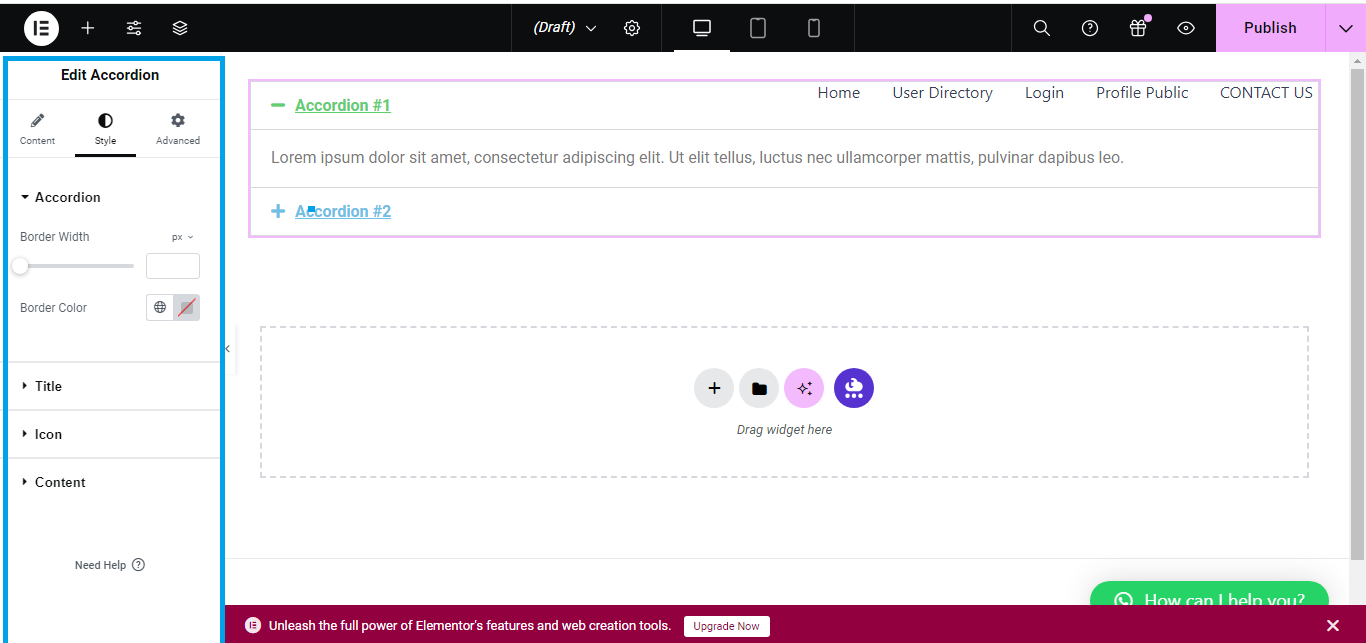
- Customize Accordion Style:
- Go to the Style tab to customize the appearance:
- Adjust the icon, background color, text color, and typography for both the active and inactive states.
- Go to the Style tab to customize the appearance:
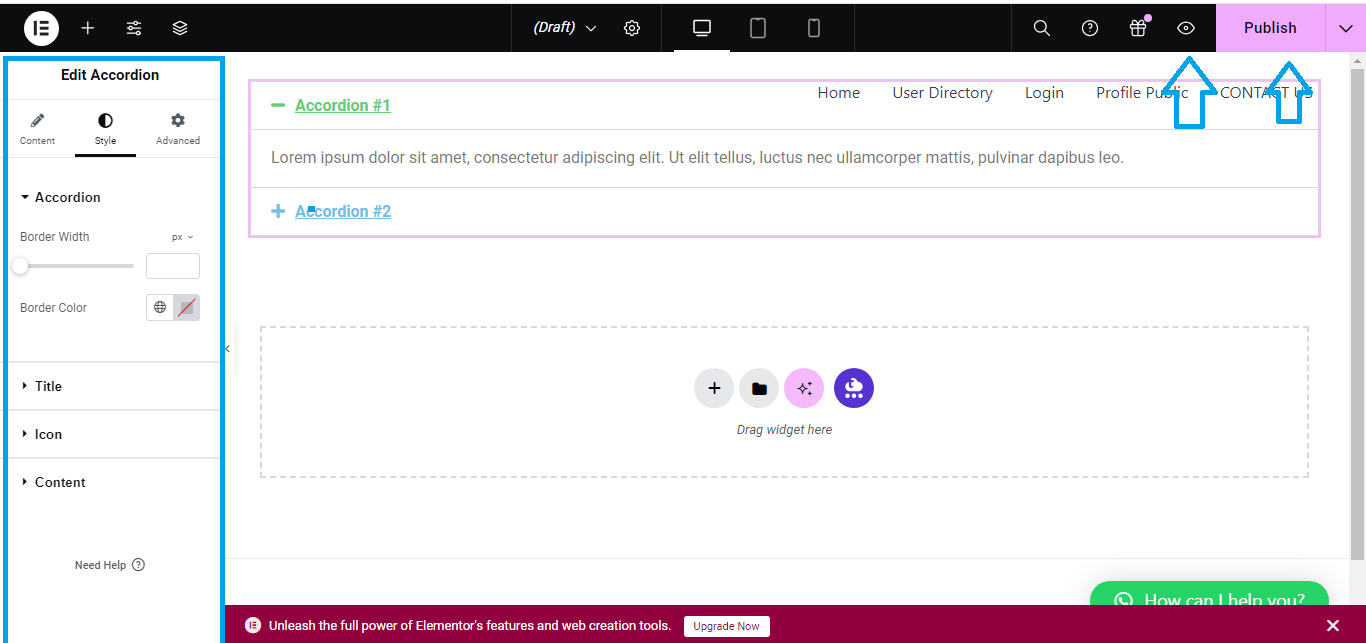
- Preview and Save:
- Click Preview to see how it looks, and when you’re satisfied, click Update to save the changes.
That’s it! You’ve successfully added an accordion to your Elementor page.


