Adding Social Icons

Here’s a quick guide to adding social icons in Elementor:
- Open the Elementor Editor:
- Go to your WordPress dashboard, open the page or post where you want to add social icons, and click “Edit with Elementor.”

- Drag the Social Icons Widget:
- In the Elementor panel on the left, search for “Social Icons” in the widget search bar.
- Drag and drop the Social Icons widget to the desired section on your page.

- Customize Icons:
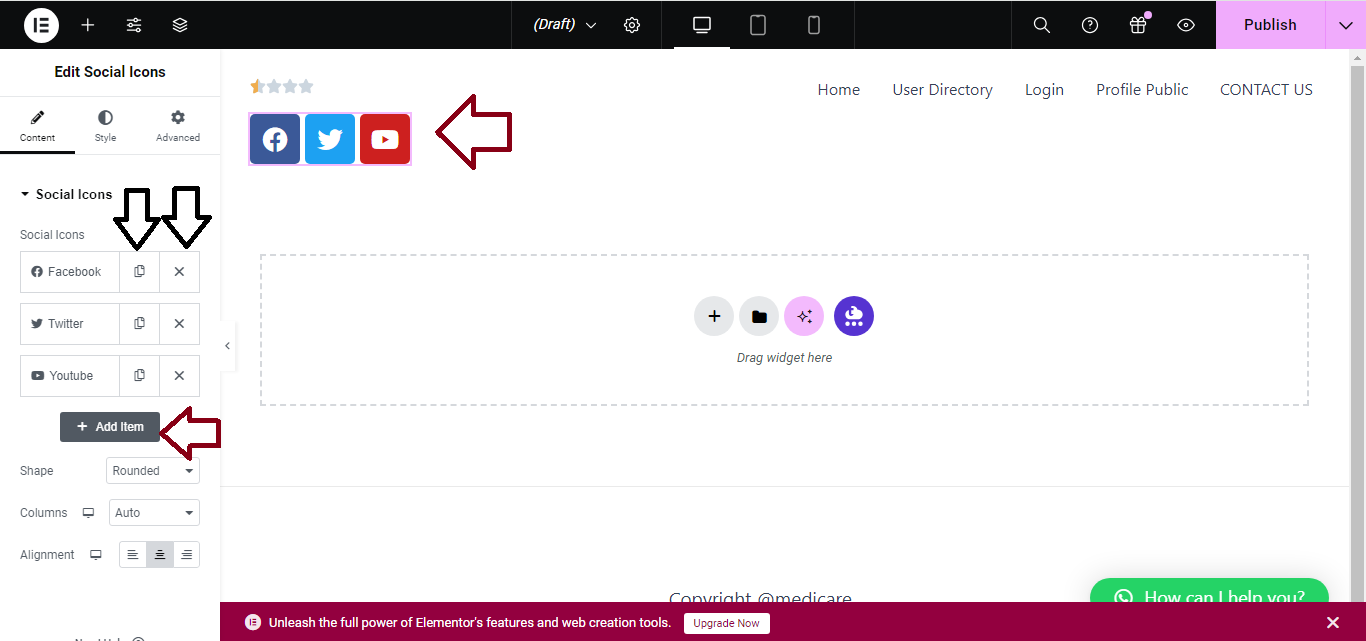
- After adding the widget, you can see default social media icons (e.g., Facebook, Twitter, and Instagram).
- Click on any icon to change the URL by adding your social media link in the “Link” field.
- You can also add or remove icons using the “Add Item” or “Delete” buttons.
- Customize Design:
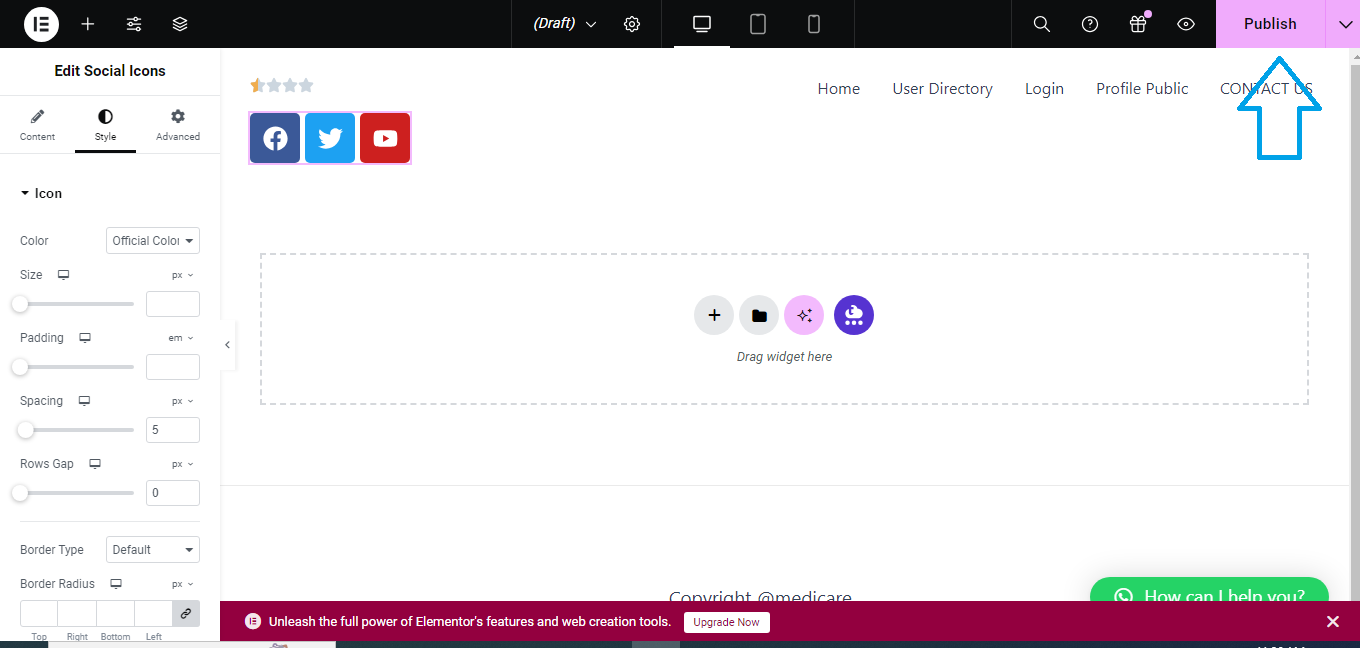
- Under the Style tab, adjust icon size, color, spacing, and border to fit your website’s design.

- Publish or Update:
- Once you’re happy with the layout and design, click Update to save your changes.
That’s it! Your social icons should now be live on the page.


