
Block Editor to Classic Editor

Switching from the Block Editor (Gutenberg) to the Classic Editor in WordPress is simple. Here’s how to do it in a few small steps:
Step 1: Install the Classic Editor Plugin
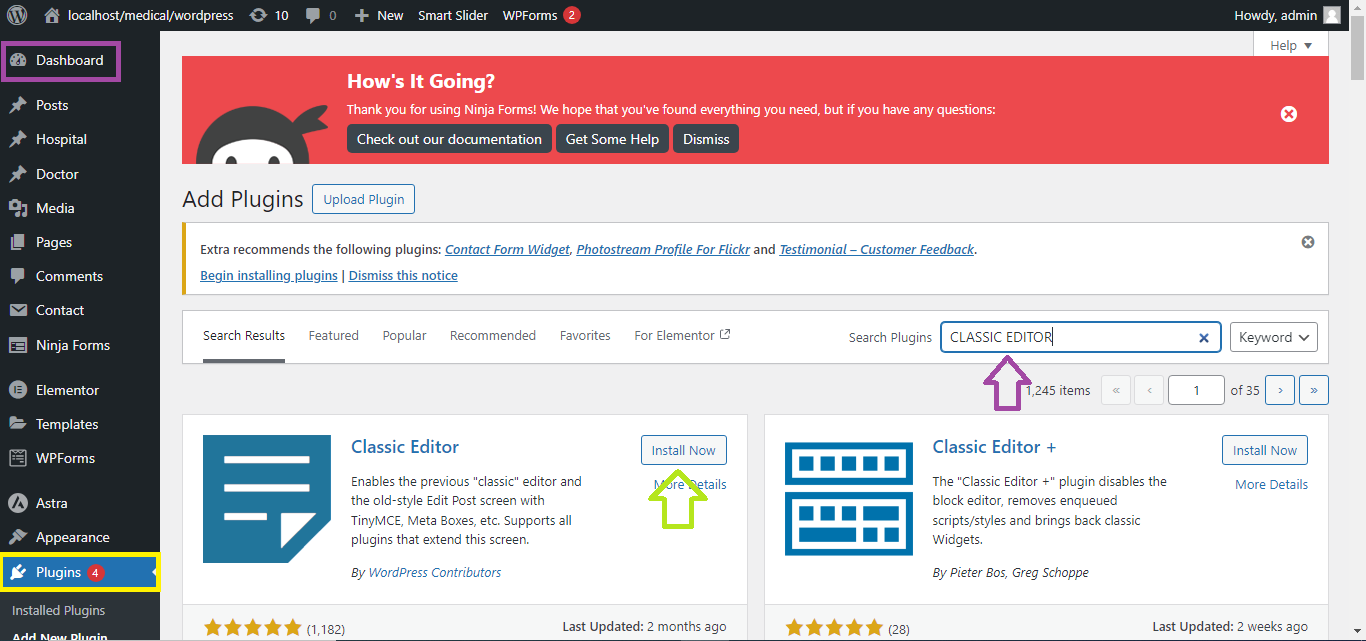
- Go to Plugins > Add New in your WordPress dashboard.
- In the search bar, type “Classic Editor.”
- Click Install Now on the Classic Editor plugin.
- After installation, click Activate.
Step 2: Set the Default Editor
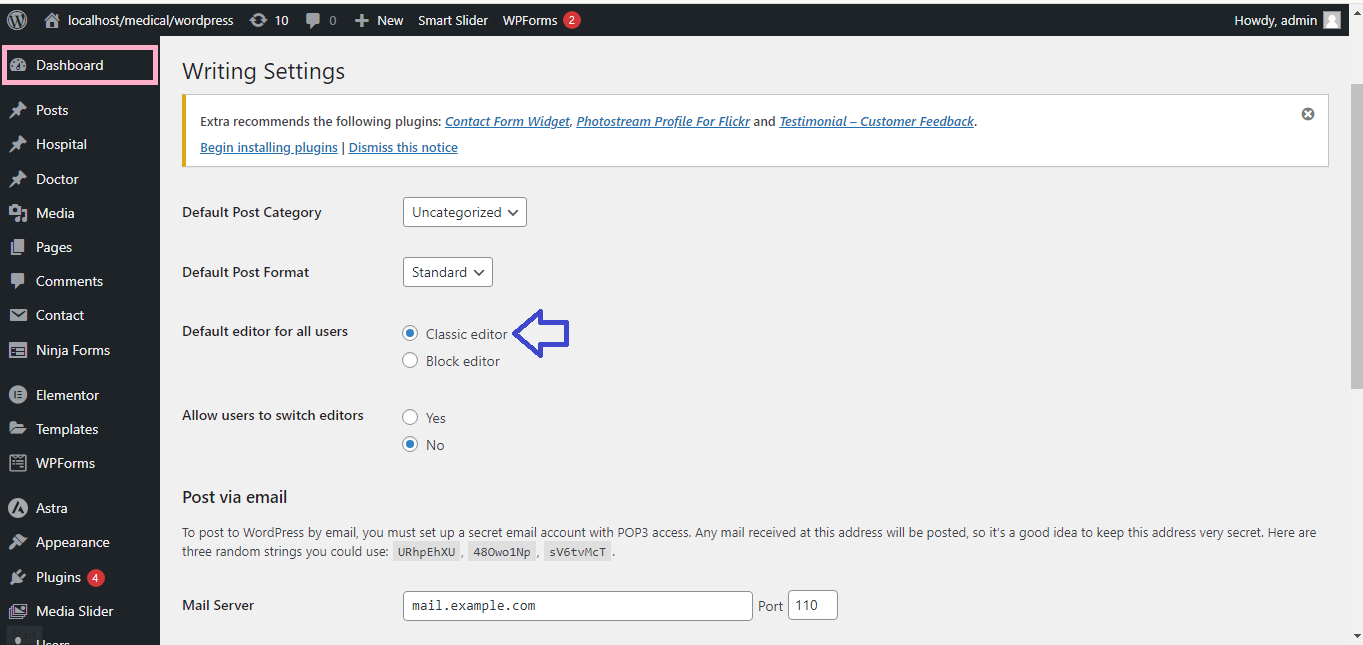
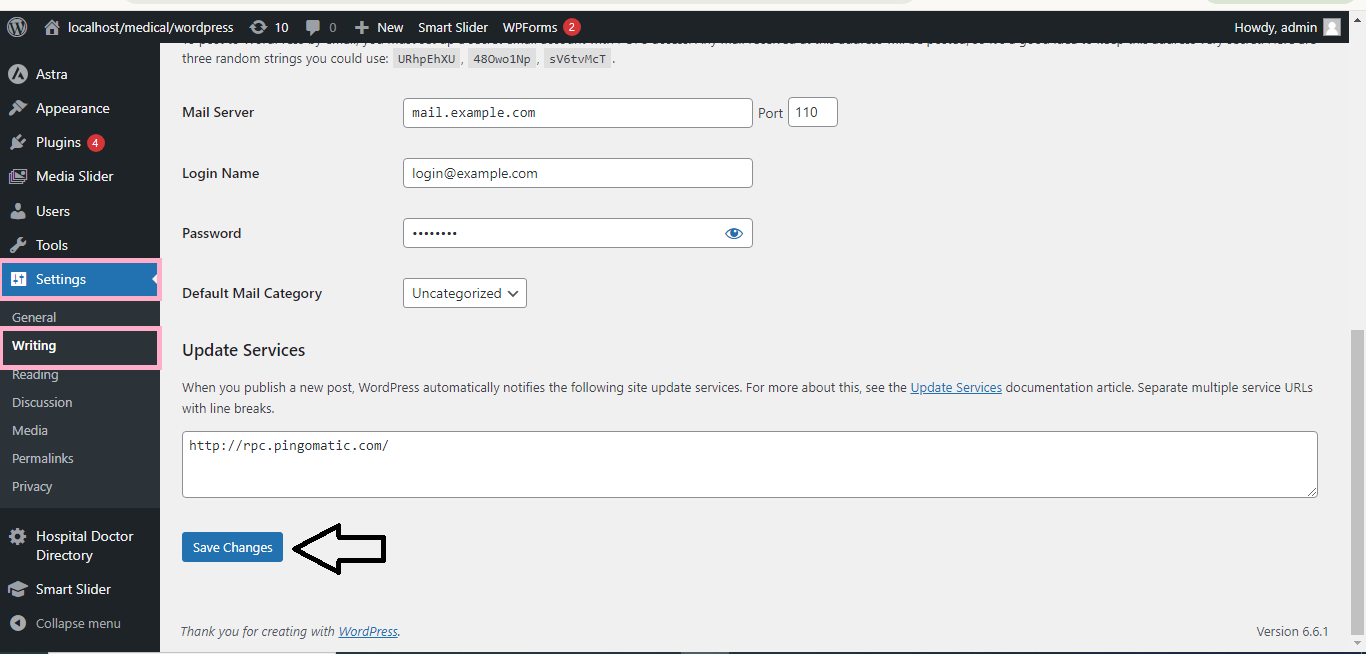
- Once activated, go to Settings > Writing in your dashboard.
- Under Default editor for all users, select Classic Editor.
- Click Save Changes at the bottom of the page.
Step 3: Start Using the Classic Editor
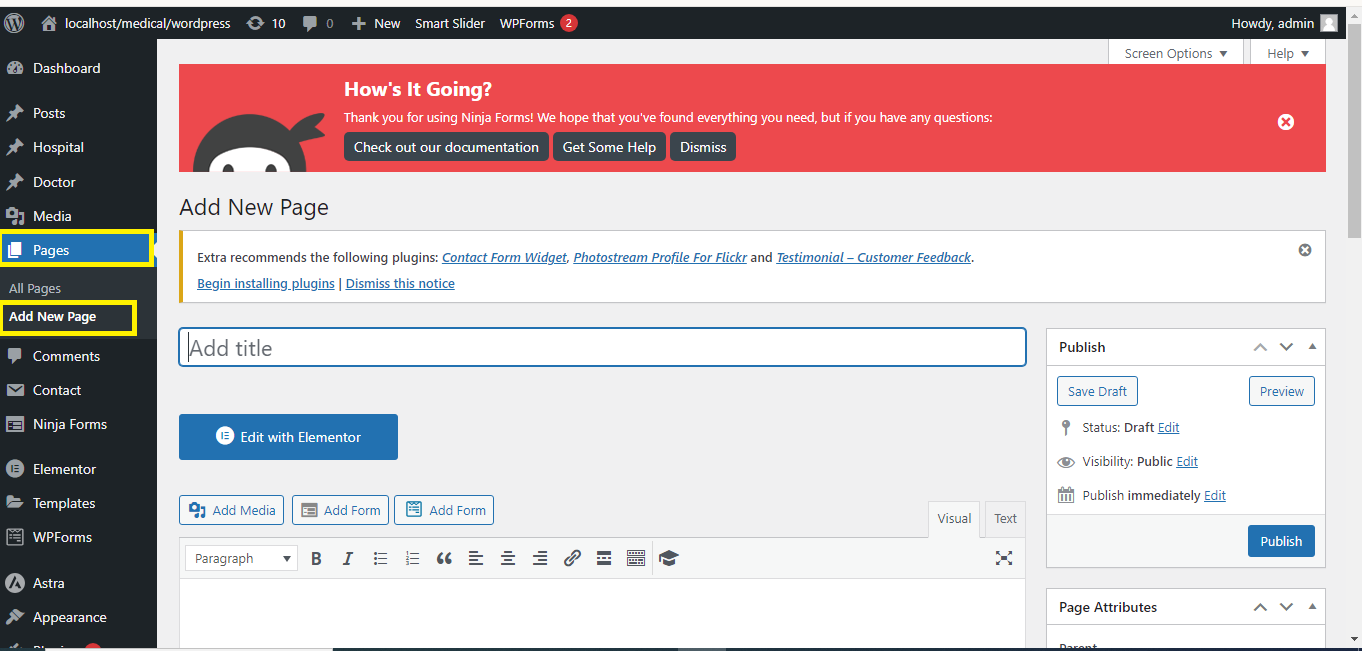
- Go to Posts > Add New or Pages > Add New.
- You will now see the Classic Editor instead of the Block Editor.
That’s it! You’ve successfully switched from the Block Editor to the Classic Editor in WordPress.


