How to Post Excerpt in WordPress?
Posting an excerpt in WordPress allows you to display a summary of your content on archive pages, blog listings, or other areas of your site, with a link to the full post. Here’s how you can add and manage excerpts in WordPress:
1. Enable Excerpt Option (if needed)
By default, the excerpt field might be hidden when editing a post. You can enable it as follows:
Step 1: Access the WordPress Dashboard
- Log in to your WordPress admin panel.

Step 2: Open the Post Editor
- Go to
Posts>All Postsand select the post you want to edit, or clickAdd Newto create a new post.

Step 3: Enable the Excerpt Box
- If you’re using the Classic Editor:
- In the top right corner, click on Screen Options.
- Check the box next to Excerpt to enable the excerpt field.
- If you’re using the Block Editor (Gutenberg):
- In the right sidebar, under the Post tab, scroll down to find the Excerpt section.
- If you don’t see it, click on the three-dot menu at the top right, select Preferences > Panels, and make sure Excerpt is enabled.

2. Add an Excerpt
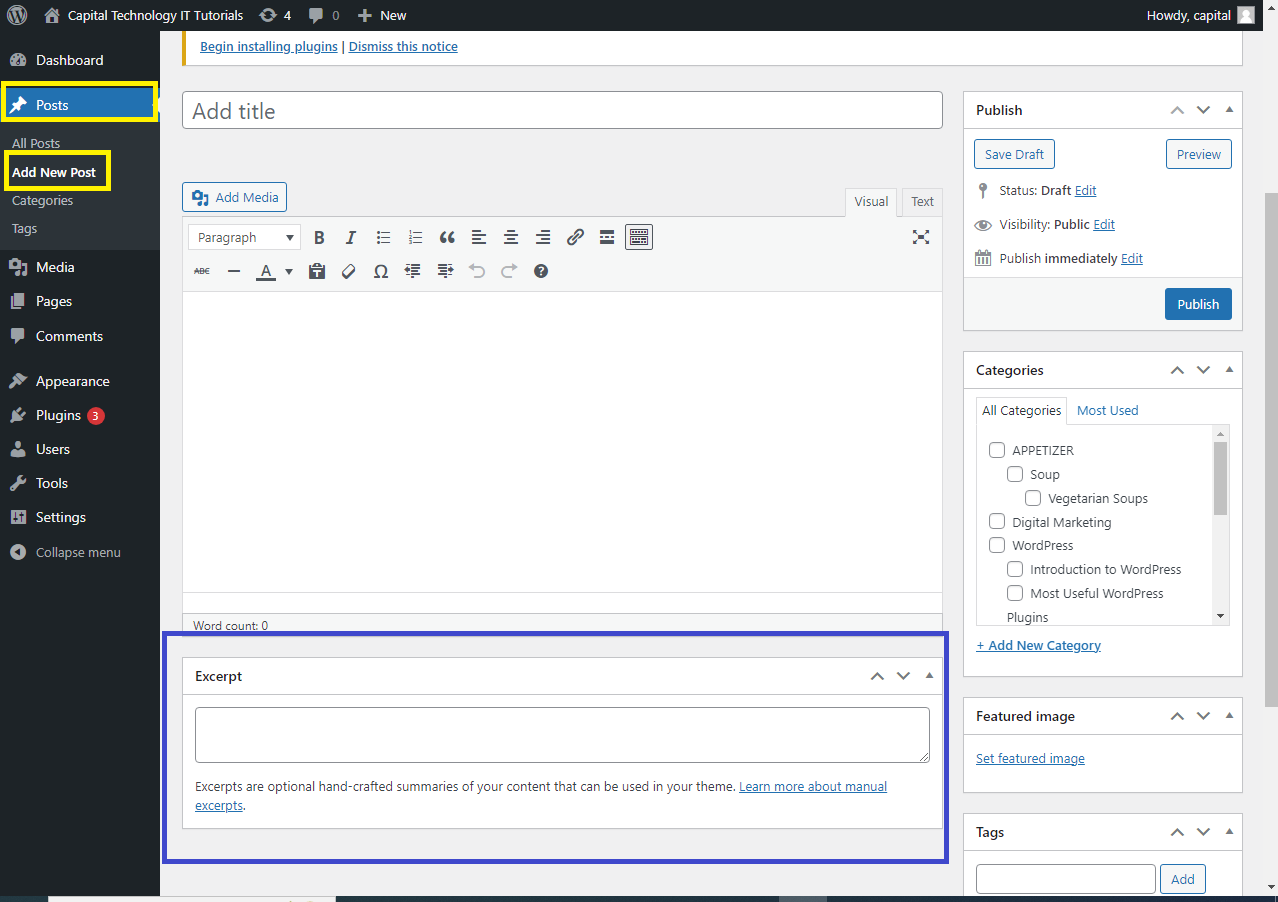
Step 1: Locate the Excerpt Field
- In the post editor, scroll down (Classic Editor) or look in the sidebar (Block Editor) to find the Excerpt box.
Step 2: Write the Excerpt
- Enter the summary or description of your post in the Excerpt field. This should be a brief, compelling summary that encourages readers to click through to the full post.

Step 3: Publish or Update the Post
- After entering the excerpt, either publish your post or update it if it’s already published.

3. Using Excerpts in Your Theme
- Many WordPress themes automatically display excerpts on archive pages, category pages, or the homepage blog listing.
- If your theme doesn’t display excerpts, you might need to modify your theme files or use a plugin that allows you to control excerpt usage.


