
Method in WooCommerce

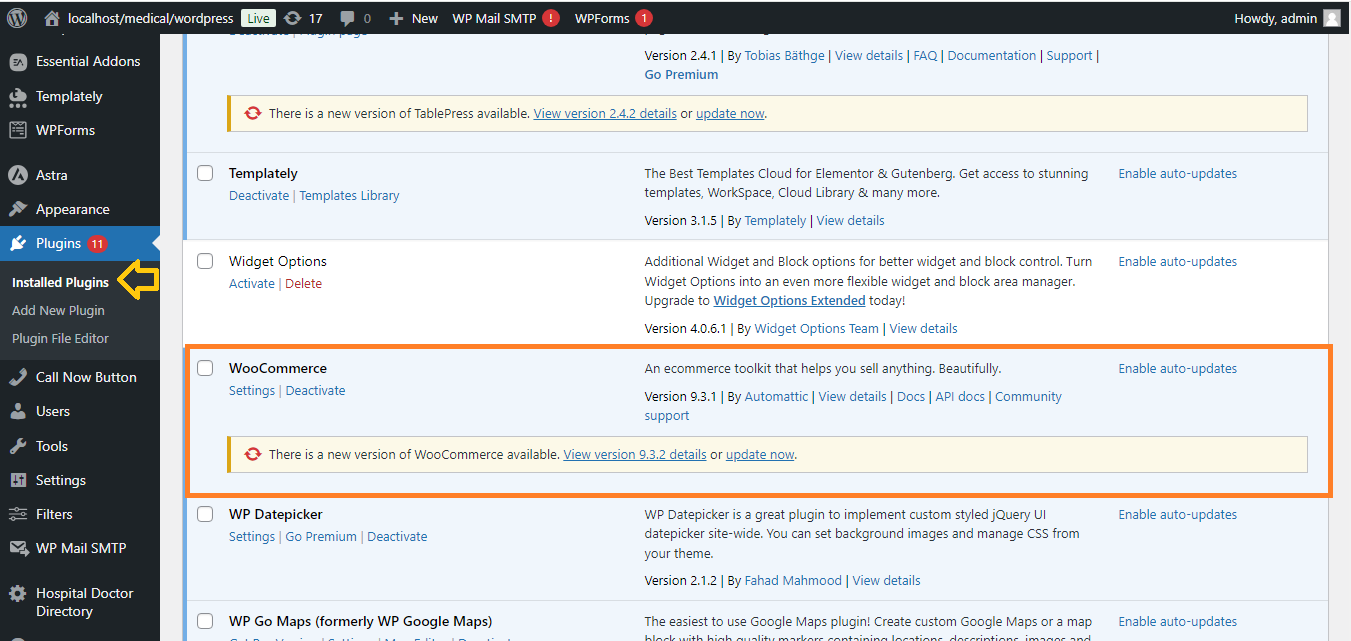
1. Install and Set Up WooCommerce:
- If WooCommerce is not already installed, go to your WordPress Dashboard.
- Navigate to Plugins > Add New and search for WooCommerce.
- Install and activate it.
2. Enable Cash on Delivery in WooCommerce:
- In the WordPress Dashboard, go to WooCommerce > Settings.
- Click on the Payments tab.

- Find the Cash on Delivery option and toggle it on.
- Click Set up next to Cash on Delivery.
- Customize the settings (e.g., enable COD for specific shipping methods or regions).
- Save the changes.

3. Customize the Checkout Page in Elementor:
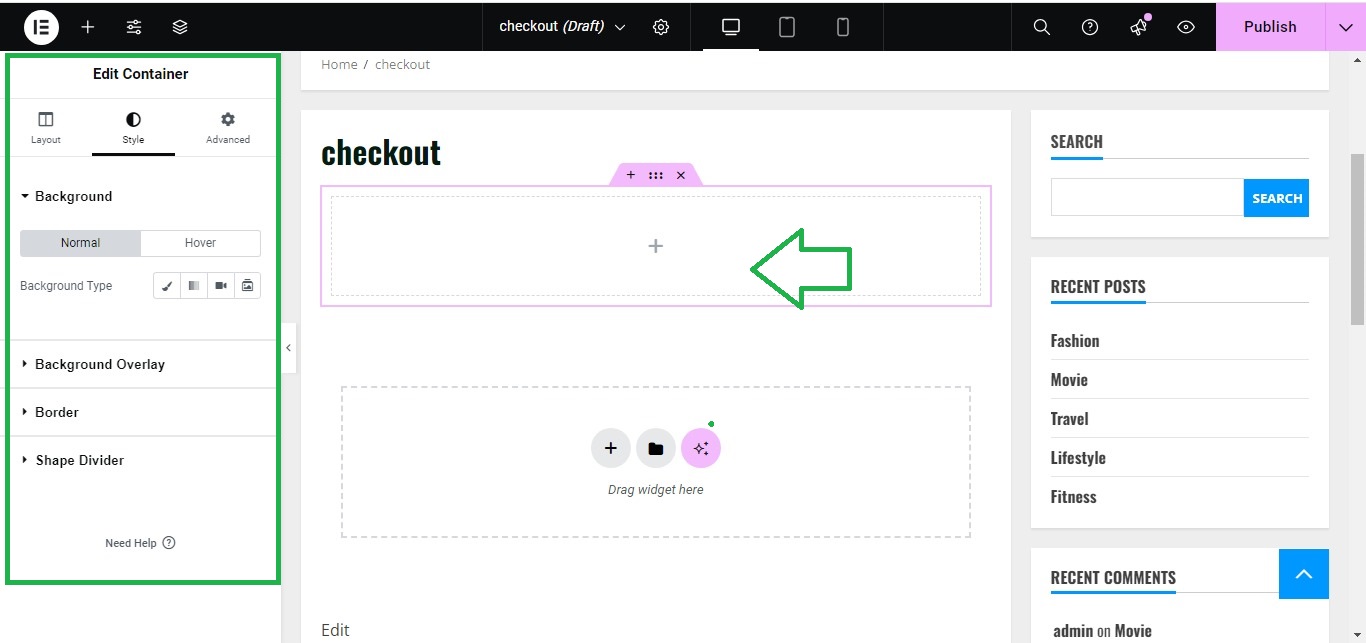
- Go to Pages in your WordPress Dashboard and edit your Checkout page using Elementor.
- Drag and drop WooCommerce widgets (like the Checkout Form) to style your page.
- Customize the design of the checkout page according to your brand.
- Save the changes.
4. Test the COD Payment Option:
- Visit your site and add a product to your cart.
- Proceed to the checkout page and check if Cash on Delivery is available as a payment option.

5. Publish the Changes:
- Once everything is set, make sure your checkout page is published and live.
With these steps, you can easily integrate the Cash on Delivery option into your WooCommerce store using Elementor.


