WooCommerce Checkout Page

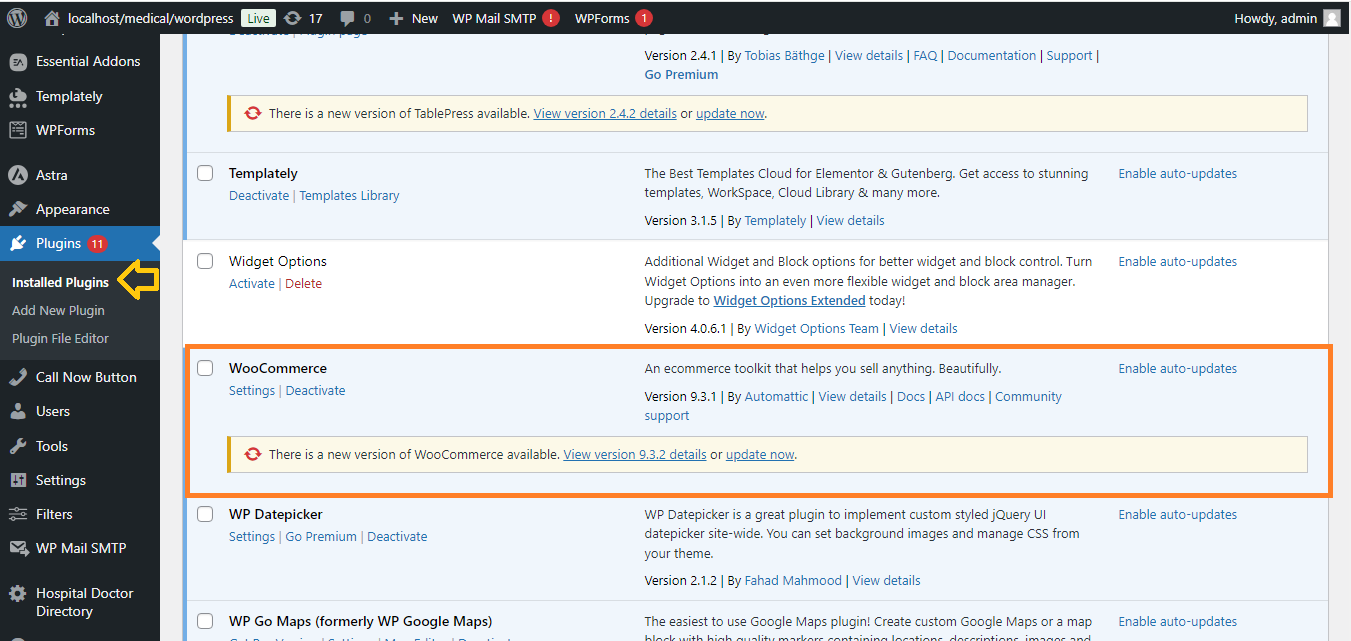
Step 1: Install WooCommerce and Elementor
- Ensure you have WooCommerce and Elementor installed and activated on your WordPress website.
Step 2: Create a New Checkout Page
- Go to your WordPress dashboard.
- Navigate to Pages > Add New.
- Name the page Checkout.
- In the text editor, insert the following shortcode
- Publish the page.

Step 3: Set the Checkout Page in WooCommerce
- Go to WooCommerce > Settings.
- Click the Advanced tab.
- In the Checkout Page option under the Page Setup section, select the page you just created (“Checkout”).
- Click Save Changes.

Step 4: Customize Checkout Page with Elementor
- Go to Pages > All Pages and find the Checkout page you just created.
- Click Edit with Elementor.
- Use Elementor to:
- Add text or heading elements to customize your checkout page (e.g., “Secure Checkout” heading).
- Add Section or Column widgets to organize the layout.
- Do not edit the checkout form directly as it’s handled by WooCommerce, but you can enhance the surrounding design.

Step 5: Add Additional Elements (Optional)
- Call to Action: You can add a widget to display a last-minute offer or encourage customers to complete the purchase.
- Trust Badges: You can add icons or images that represent secure payment gateways (like PayPal, Visa, etc.) to build customer trust.
- Coupons Section: You can use Elementor to highlight the coupon field, encouraging users to apply a discount code before checkout.

Step 6: Publish and Test
- Publish your design after customizing.
- Visit the Checkout Page to ensure it is displaying properly and test the functionality by adding products to the cart and completing the checkout process.

Now you’ve successfully created and customized a WooCommerce Checkout Page using Elementor!


