
Embed Twiter Tweets on WordPress Website

Steps to Embed Twitter Tweets Using Elementor
- Copy the Tweet URL:
- Go to Twitter and find the tweet you want to embed.
- Click on the Share button (the small arrow icon below the tweet).
- Select Copy link to Tweet.

- Open the Page in Elementor:
- In your WordPress dashboard, navigate to the page or post where you want to embed the tweet.
- Click Edit with Elementor.

- Add an HTML Widget:
- In Elementor’s sidebar, search for the HTML widget.
- Drag and drop the HTML widget onto your page where you want the tweet to appear.
- Paste the Embed Code:
- Go to the Publish Twitter page: Twitter Publish.
- Paste the tweet URL into the provided field and click Preview.
- Twitter will generate an embed code for the tweet.
- Copy the generated embed code.

- Insert the Embed Code in Elementor:
- In the HTML widget in Elementor, paste the embed code you copied from Twitter.
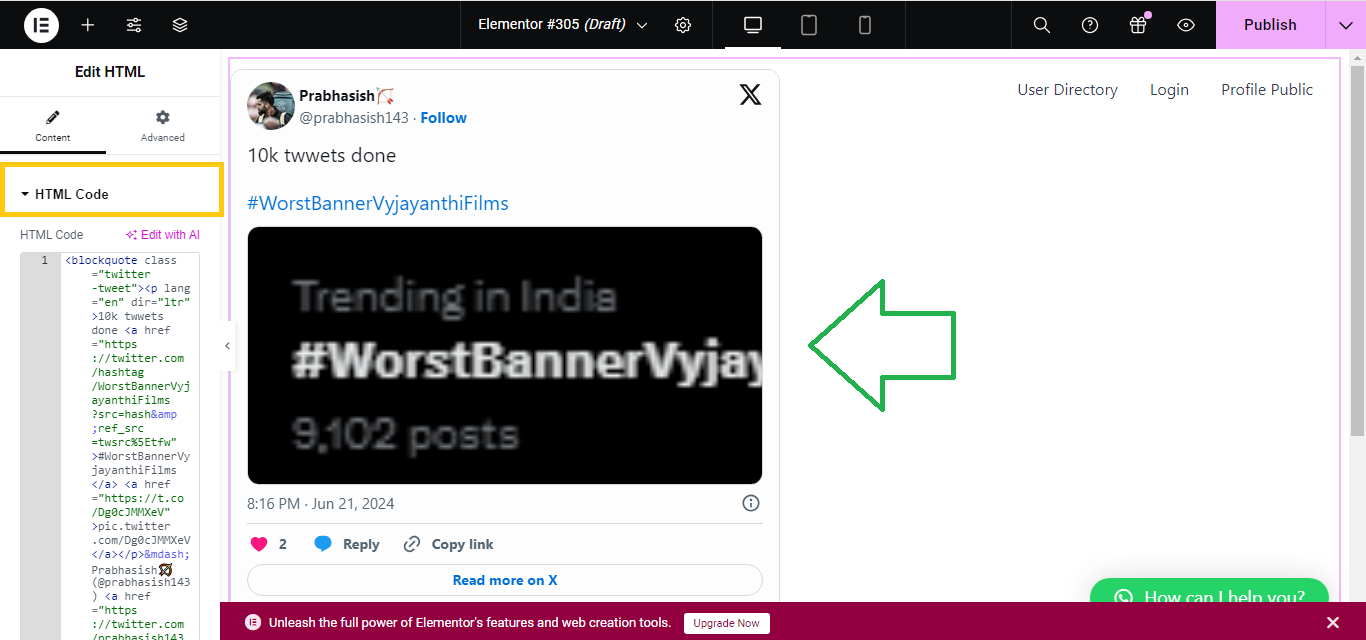
- Save and Publish:
- After embedding the tweet, click Update to save your changes.
Now, the Twitter tweet will appear on your Elementor page!


