Add Countdown Block

Step 1: Open Elementor Editor
- Log in to your WordPress dashboard.
- Go to the page or post where you want to add the countdown block.
- Click Edit with Elementor to open the Elementor editor.

Step 2: Add a New Section
- In the Elementor editor, click the + (plus) button to add a new section.
- Select a single-column structure (or any other layout you prefer).

Step 3: Add the Countdown Widget
- In the Elementor widget panel, search for Countdown.
- Drag and drop the Countdown widget into your section.

Step 4: Set the Countdown Time
- Under the Content tab:
- Type: Choose between Due Date (set a specific date and time) or Evergreen Timer (repeats for each user).
- Date/Time: Set the end date and time for the countdown.
- Labels: Enable/disable labels like Days, Hours, Minutes, and Seconds.

Step 5: Customize the Countdown Design
- Switch to the Style tab to adjust the look of the countdown:
- Boxes: Customize the spacing, border, and background of the countdown boxes.
- Digits: Modify the Typography, Color, and Size of the countdown numbers.
- Labels: Style the labels (Days, Hours, etc.) by adjusting their Font, Color, and Spacing.

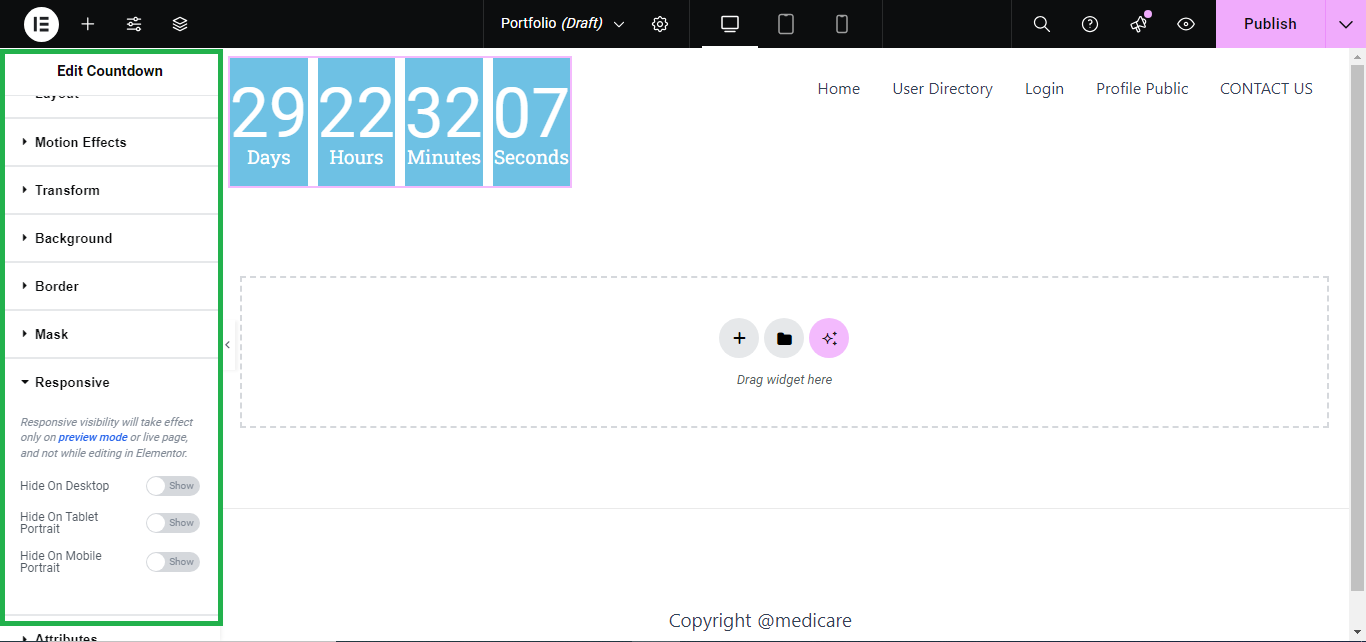
Step 6: Advanced Settings (Optional)
- In the Advanced tab, you can add extra features like:
- Motion Effects: Add animations like fade-in or bounce.
- Responsive Settings: Set the visibility for desktop, tablet, or mobile.
Step 7: Publish/Update
- Once you’re happy with the countdown design, click Publish or Update to save the changes to your page.

Your Countdown Block is now live and counting down to your specified time!


