
Blog page setup

1. Install WordPress
- Hosting with One-Click Install: If your hosting provider offers a one-click WordPress install, use it to quickly set up WordPress on your domain.
- Manual Install: Download WordPress from WordPress.org and upload it to your hosting server, then follow the installation instructions.

2. Choose a Theme
- Go to Appearance > Themes in your WordPress dashboard.
- Click on Add New to browse free themes from the WordPress repository, or upload a premium theme if you’ve purchased one.

- Install and activate the theme you like.

3. Set Up Your Blog Page
- Go to Pages > Add New to create a new page. Name it something like “Blog” or “News.”

- Publish the page (you don’t need to add any content).

4. Set the Blog Page as Your Posts Page
- Go to Settings > Reading.
- Under the “Your homepage displays” section, select A static page.
- For the “Homepage” dropdown, choose the page you want as your home page.
- For the “Posts page” dropdown, select the page you just created for your blog (e.g., “Blog”).
- Click Save Changes.

5. Customize Your Blog Page Layout
- Go to Appearance > Customize.

- Depending on your theme, you can adjust the layout of your blog page, including how posts are displayed, the number of posts per page, and sidebar settings.
- Look for options like “Blog Layout” or “Content Options” to customize the look.

6. Create and Organize Categories
- Go to Posts > Categories to create categories for your blog posts.
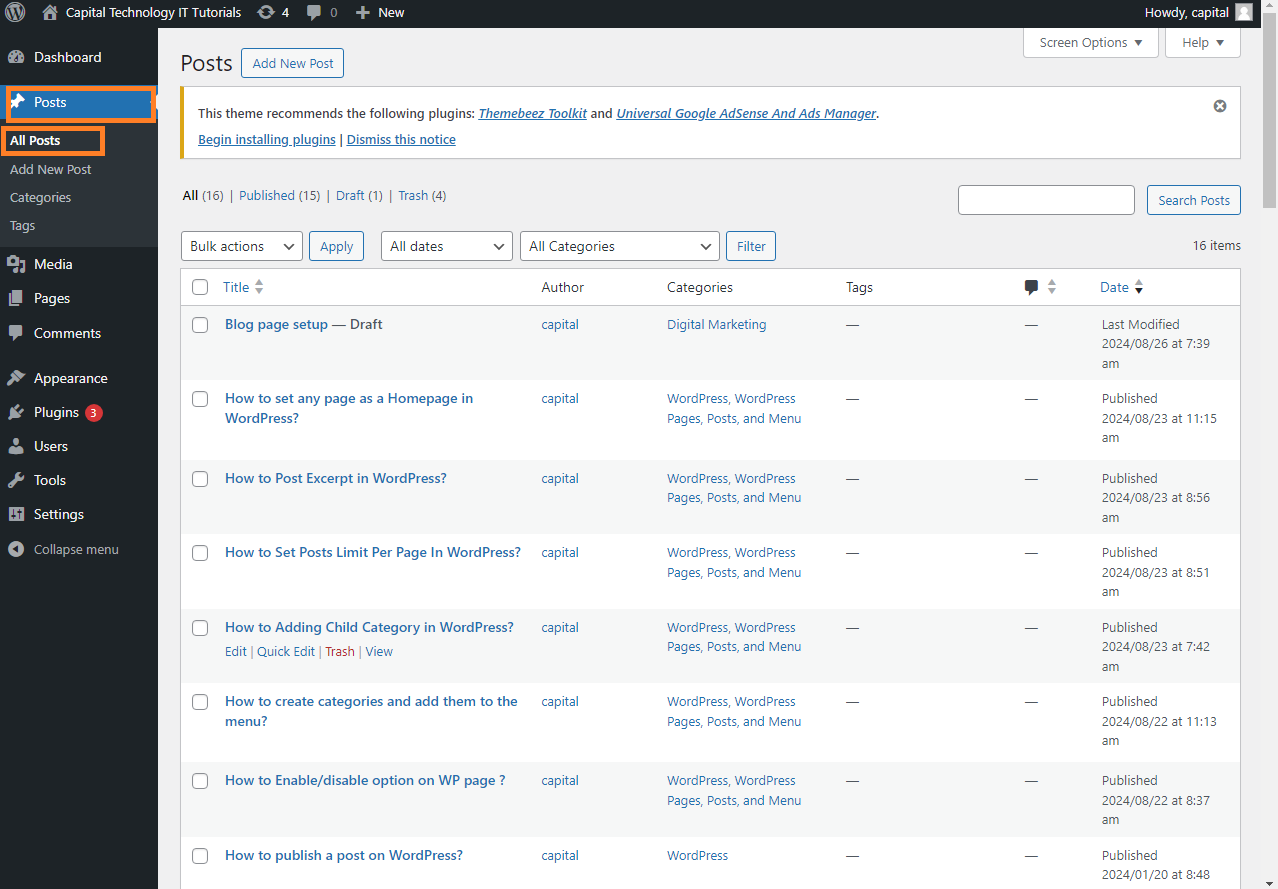
- Organizing your content into categories will make it easier for readers to navigate.

7. Create Your First Blog Post
- Go to Posts > Add New.
- Enter your post title and content. You can use the block editor (Gutenberg) to add text, images, videos, and other media.

- Assign your post to a category on the right-hand side.

- Add tags if desired.

- Click Publish when you’re ready to make your post live.

8. Add Widgets to Your Blog Sidebar
- Go to Appearance > Widgets.
- Drag and drop widgets (like Recent Posts, Categories, Search) into the Sidebar area to enhance your blog page.

9. Install Essential Plugins
- Go to Plugins > Add New.
- Install plugins like Yoast SEO for search engine optimization, Akismet Anti-Spam to protect your blog from spam comments, and Jetpack for site stats and security.

10. Customize Your Menu
- Go to Appearance > Menus.
- Add your blog page and other important pages to your navigation menu.
- Drag and drop menu items to reorder them, and click Save Menu when done.

11. Test Your Blog
- Visit your site’s front end and check how your blog page looks.
- Make sure posts are displaying correctly and that your categories and widgets are working as expected.
12. Promote Your Blog
- Share your blog posts on social media, and consider adding social sharing buttons using a plugin.
- Engage with your readers by enabling comments and responding to them.
That’s it! Your blog is now set up and ready to go. Let me know if you need help with any specific part of the process!


