Here’s how to display Contact Form 7 on your website:
Step 1: Install and Activate Contact Form 7
If you haven’t already, go to Plugins > Add New, search for Contact Form 7, then install and activate the plugin.
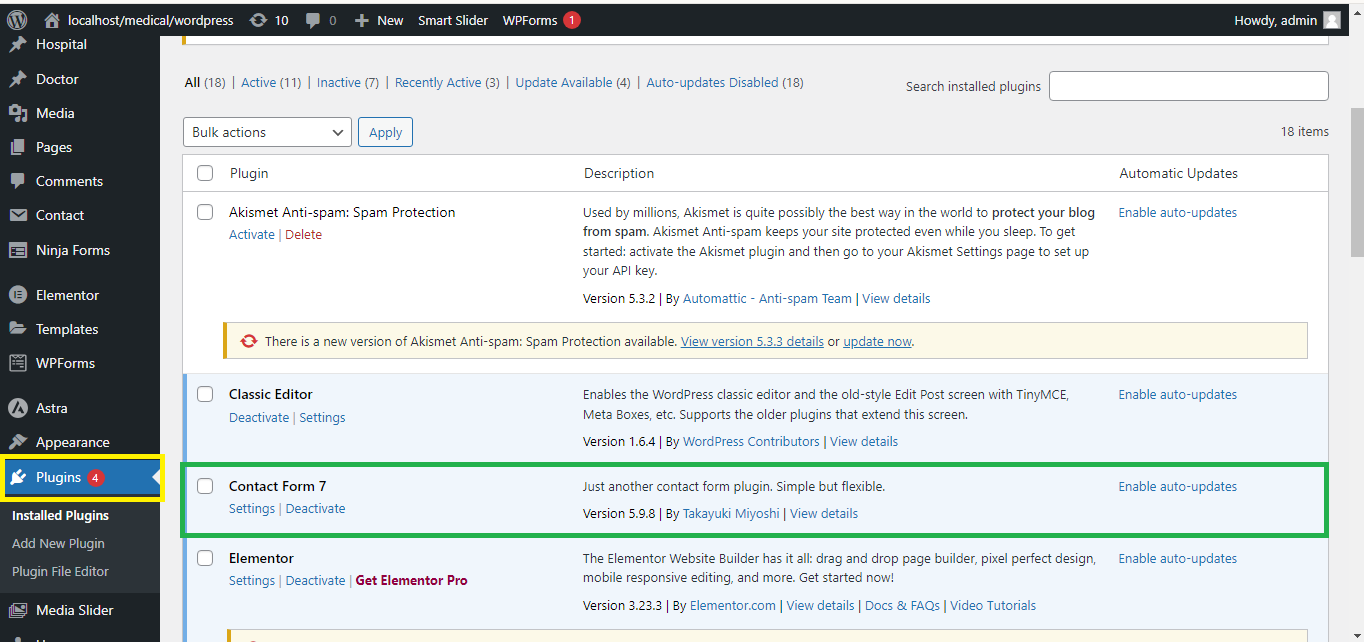
Step 2: Create or Edit a Contact Form
Go to Contact > Contact Forms from your WordPress dashboard. Create a new form or edit an existing one.
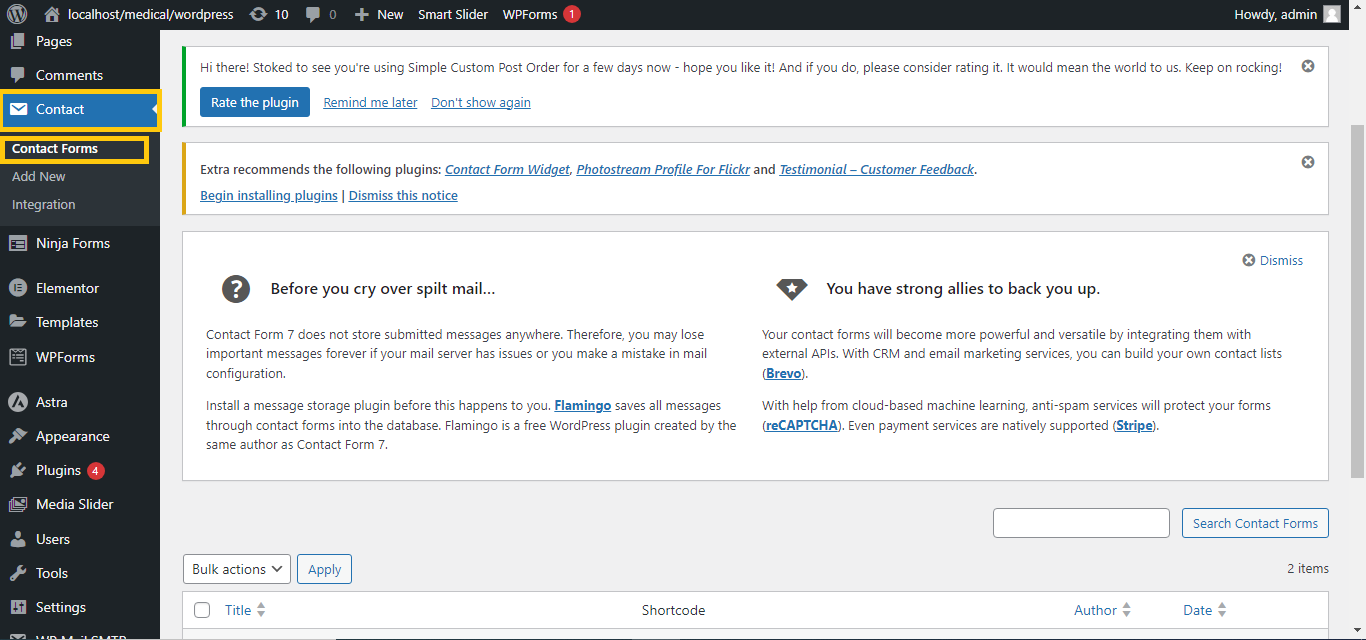
Step 3: Edit a Page with Elementor
- Go to Pages in your WordPress dashboard and select the page where you want to add the form.
- Click Edit with Elementor.
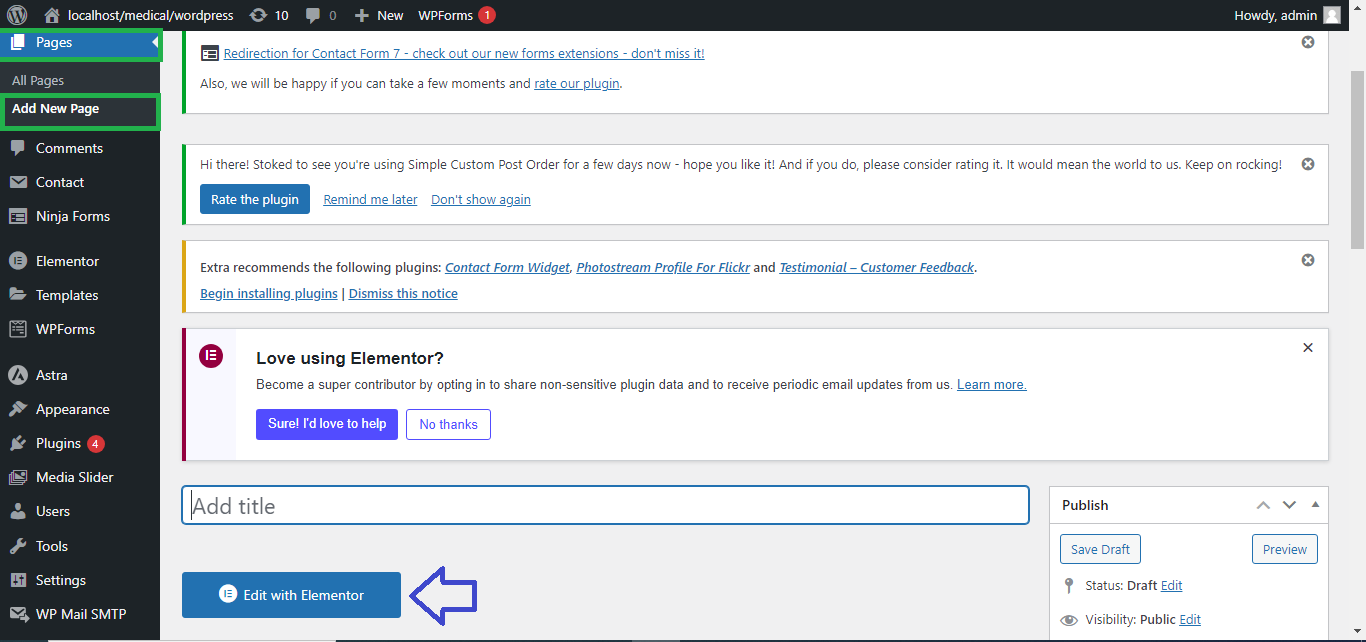
Step 4: Add the Shortcode Widget
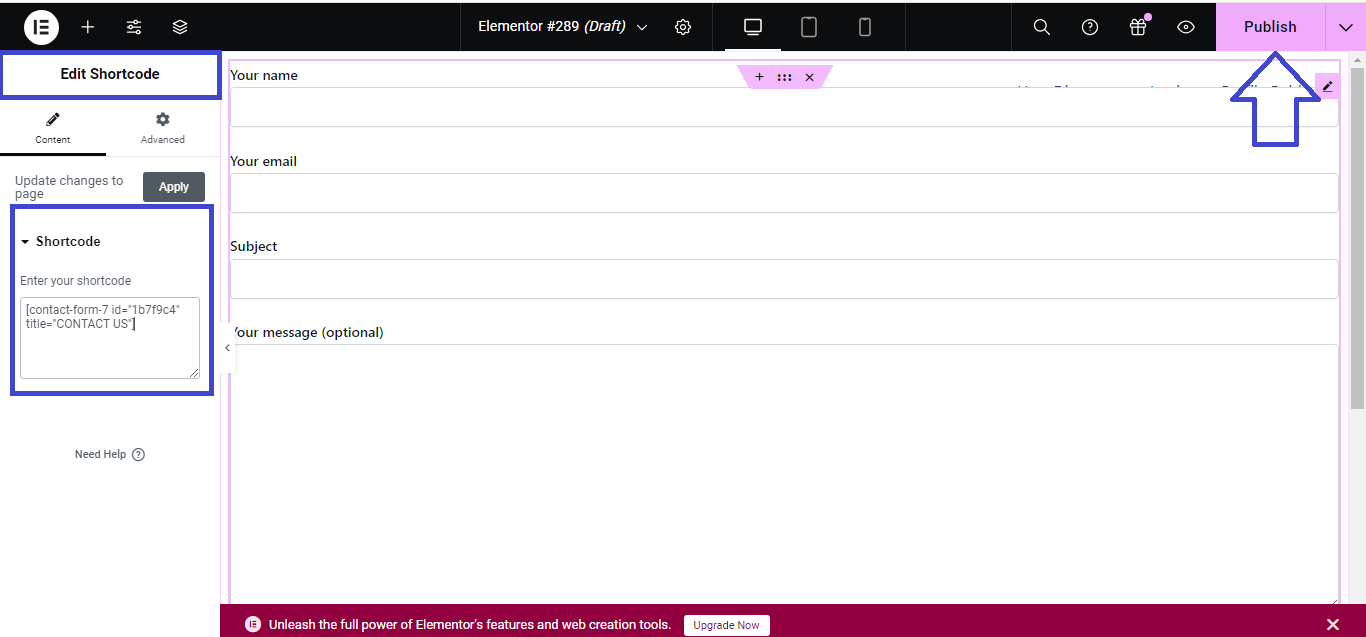
- In the Elementor editor, drag and drop the Shortcode widget to the section where you want the form to appear.
- Paste the Contact Form 7 shortcode you copied earlier into the Shortcode widget’s field.
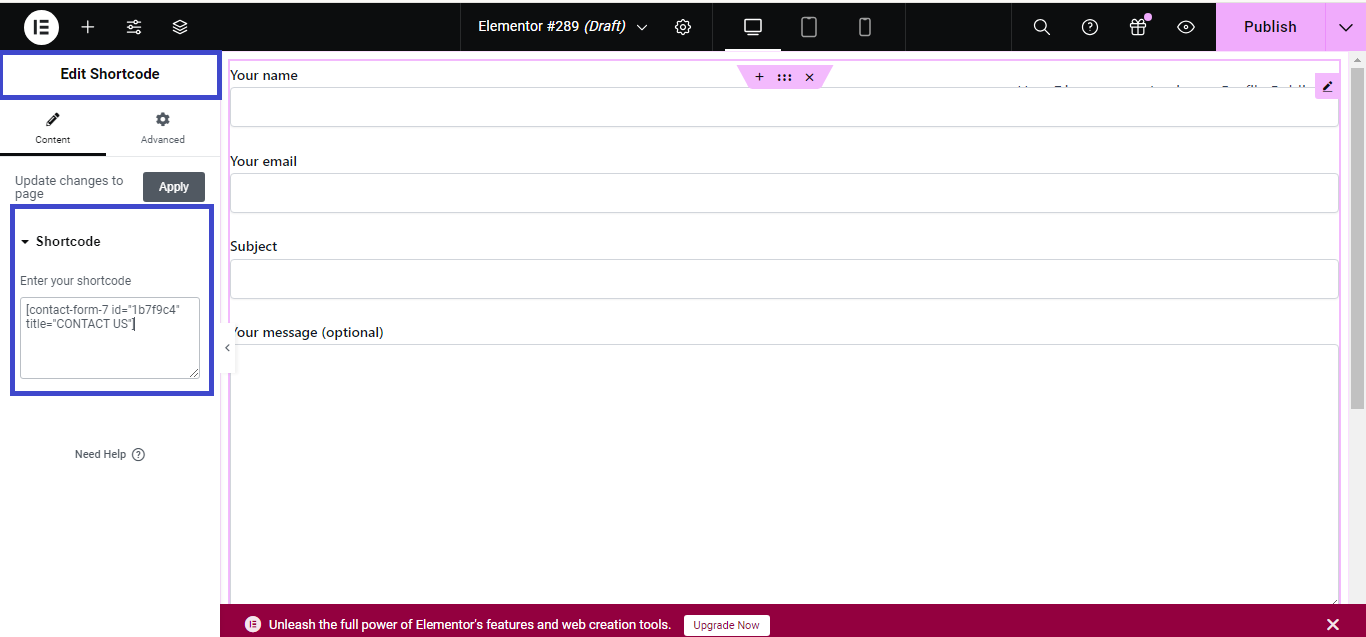
Step 5: Update or Publish the Page
- Click Update to save your changes if you’re editing an existing page, or Publish if you’re creating a new one.
Step 6: Test the Form
Visit the page to ensure that the form displays correctly and functions as expected.
That’s it! Your Contact Form 7 form is now displayed on your page using Elementor.



