Redirection of Contact form 7 to a Thank You Page

Here’s how to set up a redirection to a “Thank You” page after form submission in Contact Form 7:
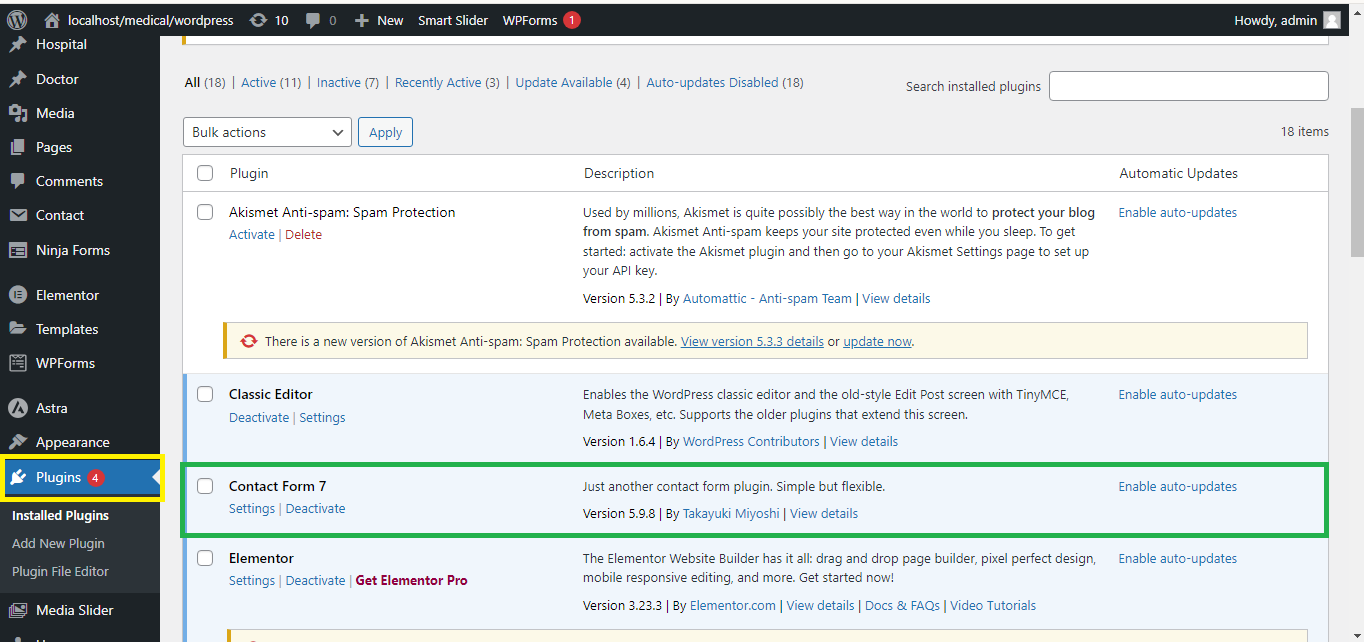
Step 1: Install and Activate Contact Form 7 Plugin
If you don’t have it installed yet, go to Plugins > Add New, search for Contact Form 7, and install and activate the plugin.
Step 2: Install the “Redirection for Contact Form 7” Plugin
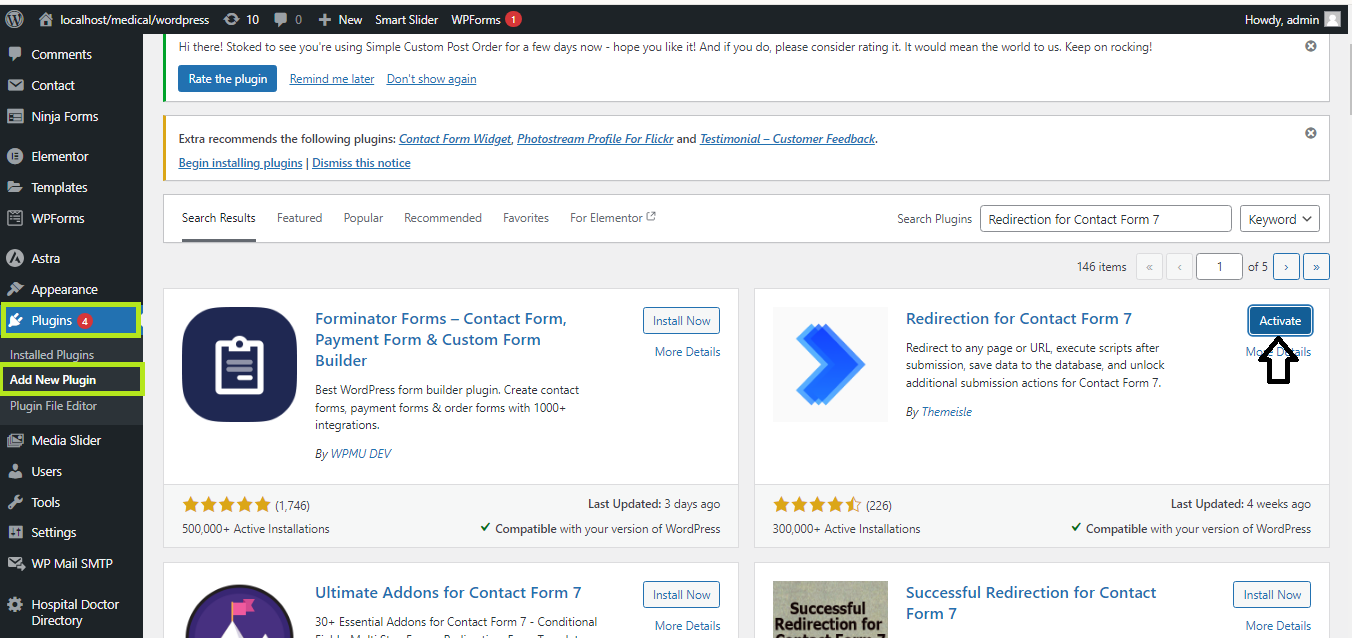
- Go to Plugins > Add New.
- Search for the “Redirection for Contact Form 7” plugin.
- Install and activate it.
Step 3: Edit the Contact Form
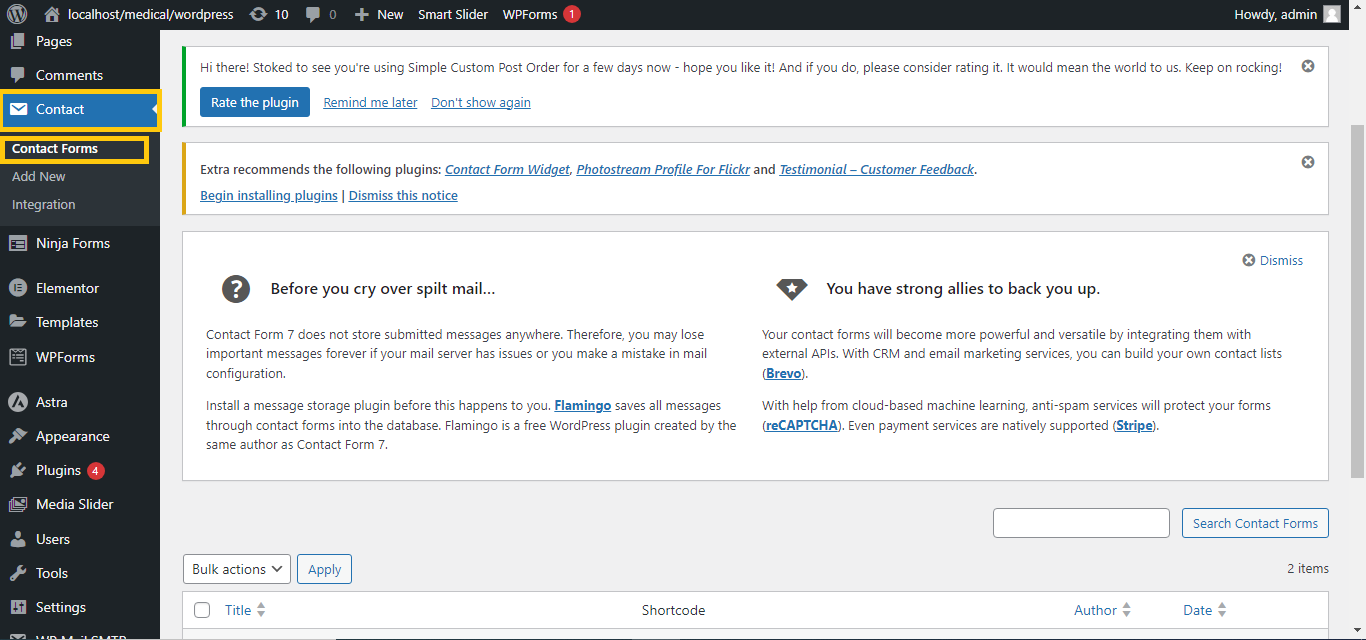
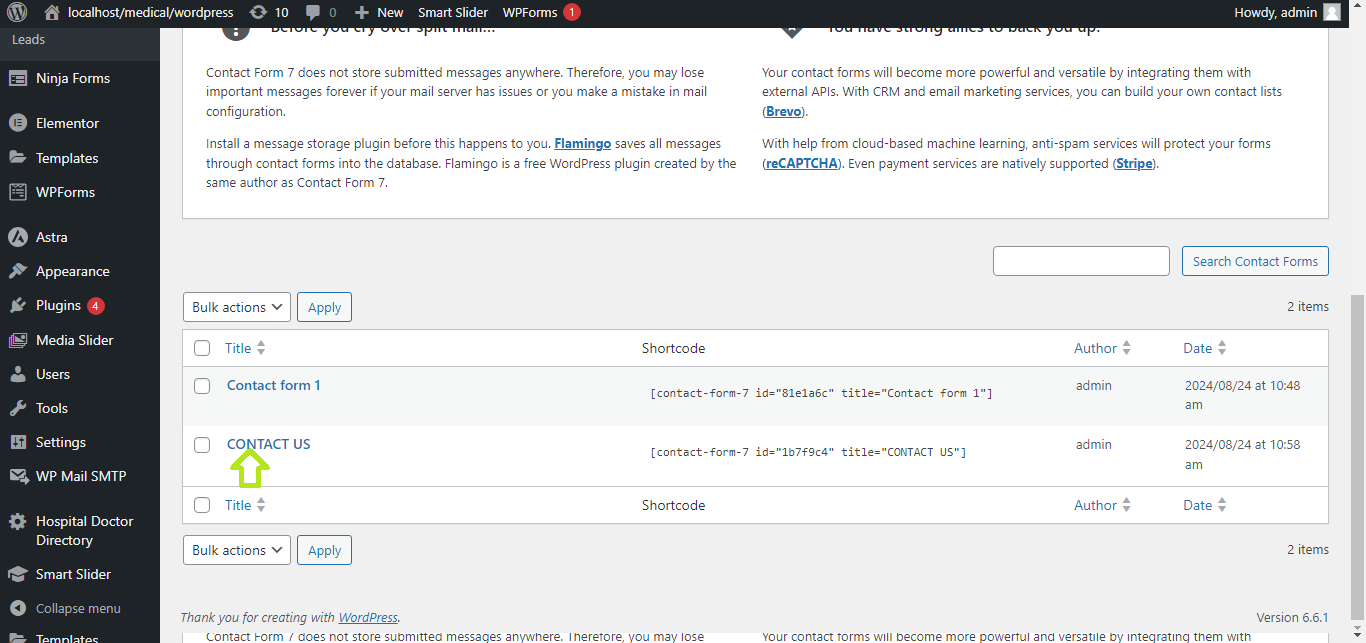
- Go to Contact > Contact Forms and select the form you want to edit.
- Click on the “Edit” button for the form you wish to modify.
Step 4: Set Up Redirection
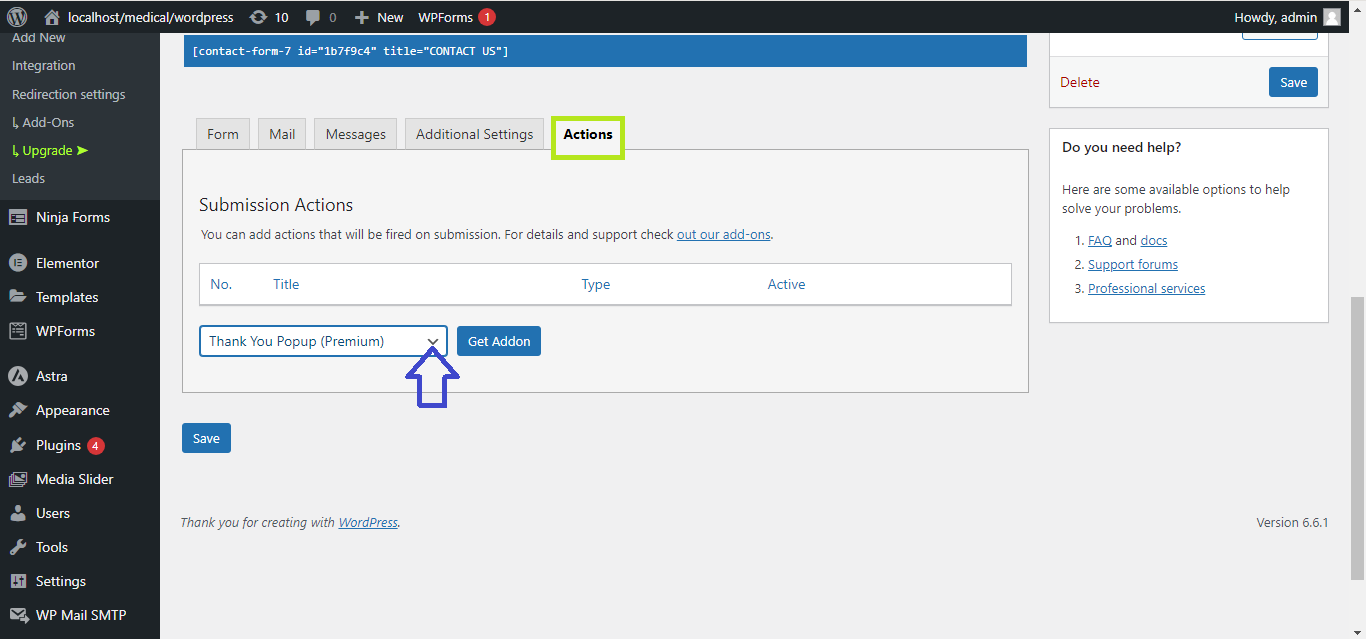
- Scroll down to the “Actions After Submission” section in the form editor (this section appears after installing the Redirection plugin).
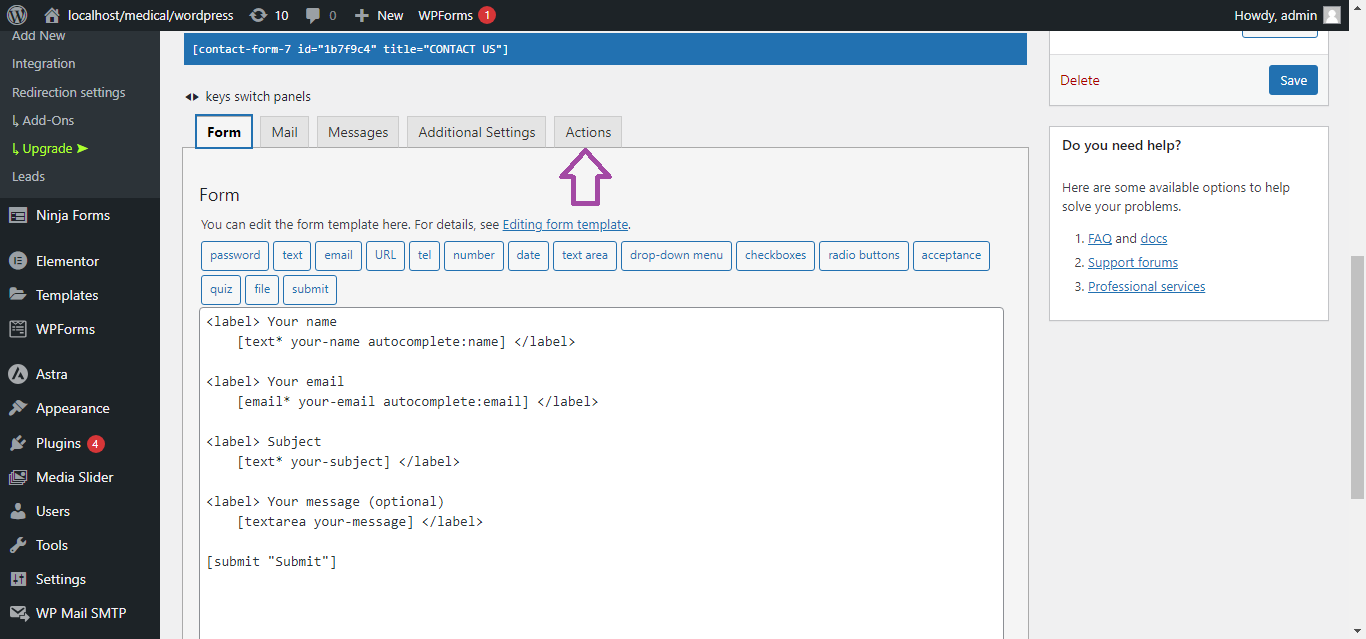
- Check the “Enable Redirection” box.
- In the URL field, enter the URL of the “Thank You” page (e.g.,
https://yourdomain.com/thank-you).
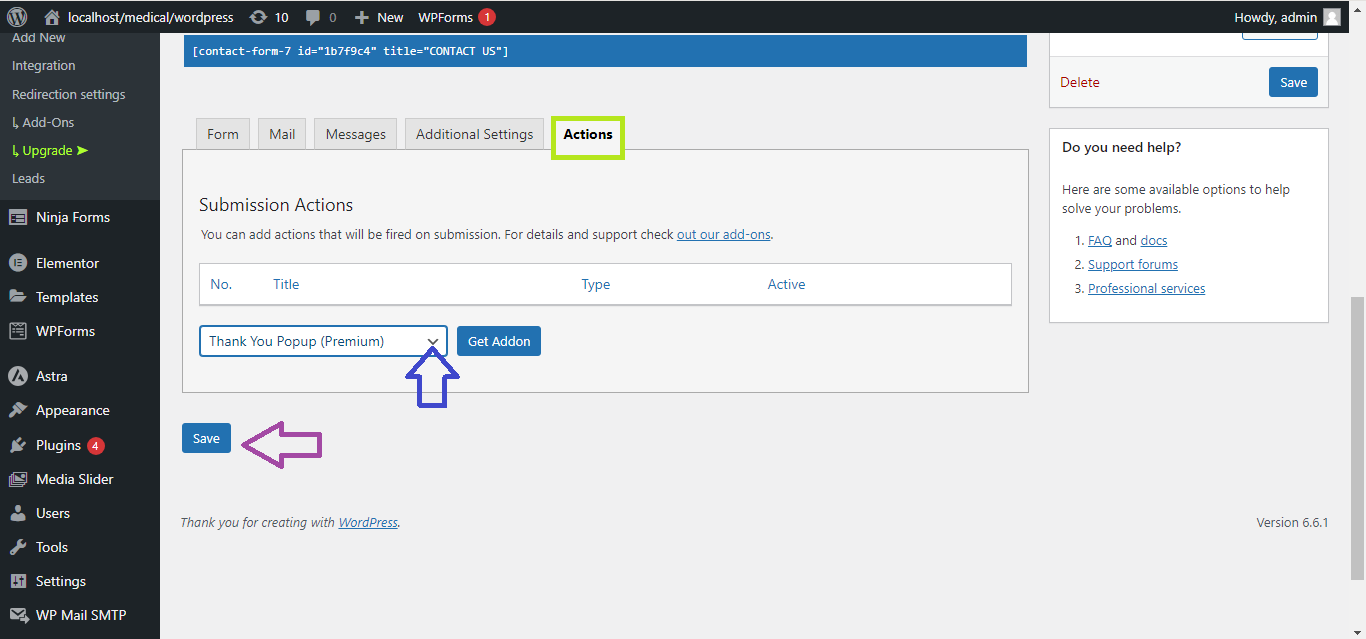
Step 5: Save the Form
Once the redirection settings are configured, click Save to apply the changes.
Step 6: Test the Redirection
Submit the form on your website to confirm that it redirects to the “Thank You” page.
That’s it! You’ve successfully set up a redirection to a “Thank You” page after submitting Contact Form 7.


