
Reset a WordPress Password using phpMyAdmin

Steps to Reset a WordPress Password Using phpMyAdmin:
- Log in to your hosting account:
- Go to your web hosting provider’s dashboard (e.g., cPanel) and log in.
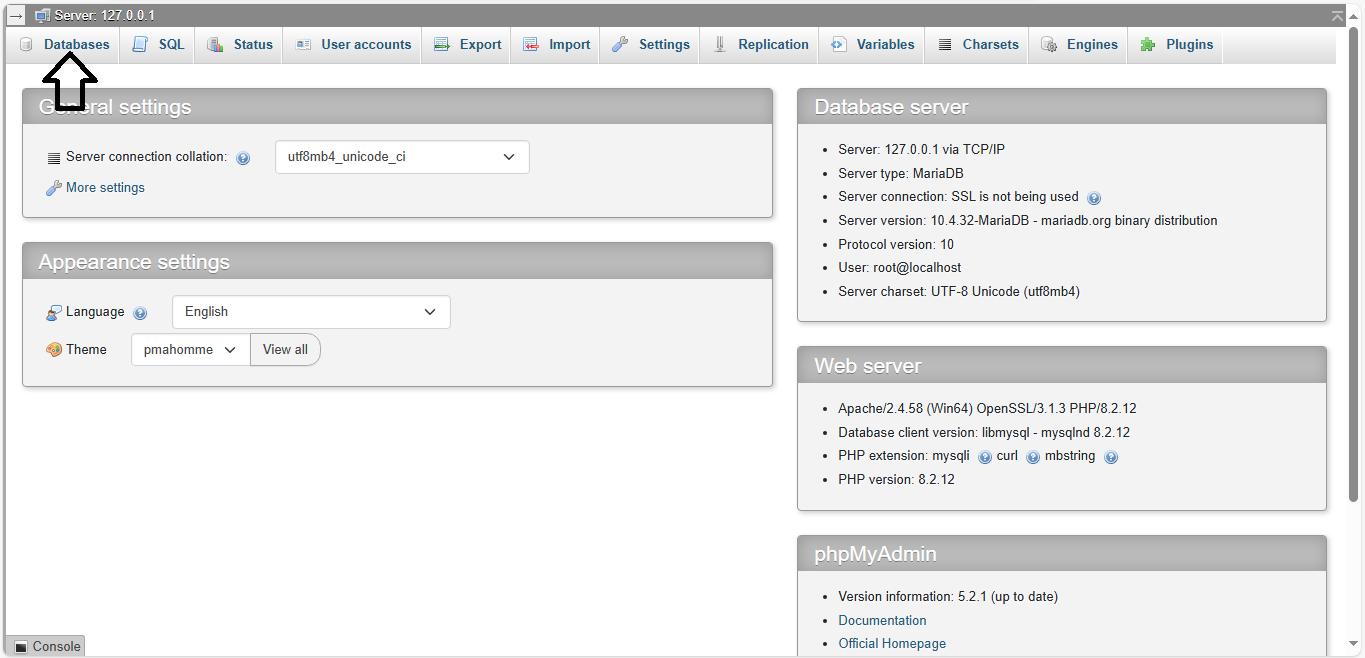
- Access phpMyAdmin:
- In the control panel, find and click phpMyAdmin (usually under the Databases section).
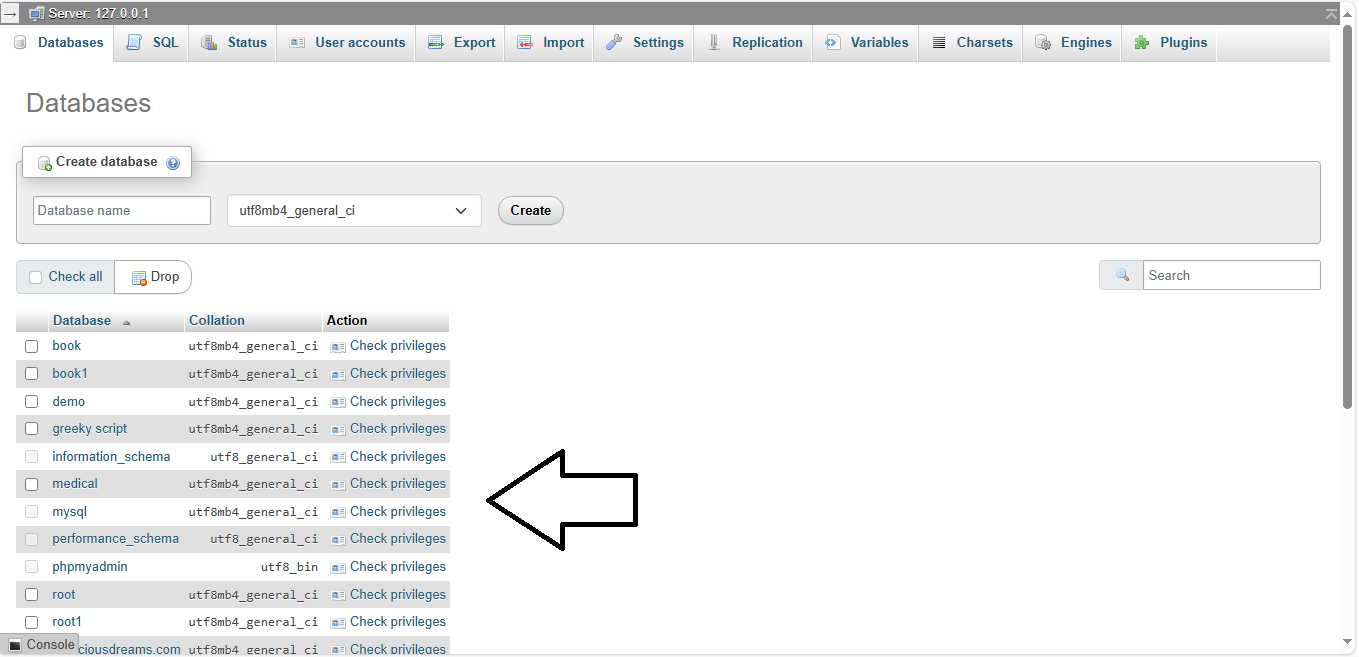
- Select Your WordPress Database:
- Once in phpMyAdmin, find your WordPress database from the list on the left-hand side. Click to open it.
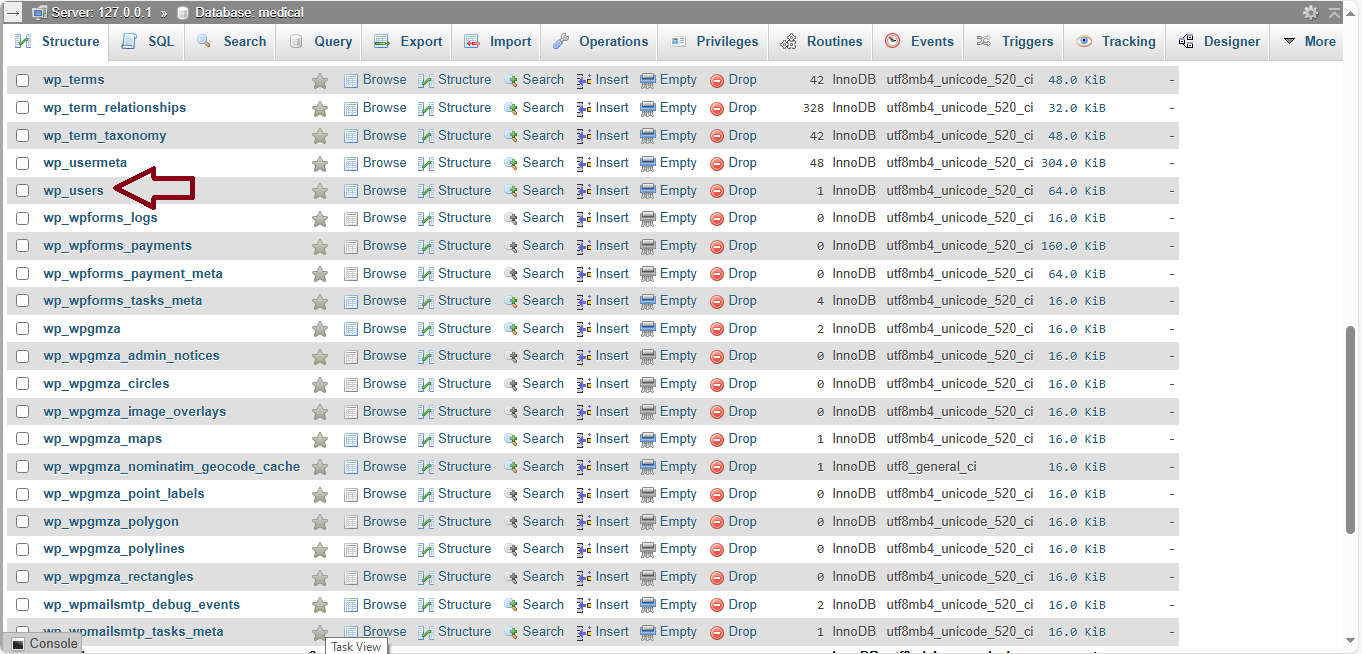
- Open the
wp_usersTable:- Scroll through the tables and find the one named
wp_users(the table prefix may differ, e.g.,xyz_users). - Click on the
wp_userstable to view the user data.
- Scroll through the tables and find the one named
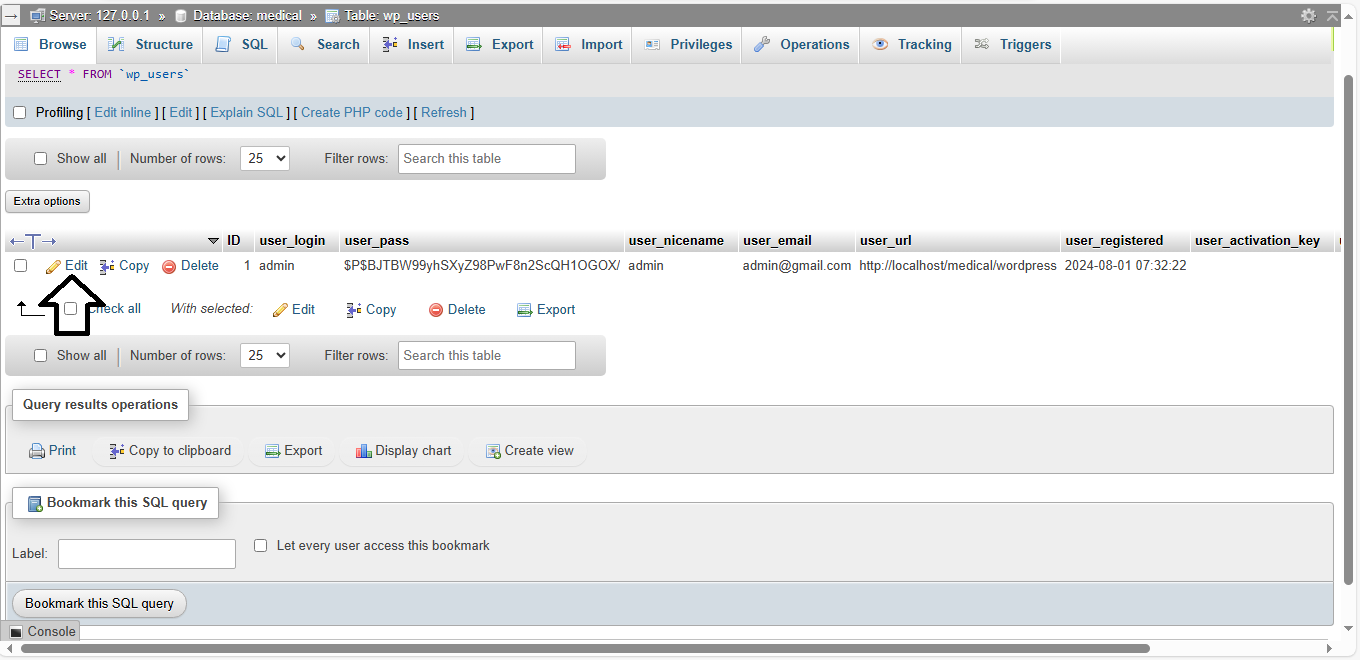
- Edit the User’s Password:
- In the table, locate the row for the user whose password you want to reset (usually the admin).
- Click the Edit link next to that user.
- Change the Password:
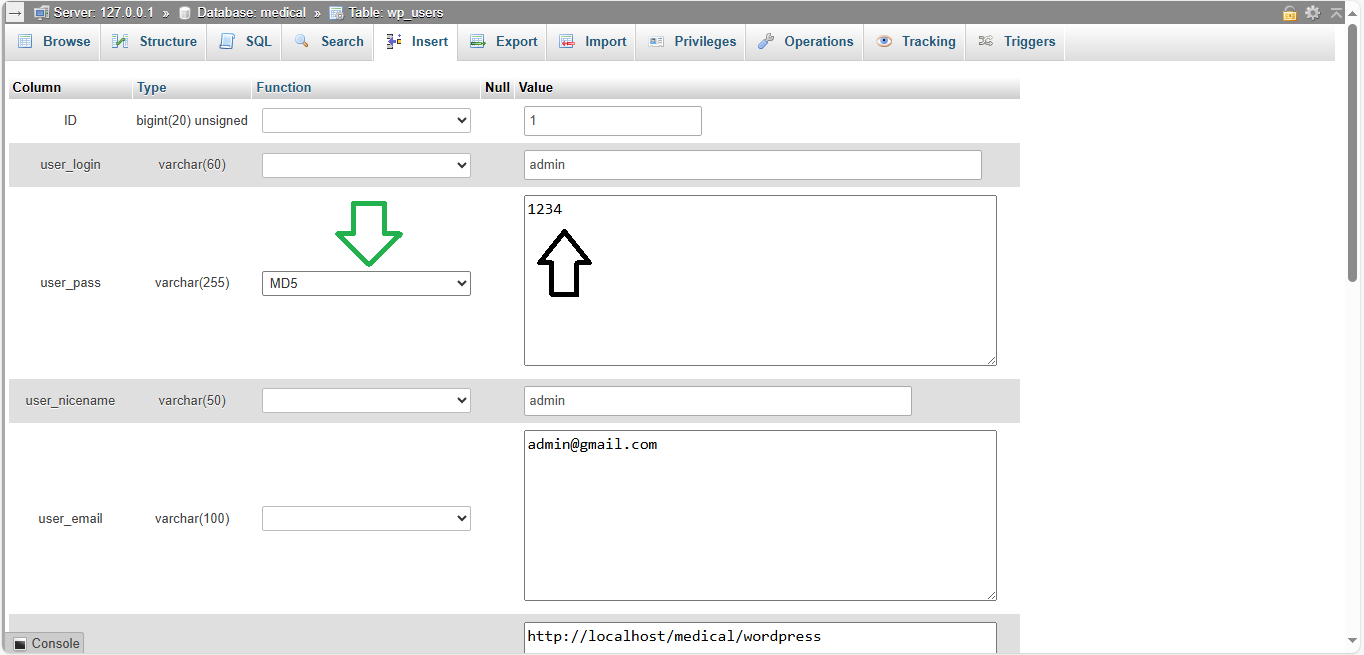
- In the user data form, find the
user_passfield. - In the Function column, select MD5 from the dropdown.
- In the Value column, delete the existing password and enter your new password.
- In the user data form, find the
- Save Changes:
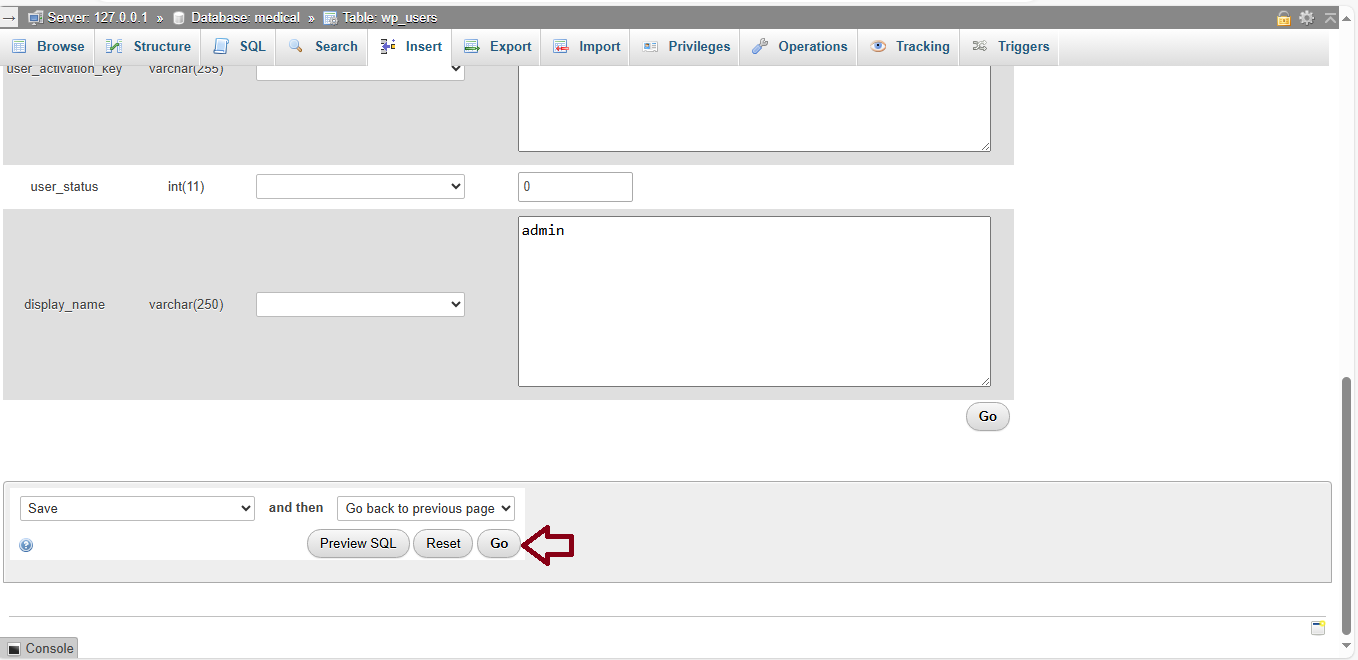
- Scroll down and click Go to save the changes.
- Log in with New Password:
- Go to your WordPress login page, enter your username, and use the new password to log in.

Important:
WordPress encrypts passwords using stronger methods, but MD5 is used here because phpMyAdmin provides it as an option to set the password. Once you log in, WordPress will automatically update the password to a more secure hash.
That’s it! You’ve successfully reset your WordPress password via phpMyAdmin.


