Yoast SEO

Step 1: Install the Yoast SEO Plugin
- Login to your WordPress dashboard.
- Go to Plugins > Add New.
- In the search bar, type Yoast SEO.
- Click Install Now next to the Yoast SEO plugin, then click Activate.

Step 2: Configure Yoast SEO Settings
- After activation, you’ll see a new SEO option in your WordPress dashboard.

3. Go to SEO > General.
4. In the First-time SEO configuration, follow the setup wizard to:
-
- Choose whether your site is live or still under development.
- Select the type of site (blog, online store, etc.).
- Configure whether your site represents a person or an organization.

Step 3: Optimize Posts and Pages with Yoast SEO
- Open a post or page you want to optimize (edit it).
- Scroll down to the Yoast SEO section below the content editor.
- Under Focus Keyphrase, enter the keyword you want the post/page to rank for.
- Follow the SEO analysis and Readability analysis suggestions:
- Green bullets indicate good optimization.
- Orange or red bullets show areas to improve (like adding more internal links, optimizing headings, etc.).

Step 4: Set Meta Titles and Descriptions
- In the Yoast SEO section, click on the SEO title and Meta description fields.
- Customize them with a clear and compelling title and description to improve search engine ranking and click-through rates.
- Use the snippet preview to see how it will look in search results.

Step 5: Set Permalinks and Breadcrumbs
- Go to SEO > Search Appearance.
- Configure your Title Separator, Homepage, and Post Types settings.
- If you want breadcrumbs on your site, enable them under the Breadcrumbs tab, then integrate them with your theme (this may require adding a small code snippet).

Step 6: Submit Your Sitemap to Google
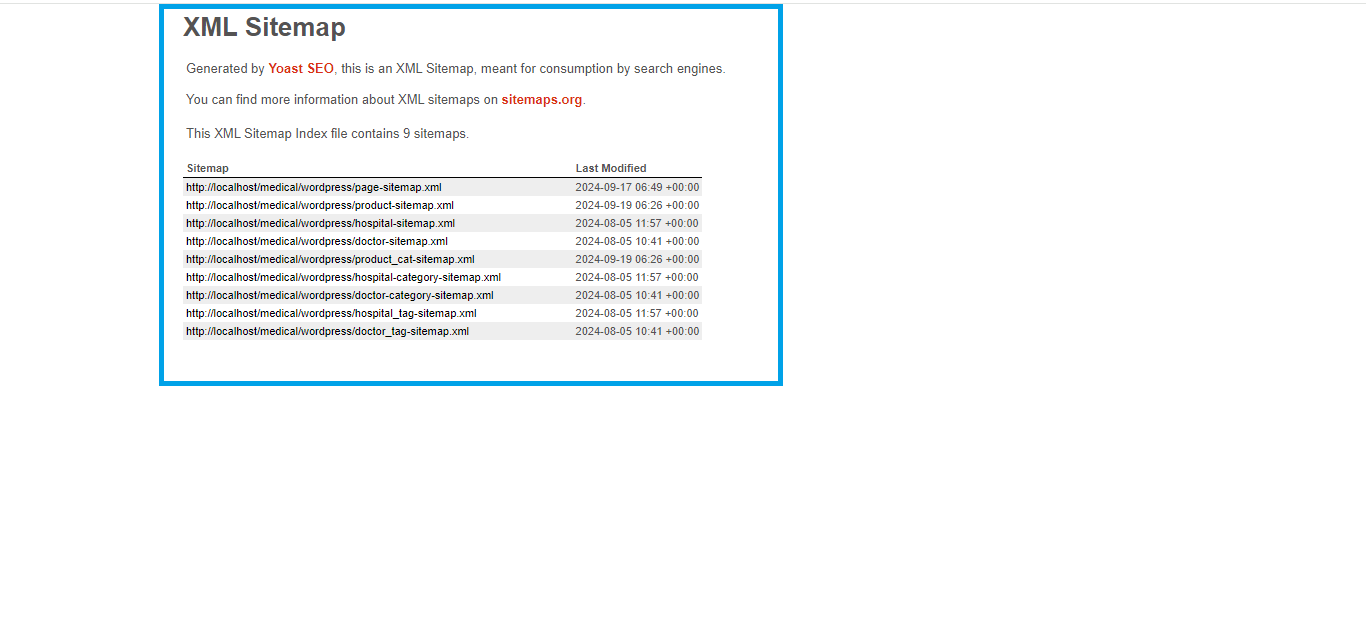
- Yoast SEO automatically generates an XML sitemap.
- Go to SEO > General and click on the Features tab.
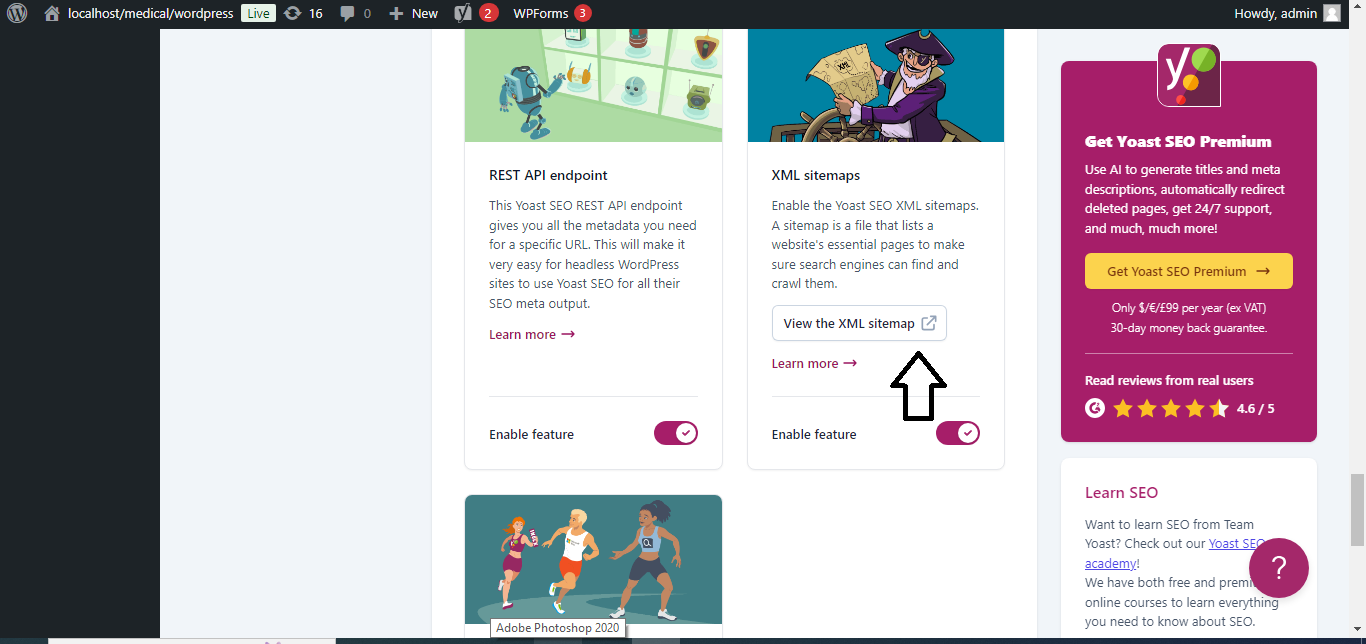
- Ensure that the XML sitemaps feature is enabled.
- Click the question mark icon next to XML sitemaps and click on See the XML sitemap link.
- Submit this URL to Google Search Console to help Google crawl and index your site faster.
Step 7: Monitor Your SEO Performance
- Use the SEO analysis provided by Yoast to continuously monitor and improve the SEO of your pages.
- Regularly check your Google Search Console and Analytics to track your SEO efforts.
That’s it! Yoast SEO is now set up, and you can start optimizing your WordPress site for search engines.


